Use the Calendar week and day views
The Calendar page shows your events from all your calendars as a week or a single day.
Before you start
At least one connected calendar.
Calendar appears in the sidebar only when the Calendar view is turned on for your account.
Read the grid
Select Calendar in the sidebar. The grid opens on the current week, scrolled to the morning.
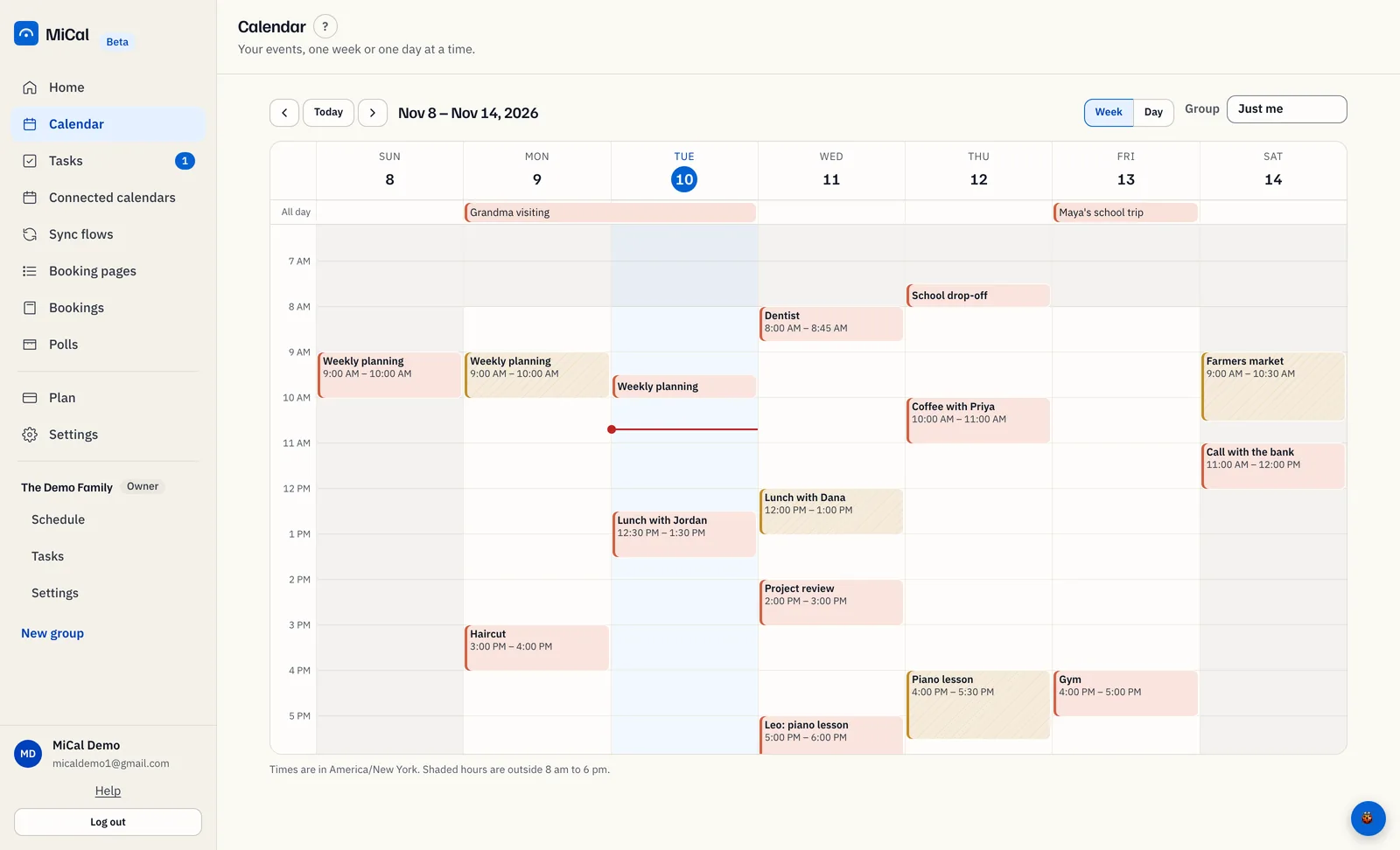
Hours outside 8 am to 6 pm are shaded. Weekends are shaded all day. Today's column is tinted, and a red line marks the current time.
Events without a time sit in the All day strip. A multi-day event stretches across every day it covers.
Events at the same time sit side by side. Each block uses its calendar's color.
An event that runs past midnight stops at the bottom of its column and continues at the top of the next day. A square cut edge shows it continues. The block's time shows the real finish.
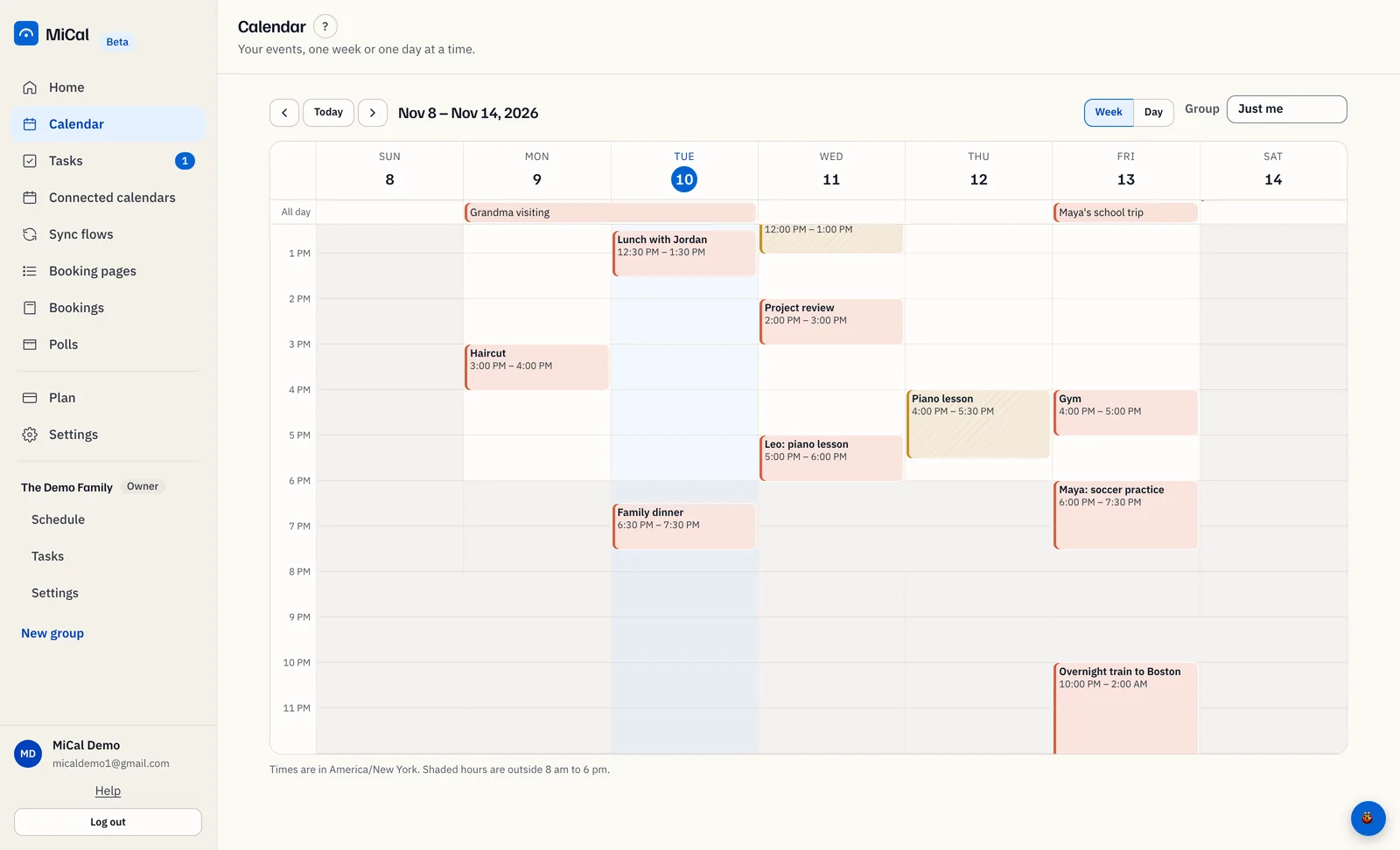
Select an event to open it. Your own events open with Edit and Delete. A synced copy or an event on a read-only link opens read-only.
Switch between Week and Day
Select Day above the grid to see one date. Select Week to return to seven days.
Select the arrows to move one week, or one day in Day. Select Today to jump back.
Select a date above a column to open that day.
On a phone, Calendar shows one day at a time with a seven-day strip along the top. There is no Week button.
Use the keyboard
Press
Tabuntil the grid has an outline.Press
Left arroworRight arrowto move one week in Week, or one day in Day.Press
Page UporPage Downto move one week in either view.Press
Tabto reach an event, thenEnterto open it.Escapecloses it.
Arrow keys don't move the week while an event has focus. Tab off the event first.
Notes
Times show in your browser's time zone, named under the grid.
Pick a group in Group to add the other members' calendars to the grid. Calendars you turned off on Connected calendars are left out.
Still stuck? Email support@mical.net. Privacy · Terms