Create a meeting poll
A meeting poll offers several times and lets people pick the ones that work. You can email the poll link to your invitees as you create it.
Before you start
Connect a calendar. MiCal hides times when you are already booked.
The Free plan includes 1 poll. See Check your plan and limits.
Steps
Select Polls in the sidebar, then New poll. On a phone, tap More, then Polls. It is listed under Best on a computer.
Type a Title. Add a Description if you like. Choose a Duration (15, 25, 30, 45, or 50 minutes, or 1 hour). Add a Location if you like.
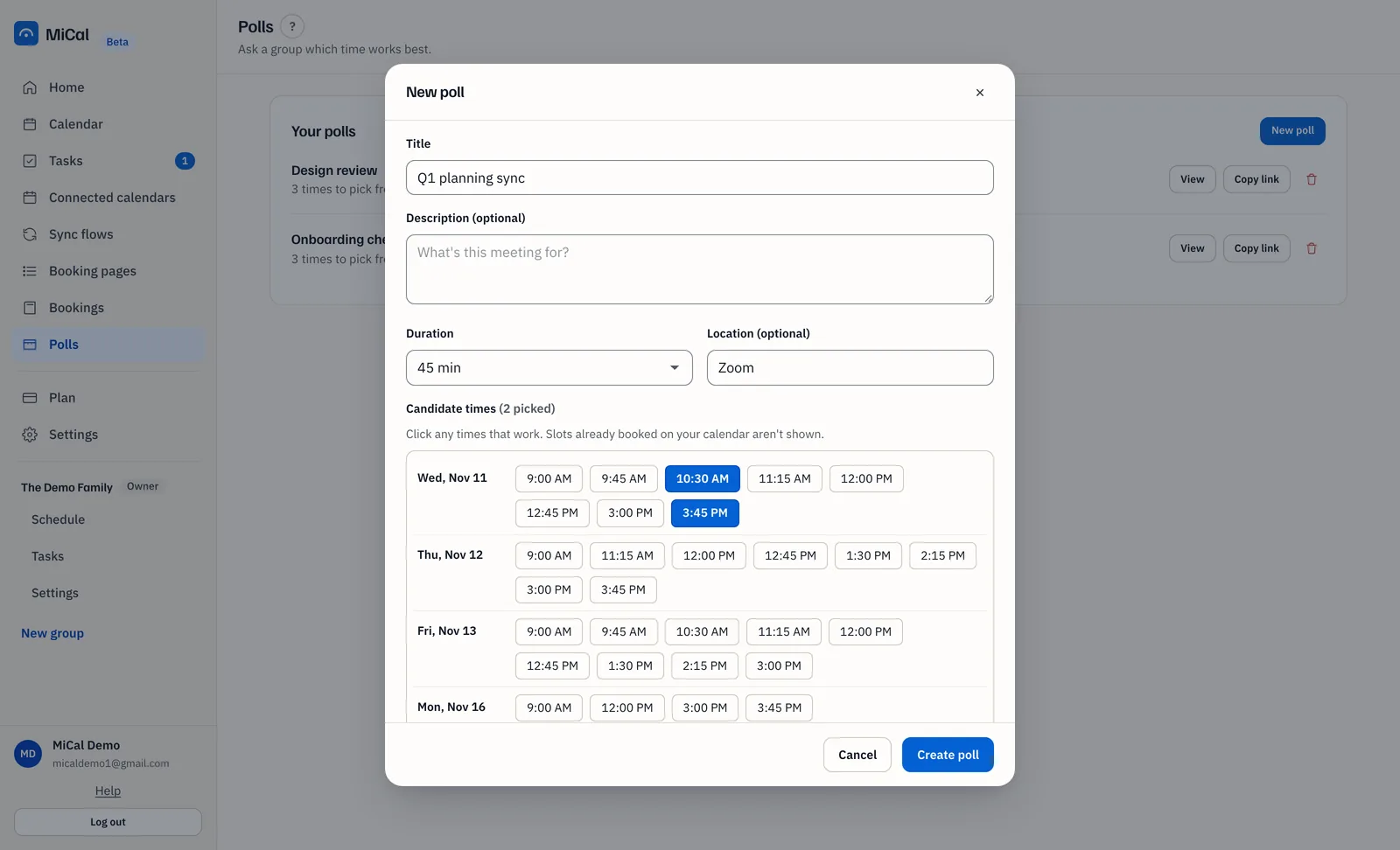
Under Candidate times, select each time that works. The label counts your picks, for example "(3 picked)". Pick at least 2 and no more than 30.
To email the poll, select Send invitations to and type a name or email address. Press Enter, Tab, comma, or space to add it. Choose a suggestion from the list if one appears. Repeat for each person.
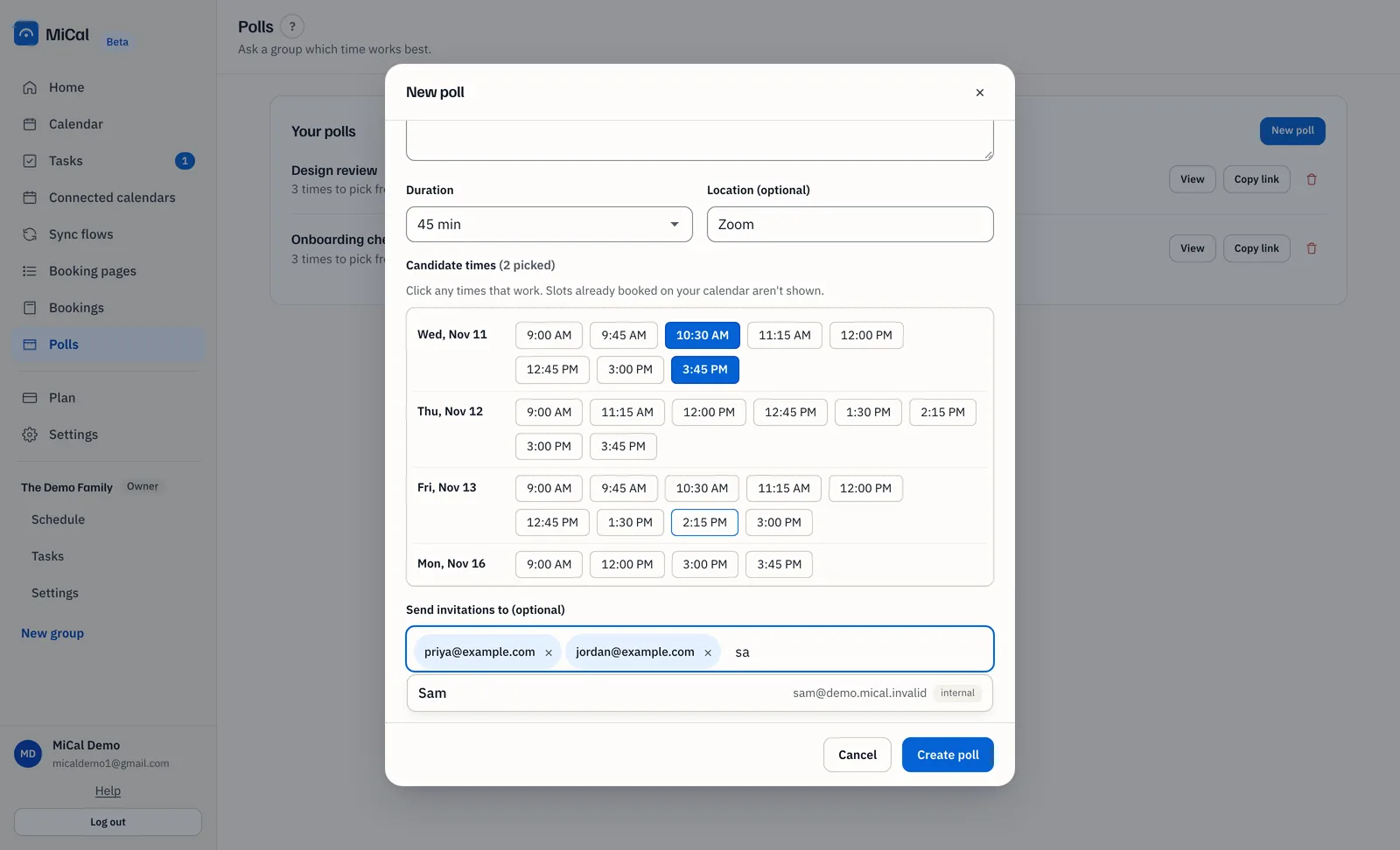
Select Create poll. The poll link is copied to your clipboard. Each address you added gets an email with the link.
Notes
The grid shows the next two weeks, weekdays only, from 9 AM to 5 PM. Times in the past and times that overlap your calendar are left out.
Changing the Duration clears the times you picked.
Suggestions come from your connected Google and Microsoft contacts and from people you have already dealt with in MiCal. You can still type any address.
Select the x on a person's chip to remove them before you create the poll.
You can add up to 50 invitations per poll.
Leave Send invitations to empty to share the link yourself. Copy link on the poll's row in the Polls list copies it again.
Still stuck? Email support@mical.net. Privacy · Terms