Create a sync flow
A sync flow copies events from one calendar to another. Set the rules once and MiCal keeps the copies current.
Before you start
Two calendars connected to MiCal, and MiCal must be able to add events to the one you copy to. A read-only link can be the source, never the target.
Plan room. The Free plan runs 1 sync flow.
On a computer
Select Sync flows in the sidebar. The New sync flow form is under Your sync flows.
In Copy from, pick the calendar the events come from. In Copy to, pick the calendar they land in. They must be different.
Under Direction, keep One way (first to second), or choose Two ways (both stay current). Two ways copies each calendar's own events to the other. Copies are tagged, so nothing duplicates or loops.
Set the rules.
When should it copy?: Weekdays only and Only during work hours.
What should be copied?: What copies can see, The description and Mark copies as private.
How copies look: a Copy color and Add before each title (optional). New flows start blue with the prefix "MiCal: ". Copies without a color or prefix look like your own events.
Advanced timing: work hours and buffers.
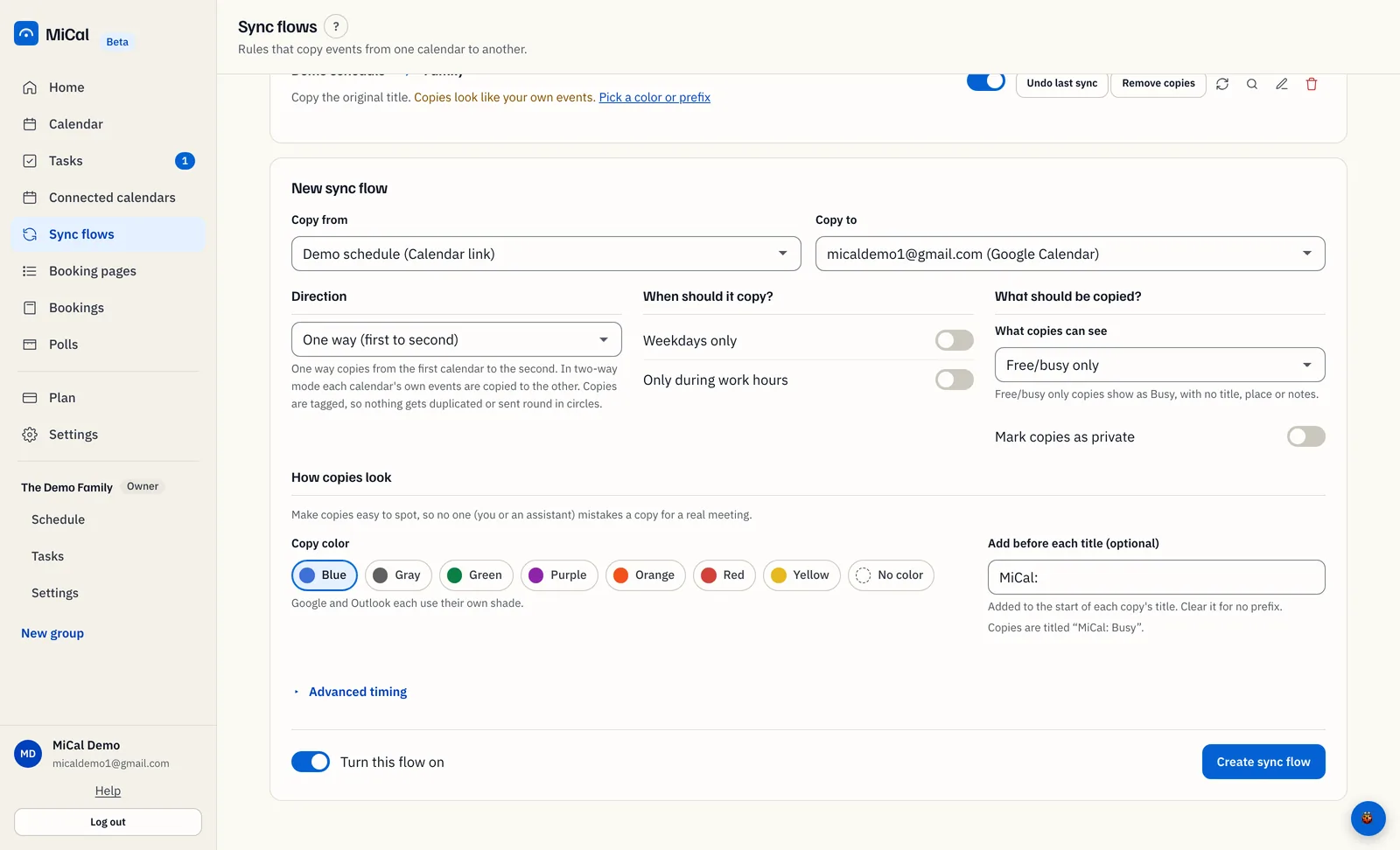
Leave Turn this flow on on to start copying. Select Create sync flow.
The flow appears under Your sync flows with a toggle, Undo last sync and Remove copies, and icons for Sync now, Preview changes (writes nothing), Edit and Delete this sync flow.
On a phone
Tap More, then Set up calendars. With no calendars yet, tap Connect a calendar on Today.
Under Your calendars, tap Connect Google or Connect Outlook, sign in and allow access. Tap Add a read-only calendar link to add a link. Tap Continue.
On What should MiCal do?, pick one.
Show Work as busy on Personal: titles stay private. If the direction is wrong, tap Swap.
Copy both ways as busy: each calendar blocks the other.
Just show them together: no copying.
Tap Continue. The last step says what was set up. Tap Open Today.
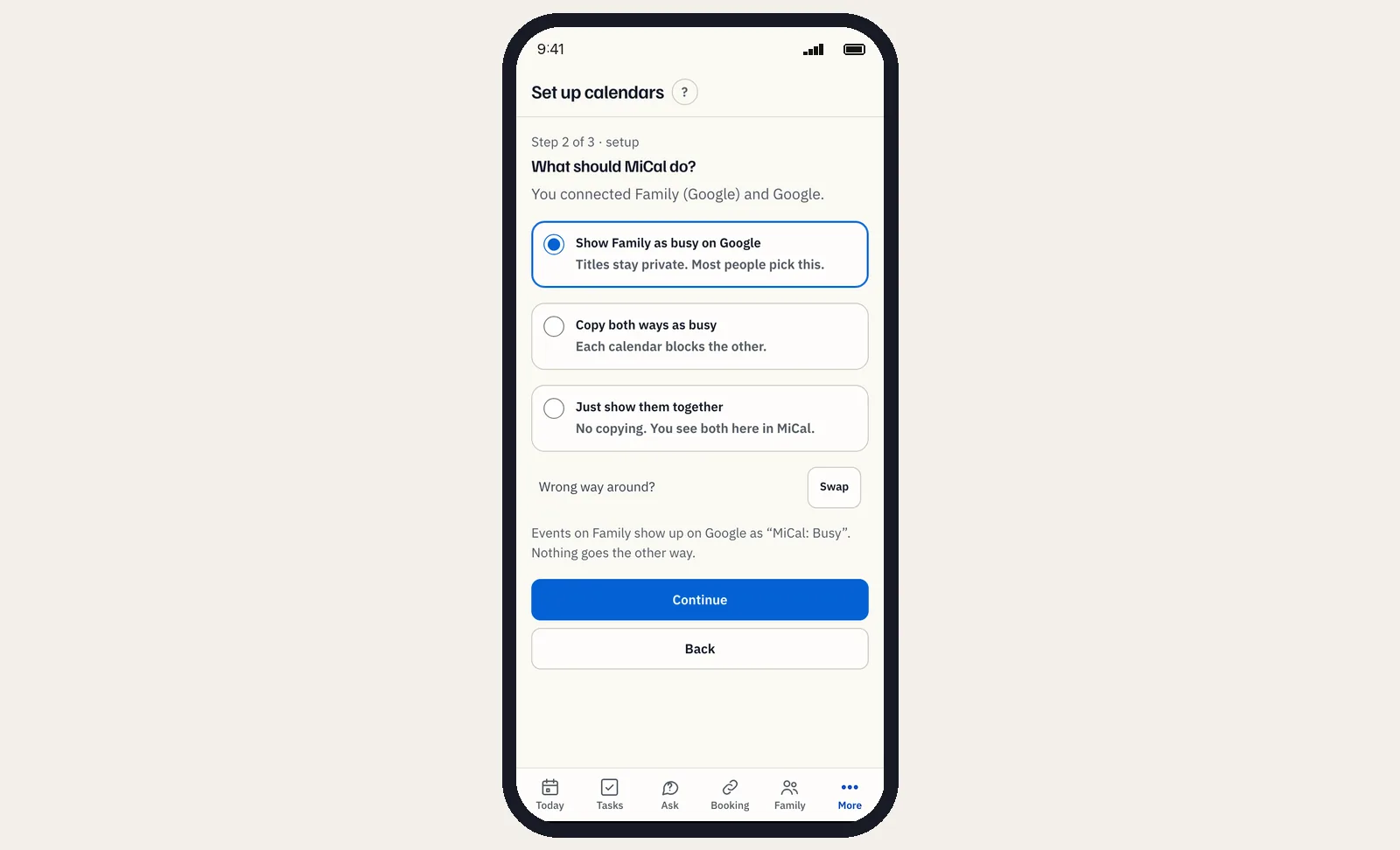
Phone setup makes a busy-only flow. To change it later, open Sync flows from More on your phone, or on a computer.
Notes
Sync runs about every 10 minutes. Select the Sync now icon to run a flow right away.
Pause a flow with its toggle. The flow and its copies stay.
The calendars can't be changed on an existing flow. Delete it and make a new one.
Still stuck? Email support@mical.net. Privacy · Terms