Manage or disconnect assistants
See which AI assistants can use your MiCal account, cut off access at any time, or reconnect Claude with different permissions.
Before you start
You are signed in to MiCal.
An assistant is connected to your account.
Steps
Select Settings in the sidebar. Under Connected assistants, each assistant shows when it connected and when it was last used, or "not used yet".
Select Disconnect next to the assistant. Its access stops right away.
The assistant leaves the list and MiCal shows Assistant disconnected. If none are left, the list reads "No assistants are connected."
What an assistant can do
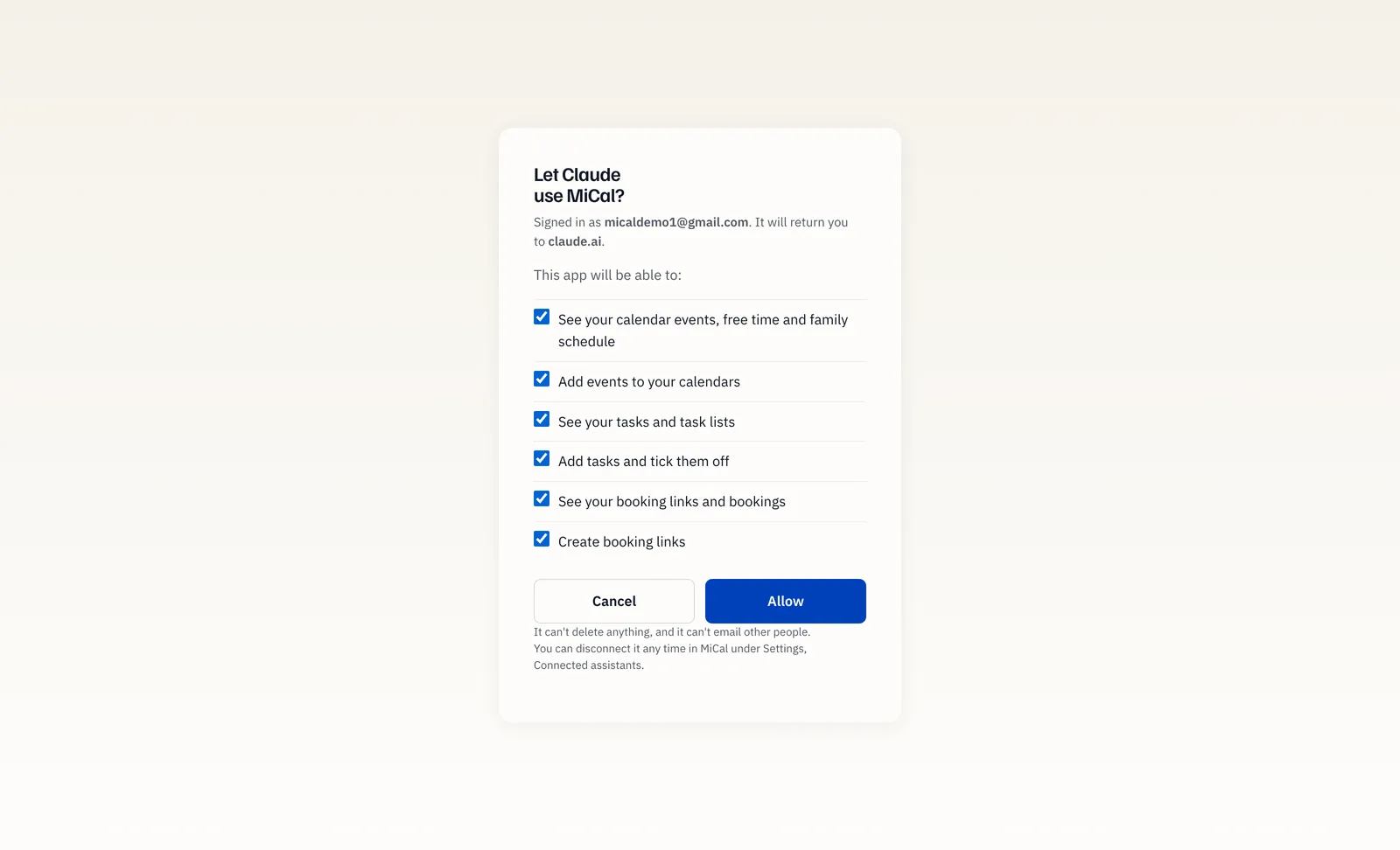
Only what you ticked when you allowed it. At most:
Read your calendar events and find your free time.
Add one event at a time to a calendar.
See your tasks, add tasks and tick them off.
See your booking links and bookings, and create booking links.
It cannot delete anything or email anyone.
Change what Claude can do
Permissions are set when you allow Claude. To add or remove one, disconnect Claude and connect it again.
Under Connected assistants, select Disconnect next to Claude.
Select Connect your AI assistant, then Add MiCal to Claude. Claude opens a connector confirmation in a new tab.
Confirm in Claude. Sign in to MiCal if asked.
On Let Claude use MiCal?, keep Add events to your calendars, Add tasks and tick them off and Create booking links ticked if you want Claude to make changes. Untick anything you don't want. Select Allow.
Notes
On Claude Team and Enterprise plans, an Owner adds the connector first.
On a phone, add MiCal on claude.ai or in the desktop app first. It then appears in the Claude mobile app.
Still stuck? Email support@mical.net. Privacy · Terms