Get around MiCal on your phone
On a phone, MiCal swaps the sidebar for a tab bar at the bottom. Today shows the next four days. More holds the rest.
Steps
Tap a tab in the bar: Today, Tasks, Ask, Booking, Family, or More. The current tab is highlighted. Tasks shows only when Tasks is on for you. The bar hides while you type.
Open Today. If you are in more than one group, pick one in the Group list. The name under Today follows it. Each day is its own list, starting with Today · Friday (or the current weekday). All-day items come first, then timed rows. Busy rows are people who share only free/busy time. Nothing planned marks an empty day.
To finish a task, tap the box beside it. Tap the task's title to open Tasks.
To ask your group about a free time, tap an Everyone free band. MiCal opens Ask with the day and time filled in. Tap Check.
Tap More. The sheet slides up. Under Your group (or Your groups if you have more than one), tap a group to show it on Today. Tap New group to make one. Tap Set up calendars to connect a calendar and choose what MiCal does with it. Under Best on a computer, tap Calendar week view, Manage calendars, Sync flows, Bookings, or Polls.
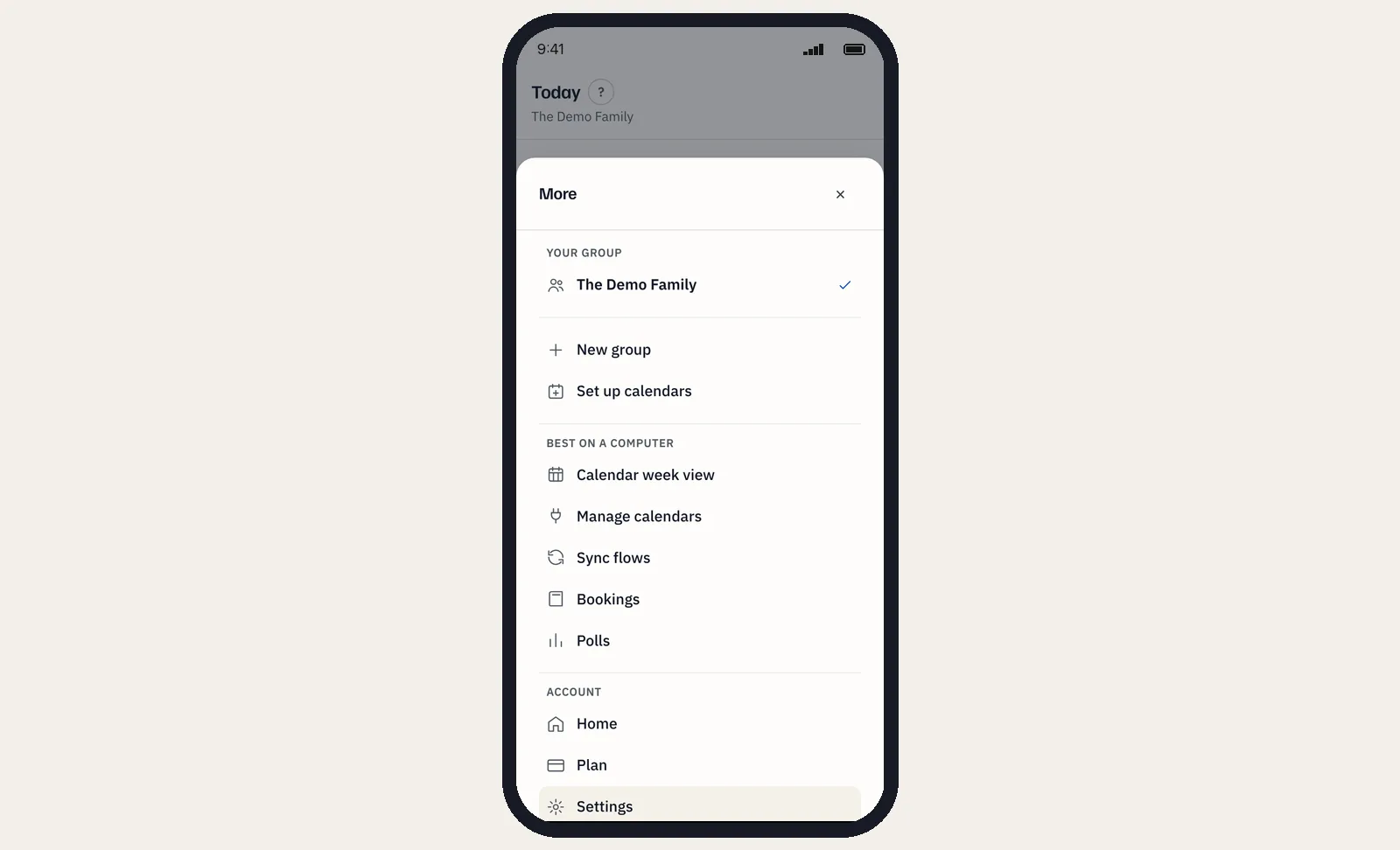
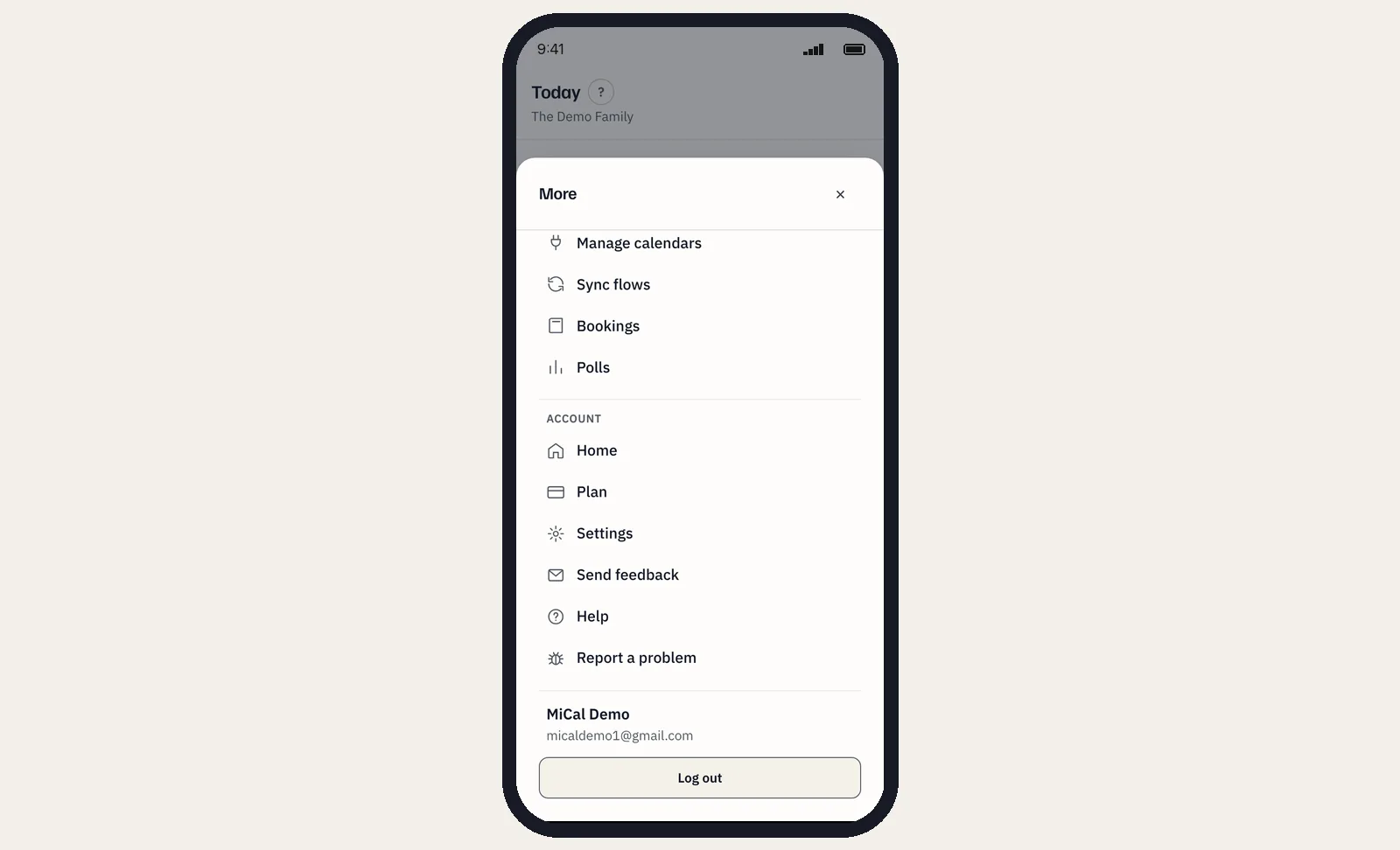
Further down, under Account, tap Home, Plan, Settings, Send feedback, Help, or Report a problem. Install MiCal appears there when your phone can install it. Log out is at the bottom.
Notes
An Everyone free band needs a full hour that is free for everyone. The week view shows gaps as short as half an hour. When someone's calendar can't be seen, the band reads Everyone who shares is free.
A Busy row with no title means that person shares free/busy time only.
If you have no calendar connected, Today offers Connect a calendar.
On a computer, the sidebar has the same pages.
Still stuck? Email support@mical.net. Privacy · Terms