Reconnect a calendar account
When Google, Microsoft or iCloud stops accepting MiCal's access, MiCal pauses syncing and bookings on that account's calendars. Reconnect it to start them again.
Before you start
The password for the account that lost access.
Use Reconnect, not Disconnect. Disconnect removes the account's calendars and sync flows from MiCal.
Google or Microsoft
Select Reconnect in the email from MiCal. The subject reads "Reconnect alex@example.com to keep MiCal working." MiCal sends it once, when access is first lost.
No email? Select Connected calendars in the sidebar. The account shows Reconnect and a note: "MiCal lost access to this account, so syncing and bookings on these calendars are paused."
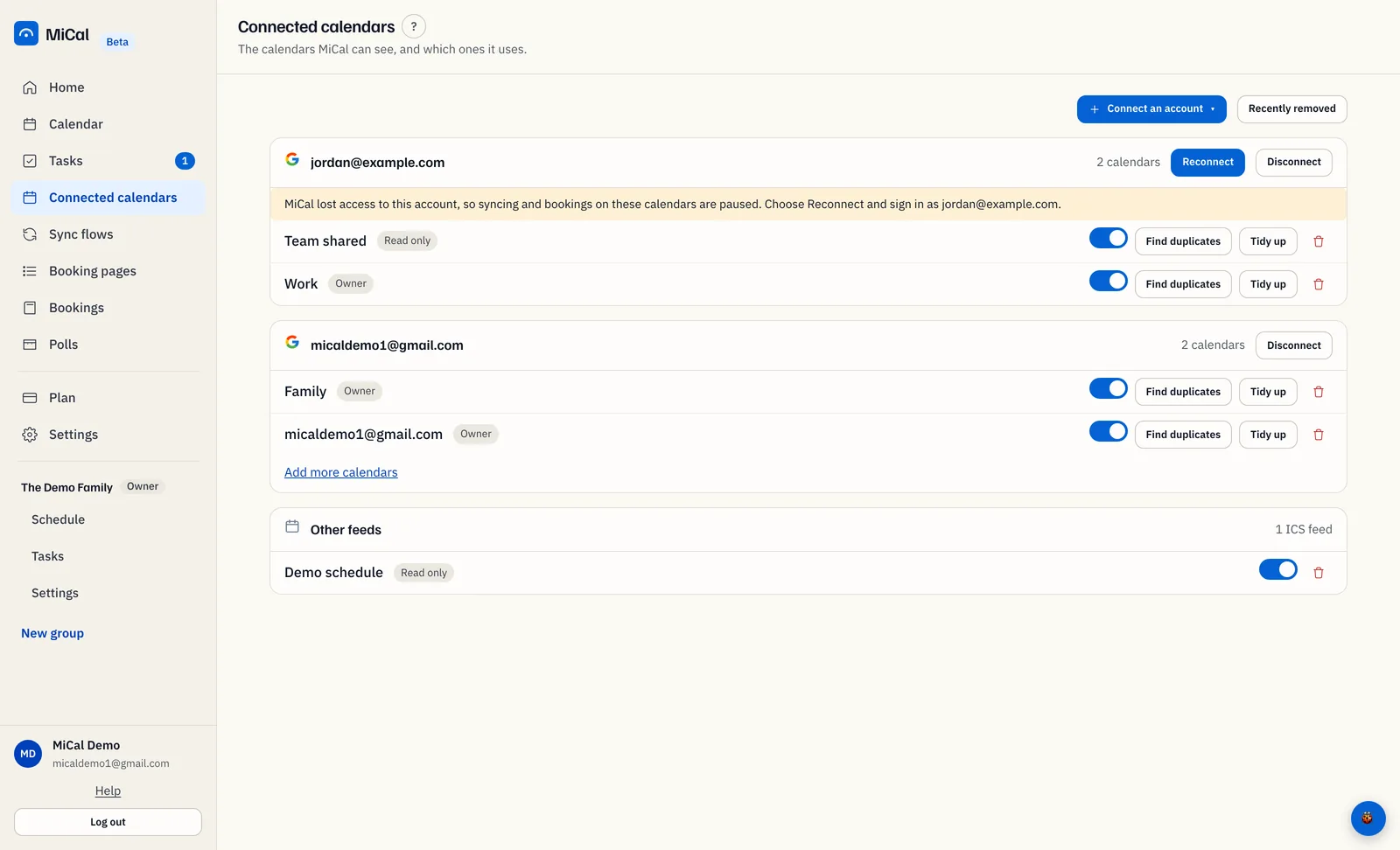
Select Reconnect on that account.
Sign in as the account named in the note, not another account you own, and allow access to your calendars.
MiCal returns to Connected calendars. The note is gone, and syncing and booking pages work again.
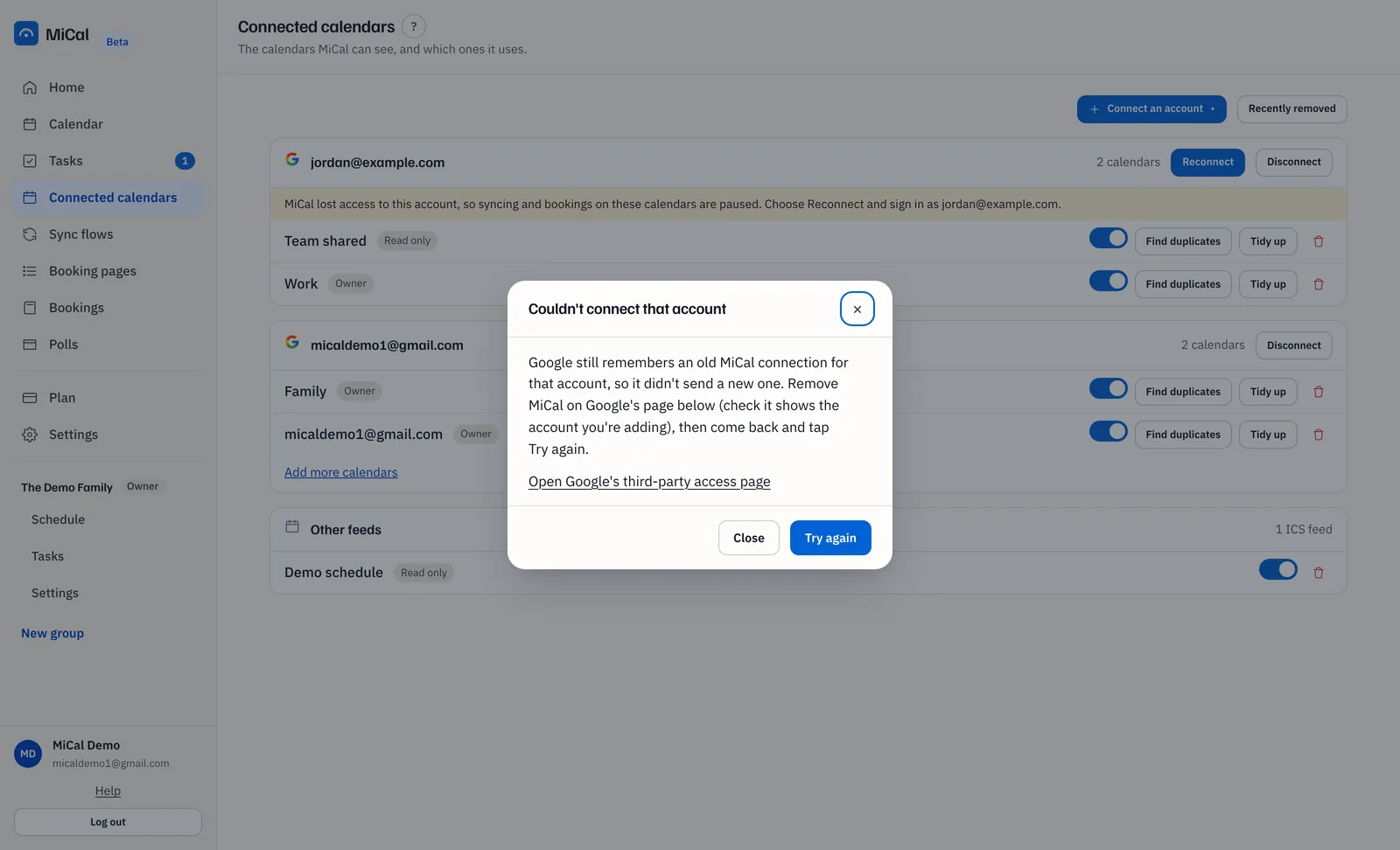
If MiCal says "Couldn't connect that account"
The provider is holding an old MiCal connection and won't send a new one.
Select the link in the message. For Google, Open Google's third-party access page. For Microsoft, Personal Microsoft account: app permissions or Work or school account: My Apps.
Check the page shows the account you are reconnecting, then remove MiCal's access there.
Come back to MiCal and select Try again. Sign in as the same account and allow access.
iCloud
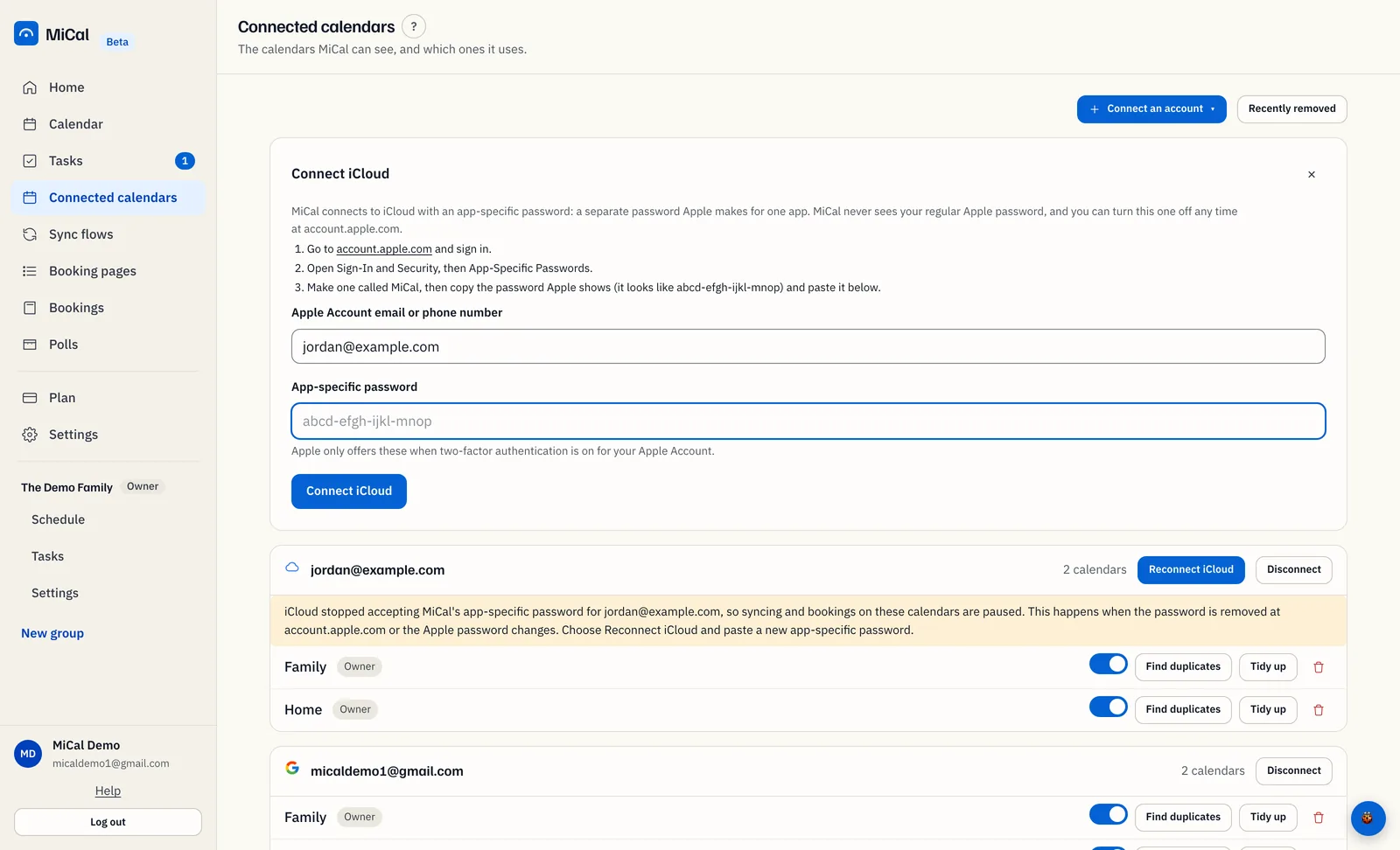
iCloud pauses when Apple stops accepting MiCal's app-specific password. That happens when the password is removed at account.apple.com or the Apple password changes.
Select Connected calendars in the sidebar. The iCloud account shows Reconnect iCloud.
Select Reconnect iCloud. The Connect iCloud form opens with your Apple Account filled in. The link in the email opens the same form.
Go to account.apple.com, sign in, open Sign-In and Security, then App-Specific Passwords. Make a password called MiCal.
Paste it into App-specific password and select Connect iCloud. MiCal checks it with Apple, then syncing resumes on the next run.
Notes
Sync runs about every 10 minutes, so calendars catch up soon after you reconnect.
If you removed MiCal's access on purpose, ignore the email. To remove the account from MiCal too, select Disconnect.
After a Disconnect, connect the account again with Connect an account on Connected calendars.
Still stuck? Email support@mical.net. Privacy · Terms