Turn off or remove a calendar
Turn a calendar off to hide it in MiCal and keep its setup. Remove it to take it out of MiCal. Neither deletes anything in Google, Outlook or iCloud.
Turn a calendar off or on
Select Connected calendars in the sidebar.
Select the toggle on the calendar's row. Select it again to turn the calendar back on.
When a calendar is off, its events are left out of your Calendar page, Coming up on Home, and the "you're free" checks on polls. Its sync flows, booking pages and group sharing keep working. To stop those, turn off the sync flow, or remove the calendar.
Remove a calendar
Select Connected calendars in the sidebar.
Find the calendar's row. Accounts' calendars sit under the account. Read-only links sit under Other feeds.
Select the trash icon, Remove this calendar.
Select Remove in the dialog: "Any sync flow that uses it will stop working."
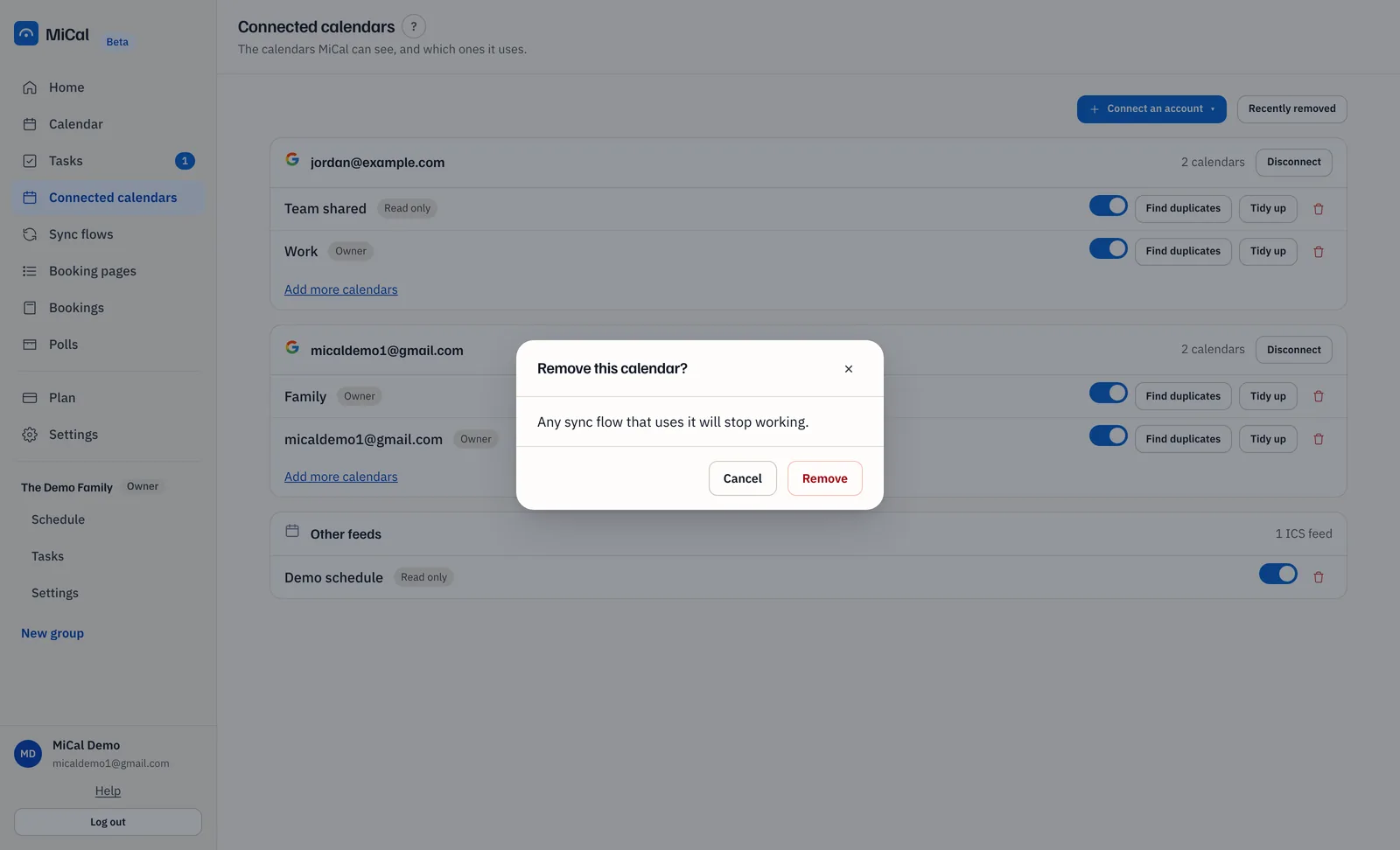
What removing does
The calendar leaves MiCal only. It stays in Google, Outlook or iCloud.
Sync flows that read from or write to it are deleted. The copies they already made stay where they are.
If a group copied its events into it, that group stops doing so.
A booking page that has been deleted, and its past and canceled bookings, go with the calendar.
If MiCal won't remove it
If a booking page adds events to the calendar, MiCal names the page and refuses. Open Booking pages, select the pencil icon, Edit, choose another calendar in Calendar, then select Save changes. Then remove the calendar.
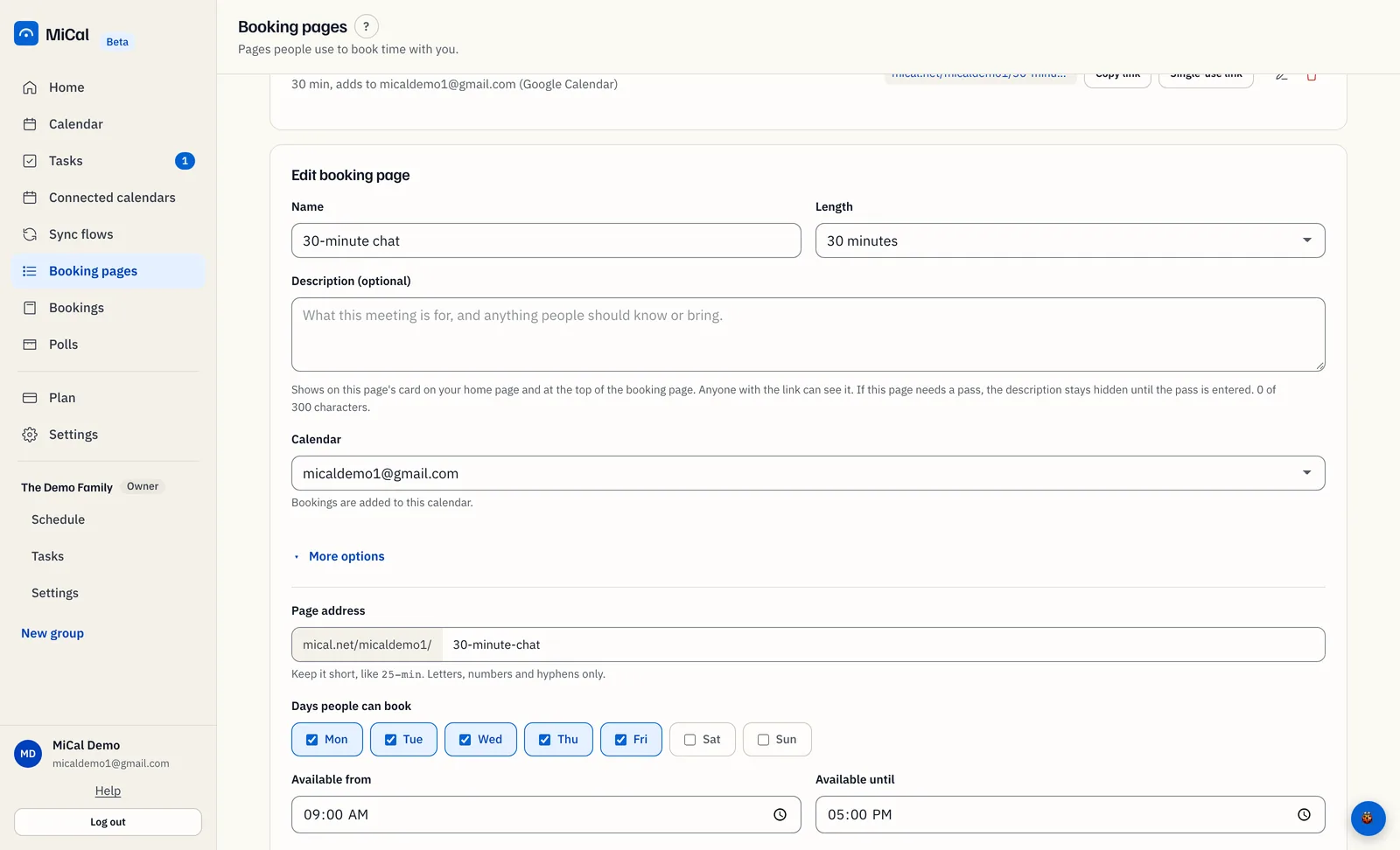
If a deleted booking page still has an upcoming booking on the calendar, cancel that booking first.
Notes
To bring a calendar back, import it again with Add more calendars on the account's card, or add the link again.
To remove every calendar from an account at once, use Disconnect on the account's card.
Still stuck? Email support@mical.net. Privacy · Terms