Set up repeating tasks
Make a task repeat every day or on chosen weekdays, then change one day or the whole series.
Before you start
Tasks must be on for your account. The tab is hidden until it is.
Make a task repeat
Select Tasks in the sidebar.
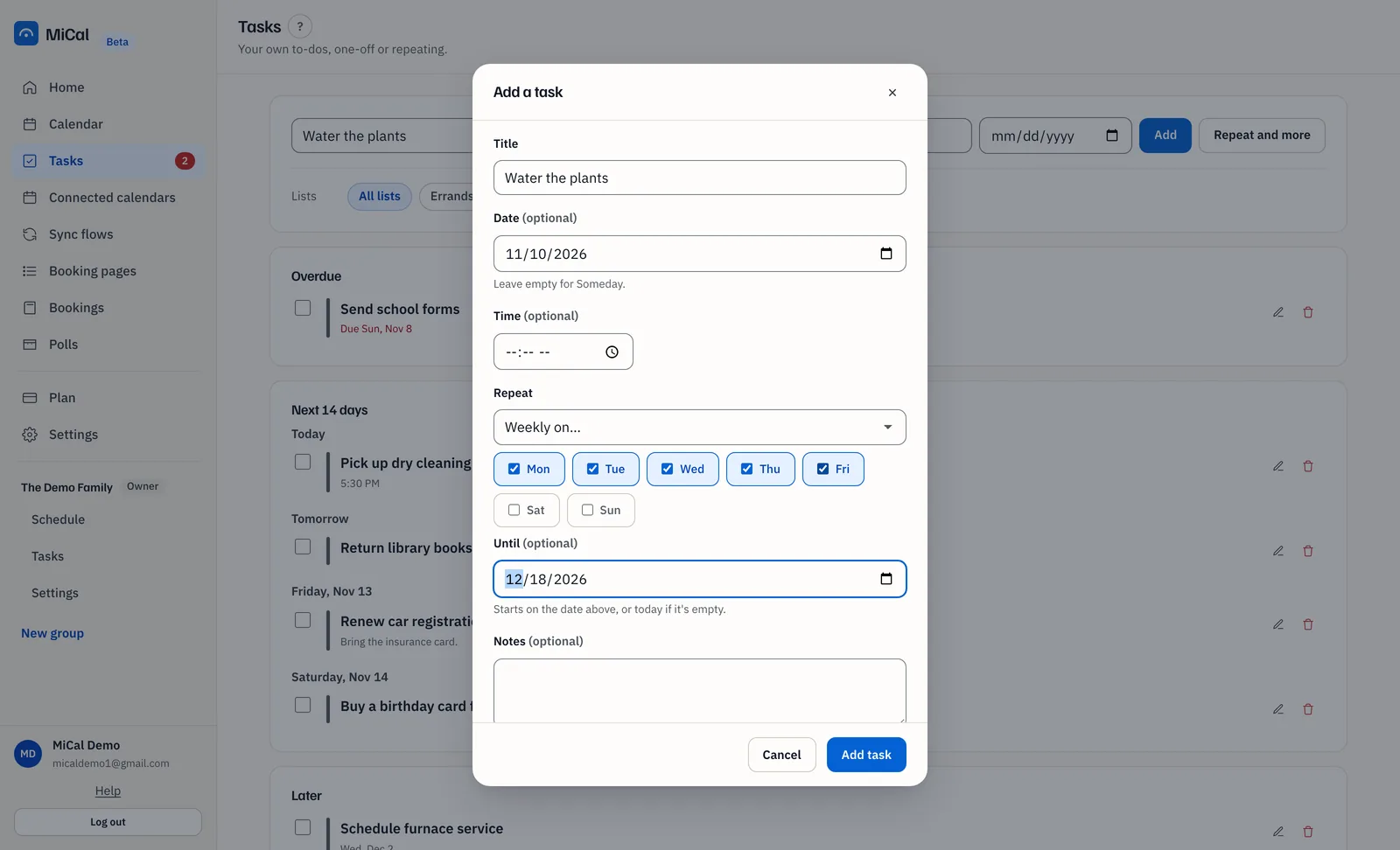
Type the task in Add a task, then select Repeat and more.
Set Repeat to Every day, or to Weekly on… and tick the days. MiCal ticks the weekday of your date to start.
To stop the series, pick a date under Until. Leave it empty for no end. The series starts on the date above, or today if it is empty.
Select Add task.
Change one day
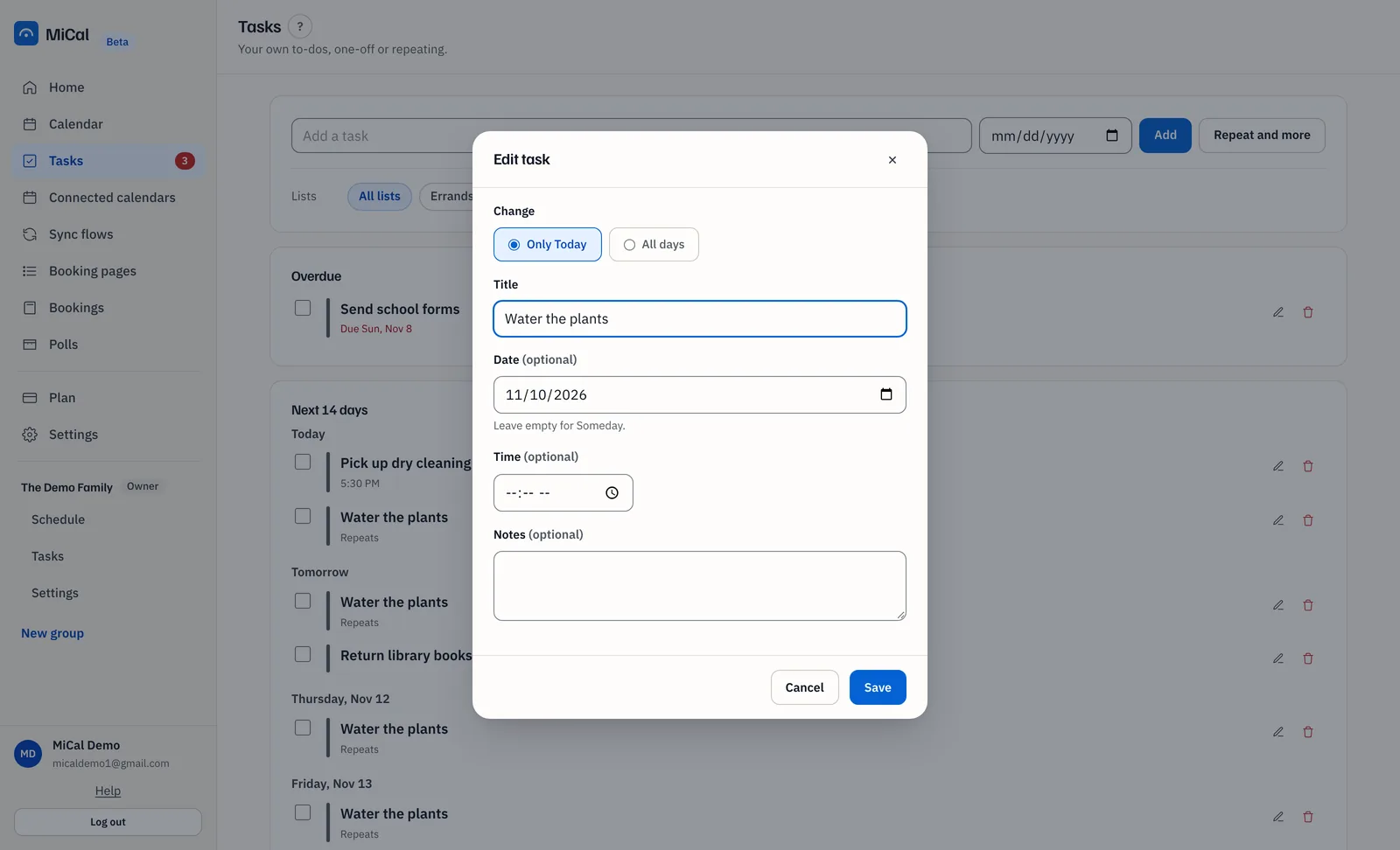
On the task's row, select the Edit icon.
Under Change, keep the first choice, which is Only followed by the day, such as Only Today.
Change the date, Time, title or notes, then select Save. The rest of the series stays as it was.
Change the whole series
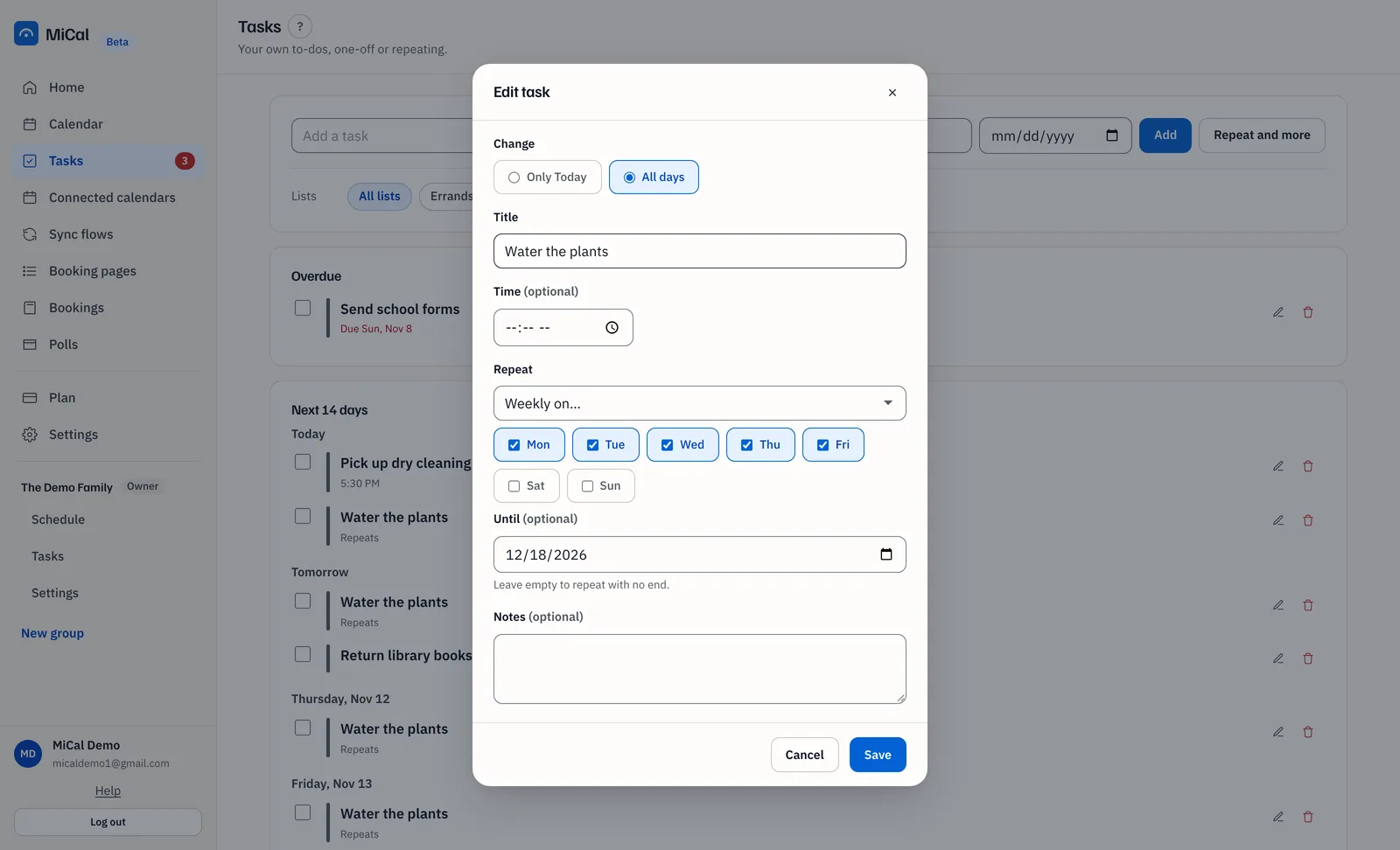
Select the Edit icon on the task.
Under Change, choose All days. The date field hides and the series fields appear.
Set Repeat to Every day or Weekly on…, and tick the days. Change Until if you want. Leave it empty to repeat with no end.
Select Save. It applies to every remaining day.
Notes
Weekly on… needs at least one day ticked.
The end date must be on or after the start date.
Ticking off a repeating task clears only that day.
Deleting a repeating task asks Only this day or All days.
Later shows a repeating task's next day only.
On a phone, tap the task. Its sheet offers Just this one and All repeats.
Still stuck? Email support@mical.net. Privacy · Terms