Answer a meeting poll
A poll link opens a page of proposed times. Tick the ones that work for you and send your answer. You do not need a MiCal account.
Steps
Open the poll link. The page asks you to Pick all the times that work. Times show in your own time zone.
Optional: sign in to see which times you are free. In the panel on the left, select Sign in with Google or Sign in with Microsoft. Each time then shows a Free or Busy badge.
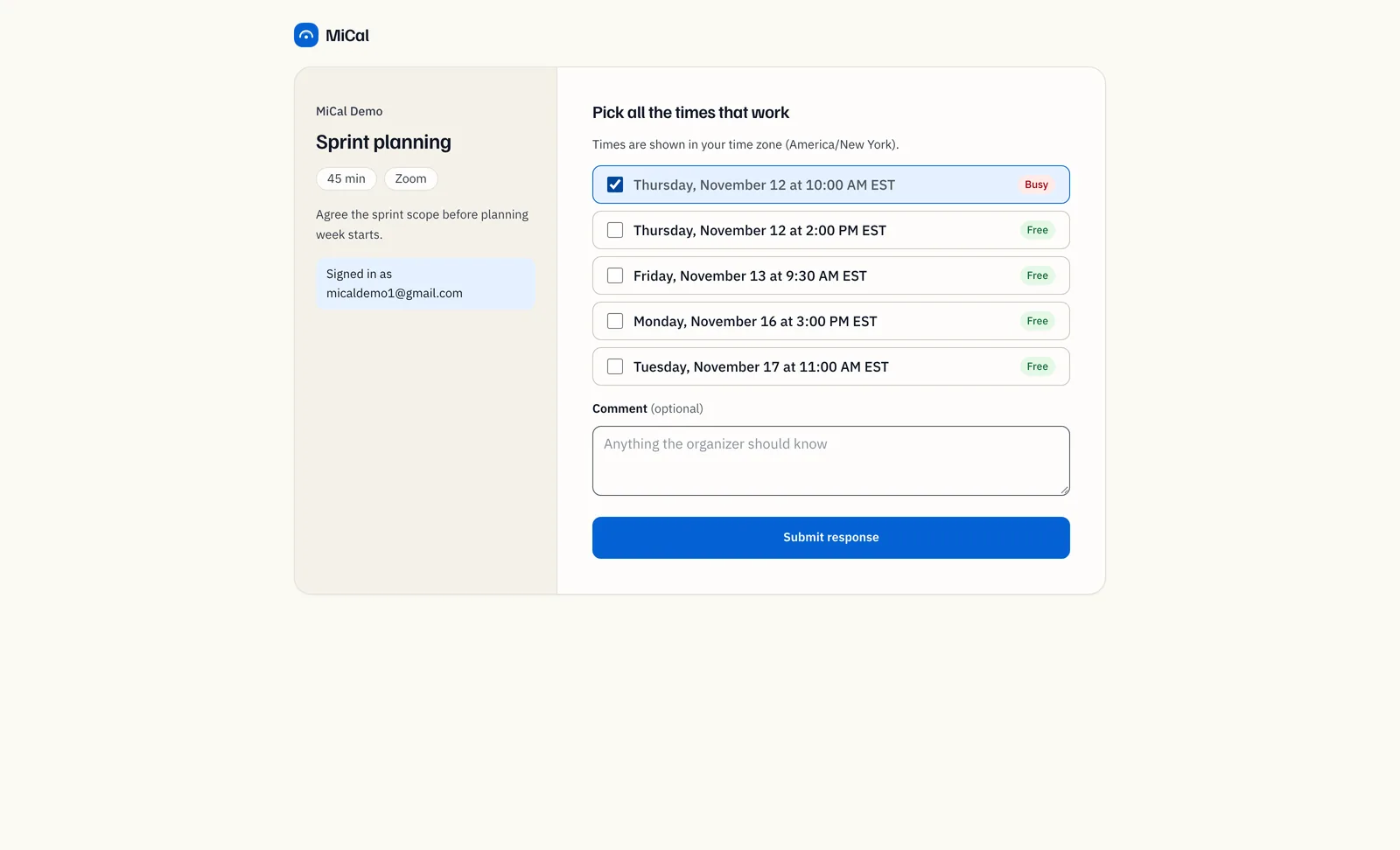
Tick every time that works for you. Pick at least one.
If you are not signed in, enter your Name and your Email. Both are required. Signed-in people are not asked.
Add a Comment if you like.
Select Submit response. The page says "Thanks, your response is in." You get an email when the organizer picks a time.
Change your answer
Open the same poll link, or select Update your response on the confirmation screen.
A note at the top says "You've responded already" and that submitting again overwrites your previous answer.
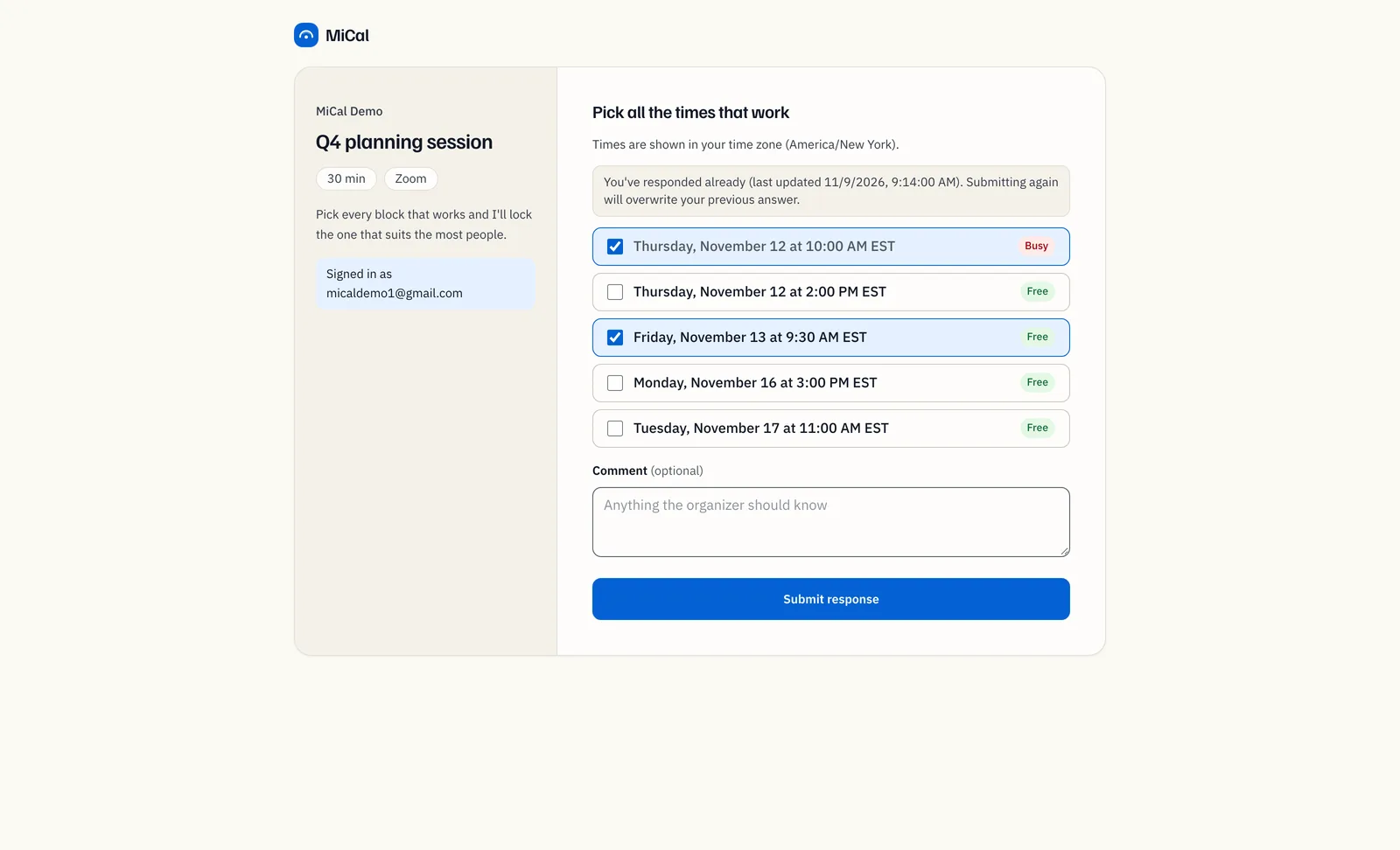
Change your picks and select Submit response. Your new picks and comment replace the old ones.
Notes
Free and Busy come from your connected Google, Microsoft, and iCloud calendars that are turned on. ICS feeds are not checked. Free means MiCal found no event at that time on the calendars it can read.
Busy times can still be ticked.
The badges are checked each time the page loads. Reload after you change your calendar. If the check fails, no badges show.
If you are signed in, you can change your answer from any device. If you used an email address, change it from the same browser and device you used the first time. Otherwise the page says "this email has already voted" and asks you to use that device or sign in.
Once the organizer closes the poll or picks a time, the button reads Voting closed. After a time is picked, the page highlights it.
Still stuck? Email support@mical.net. Privacy · Terms