Set up MiCal with the welcome guide
The welcome guide and the Getting set up checklist on Home walk you through connecting calendars and picking a first goal.
Before you start
Sign in as the owner of the workspace. Only the owner sees the guide and the checklist.
Have the login for any other calendar account you want to add.
The welcome guide
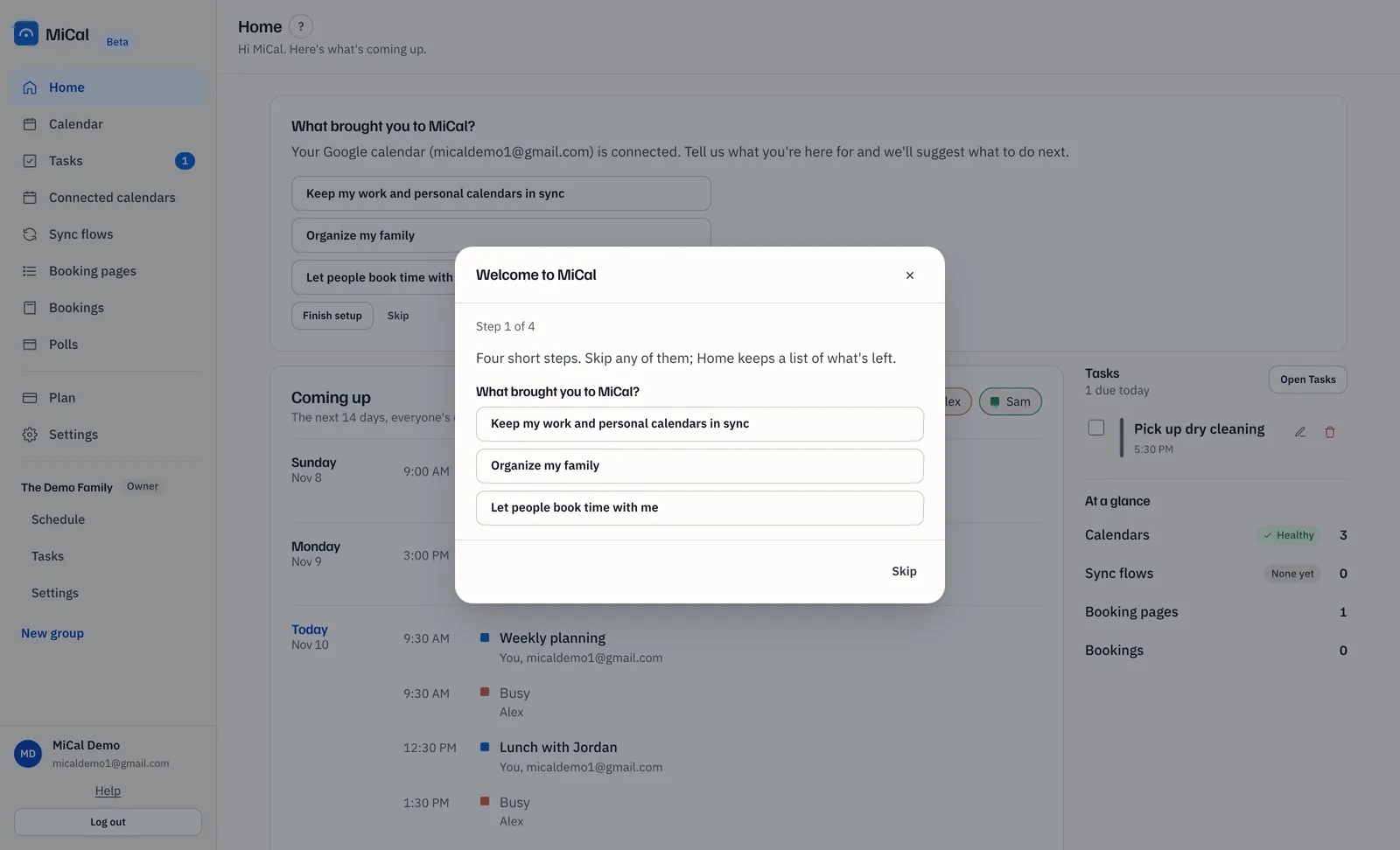
The guide has four steps: your goal, your calendars, one step for that goal, and an optional Claude connection. If you skip the goal question, the goal step is left out and the guide has three steps.
Open the guide. It opens by itself once, the first time you open Home on a new workspace (one made in the last 3 days). If you close it, select Finish setup on the Home card to continue where you stopped. Your place is saved to your account, so it also works on another device.
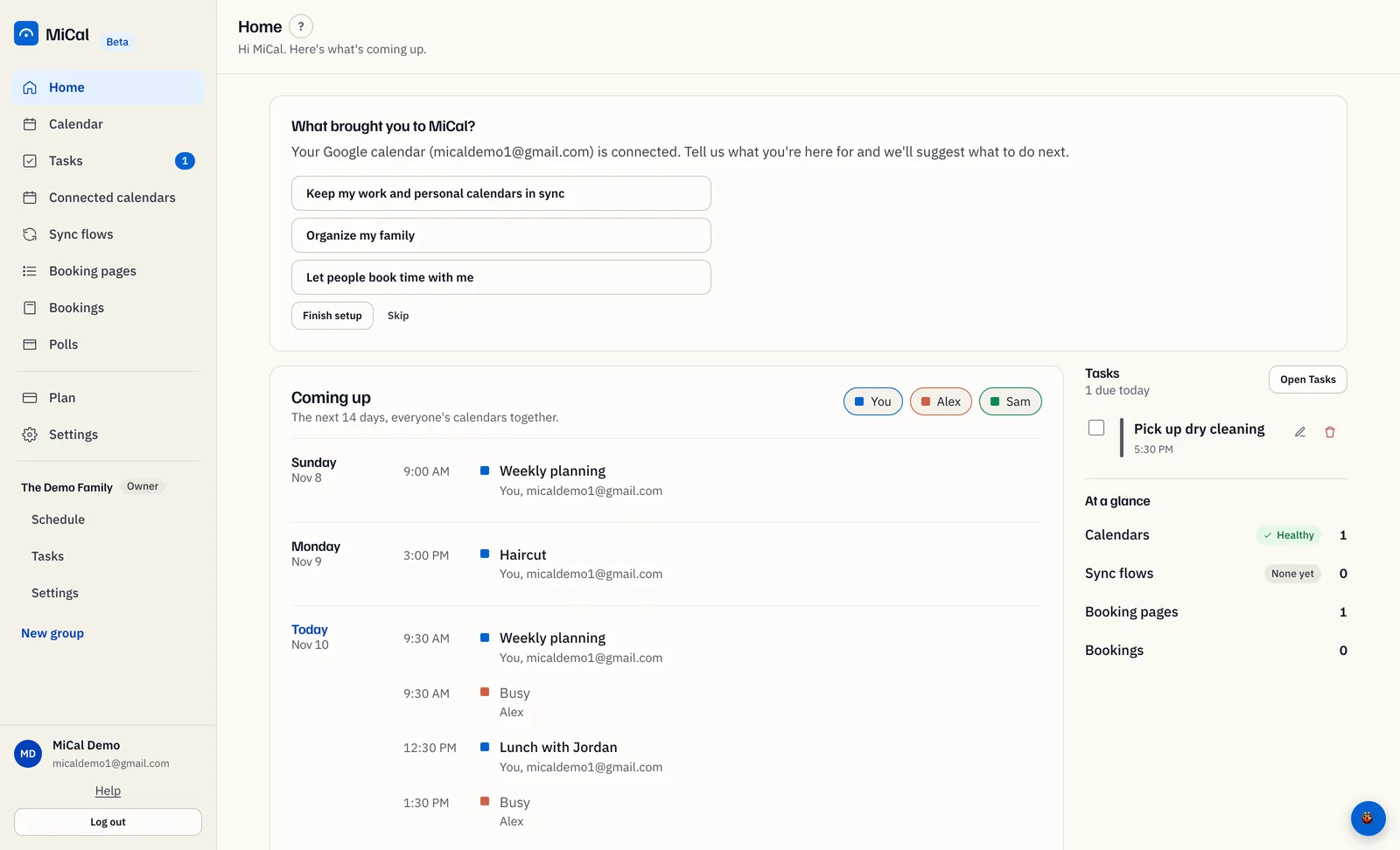
Pick what brought you here: Keep my work and personal calendars in sync, Organize my family, or Let people book time with me. The guide moves on as soon as you choose.
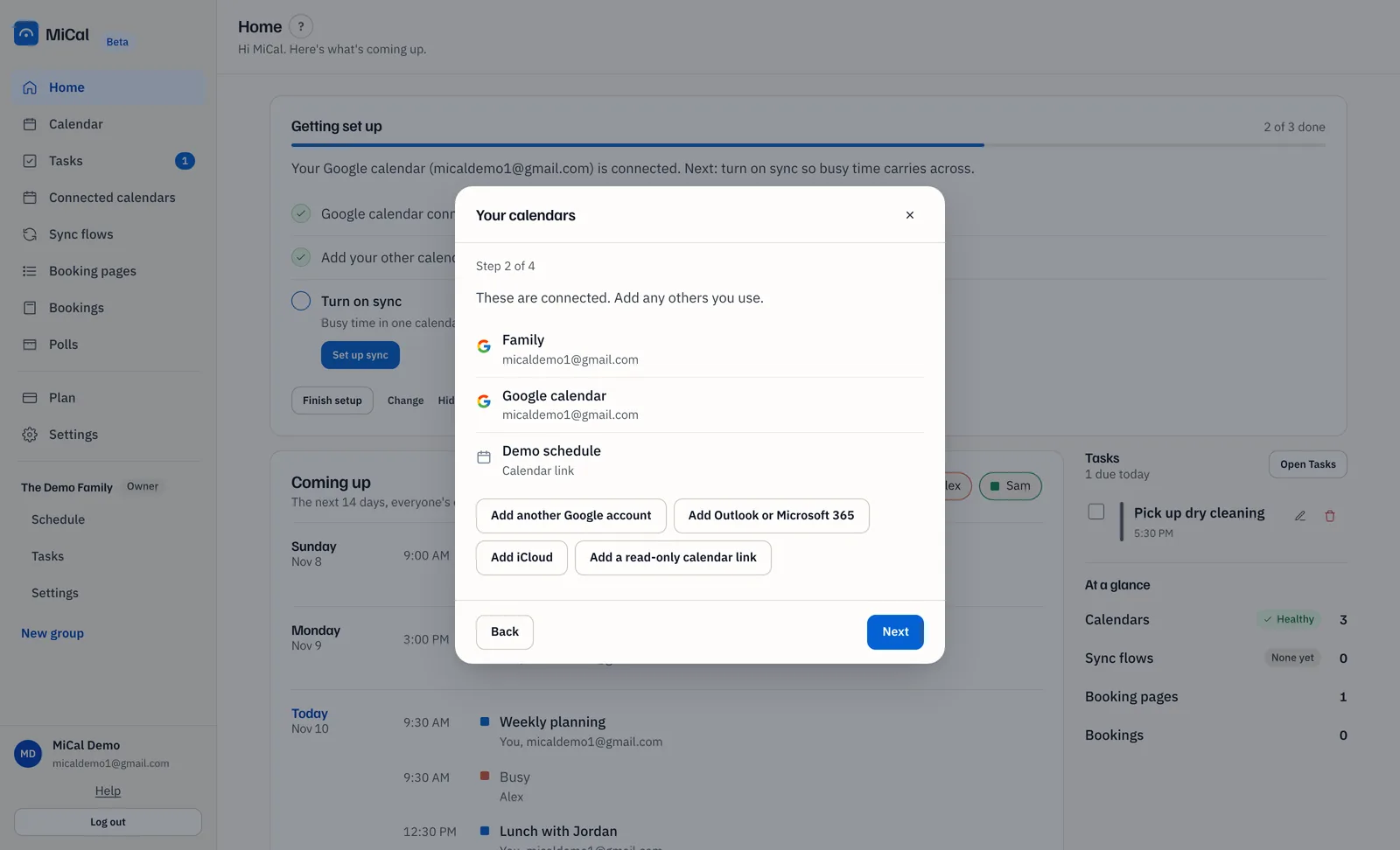
On Your calendars, check what is connected. Add anything missing with Add another Google account, Add Outlook or Microsoft 365, Add iCloud, or Add a read-only calendar link. Google and Outlook open the provider's sign-in, then return you to the guide. The guide does not show Add iCloud unless iCloud is turned on for your account. On the Free plan, which has 1 calendar, the add buttons are replaced by a note about the Plan page.
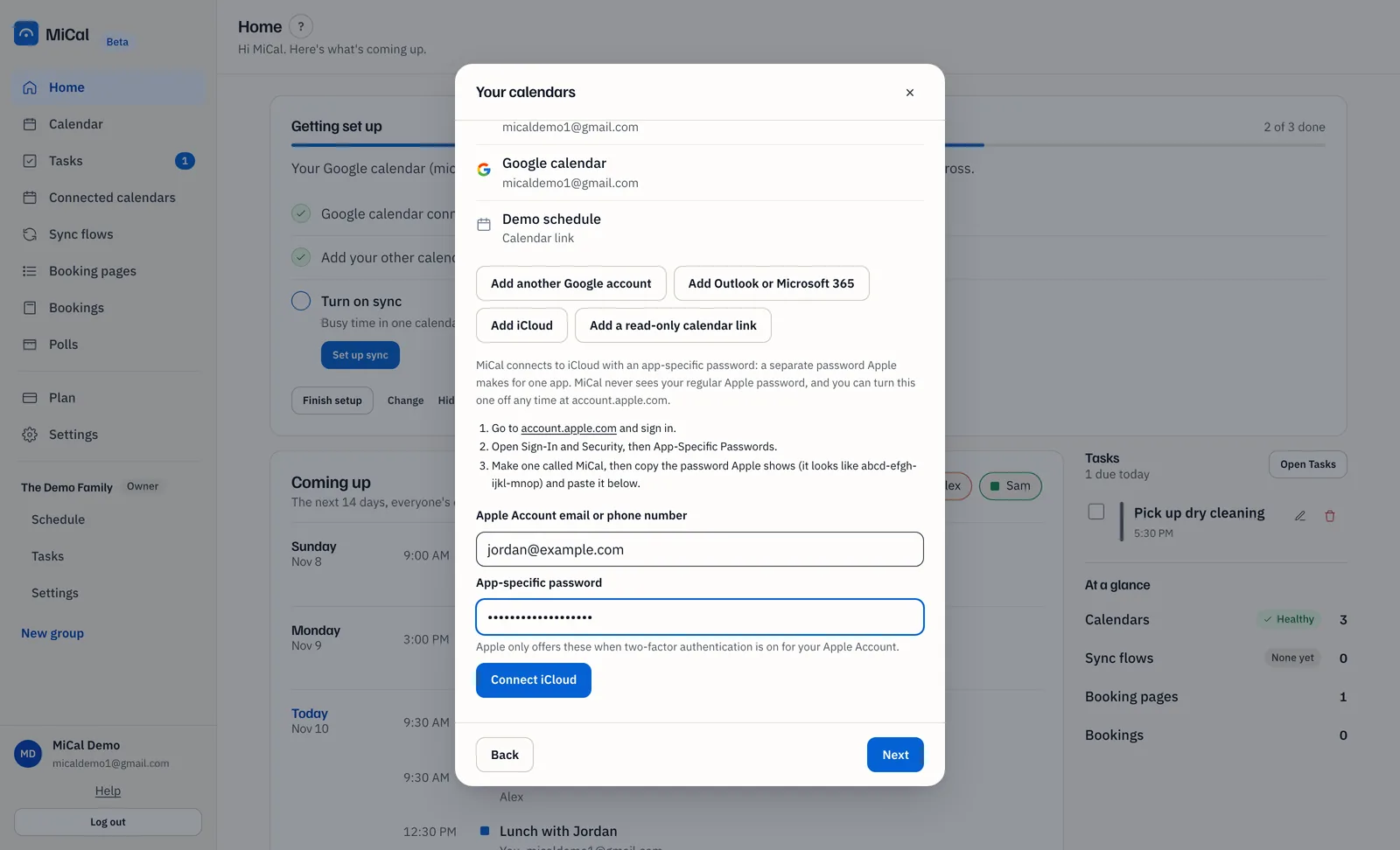
To add iCloud, select Add iCloud. Enter your Apple Account email or phone number and the App-specific password from account.apple.com, then select Connect iCloud.
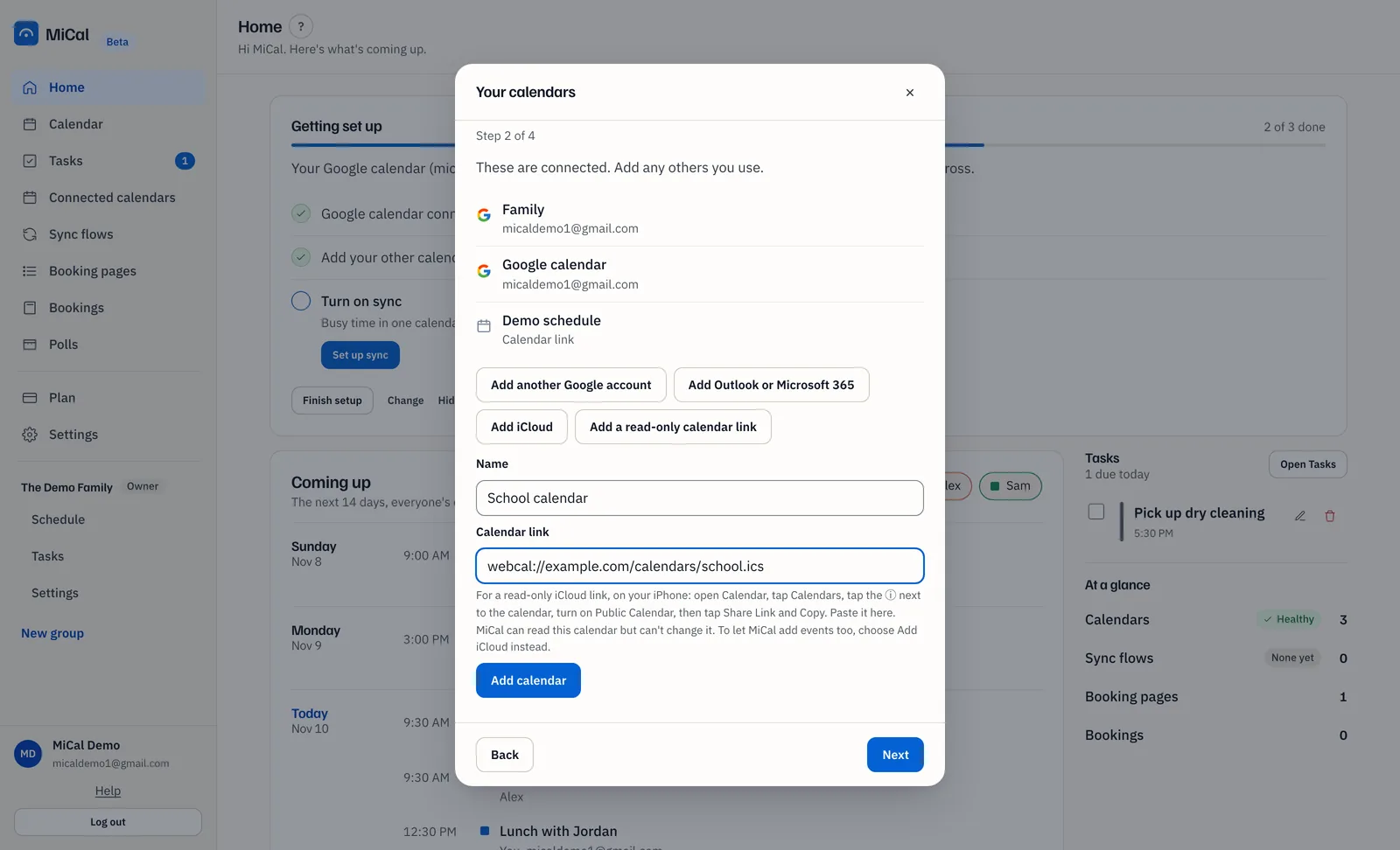
To add a calendar by link, select Add a read-only calendar link. Enter a Name and the Calendar link, then select Add calendar. MiCal can read this calendar but cannot add events to it.
Do the step for your goal.
Sync: pick two calendars under This calendar and and this one, then select Turn on sync. Both must be Google or Outlook calendars that MiCal can add events to. On a phone, tap Choose how they sync.
Family: enter a Family name and select Create family. Then enter Their email and select Send invite.
Booking: select Make my booking page. It starts with 25-minute meetings, weekdays 9 to 5. Then select Copy link.
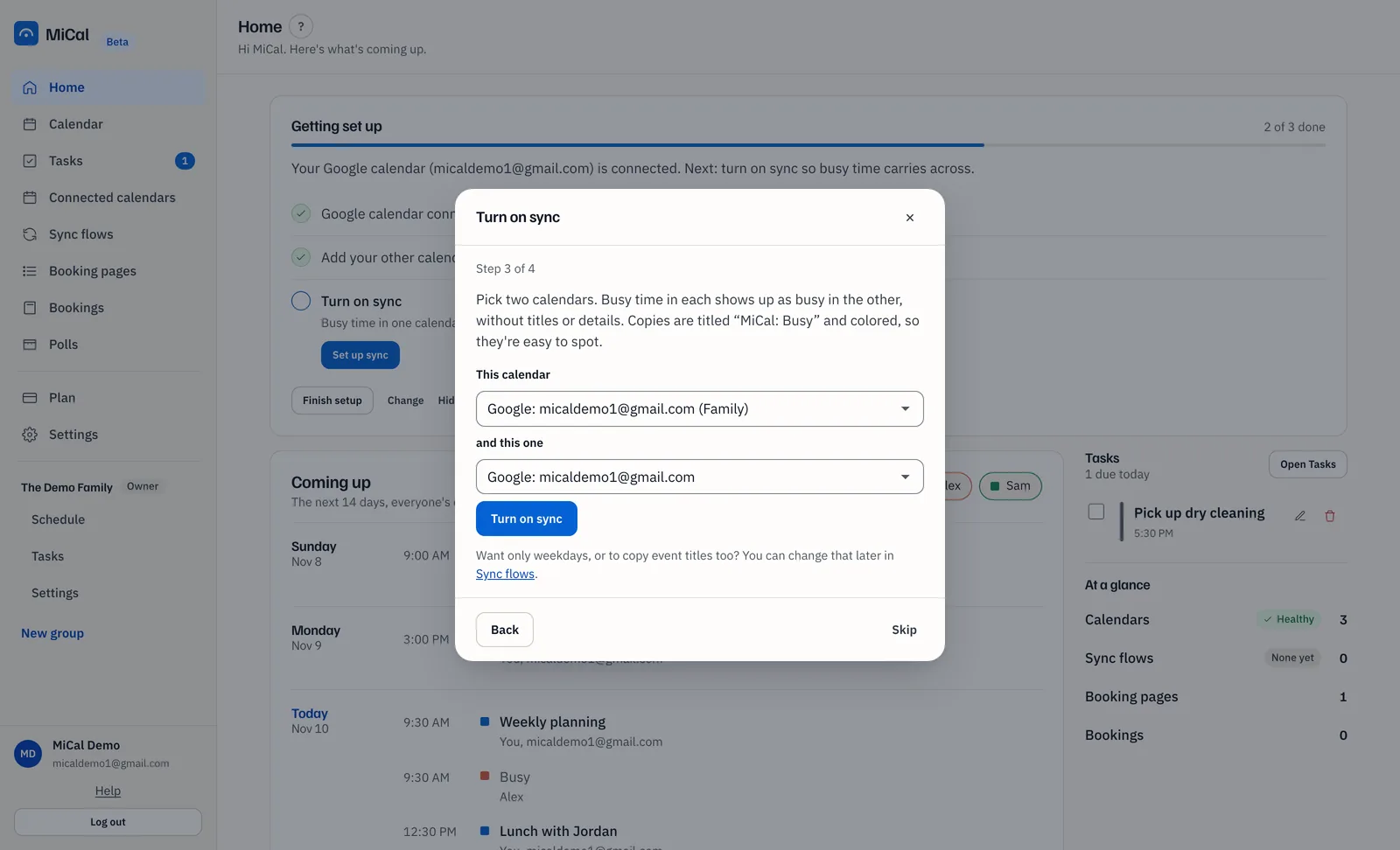
On the Claude step, select Not now unless you use Claude. To connect it, select Add MiCal to Claude and approve MiCal in the new tab.
On the last screen, check the list of what you set up and select Done. MiCal opens Home.
On any step you have not finished, Skip replaces Next. Use Back to return to the step before.
The Getting set up checklist
The checklist is the first card on Home. It shows for the workspace owner during the first 30 days.
If the card asks What brought you to MiCal?, choose an answer, or select Skip. Skip gives you the sync steps.
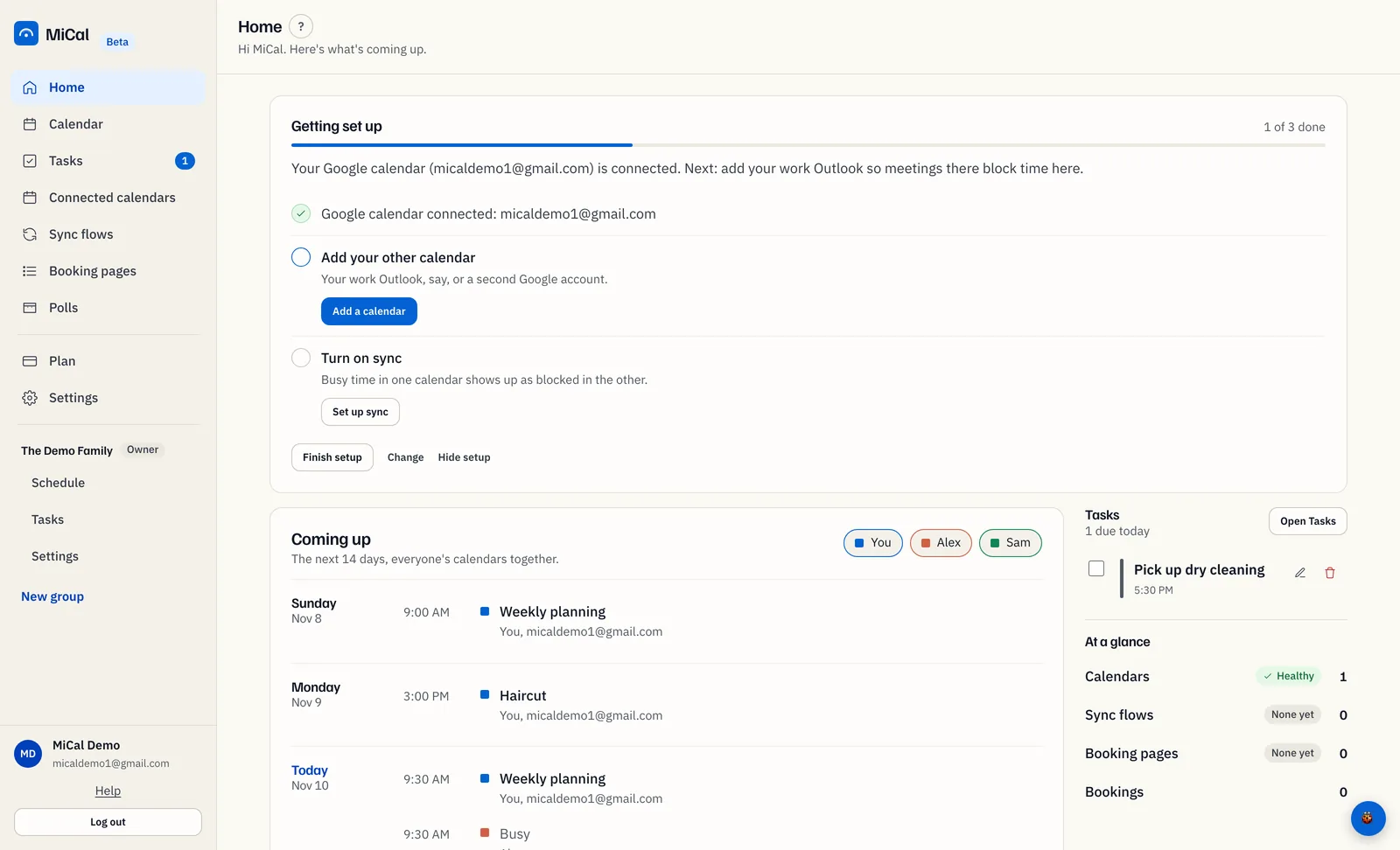
Work down the Getting set up list. Each step ticks off by itself when the work is done. The counter shows how many are done, such as "1 of 3 done".
Sync: Add a calendar, then Set up sync.
Family: Create your family, Invite, and Add a to-do if Tasks is on for you.
Booking: Set up booking, then Copy link. This step ticks when you copy your booking link.
With no calendar yet: Connect Google, Connect Outlook, or Add a read-only link.
Change your answer
Select Change at the bottom of the card, then choose a new answer. The steps switch at once. Select Cancel to keep your current answer.
Hide the checklist
Select Hide setup. MiCal remembers this in this browser only. The checklist also stops showing after your first 30 days or once every step is done.
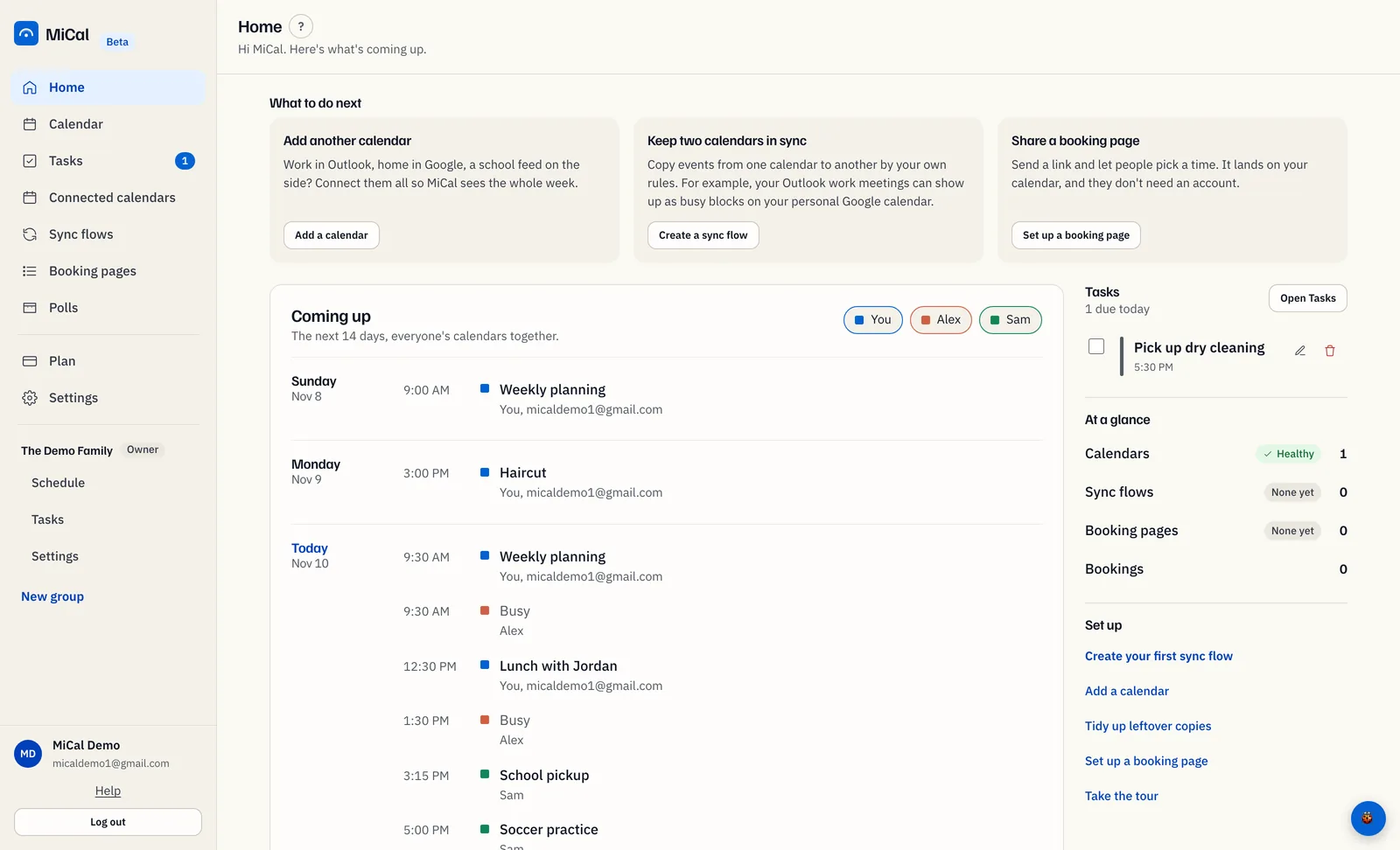
Reload Home after hiding it. Home then shows What to do next cards for what is missing, and a Set up card in the right column with shortcuts and Take the tour. While the checklist is showing, these two are not shown.
Notes
Later changes live in Sync flows, Booking pages, and Settings.
Choosing an answer in the guide also answers the checklist question.
Still stuck? Email support@mical.net. Privacy · Terms