Share tasks with your family
A group has one shared task list. Everyone in the group sees it and can add to it, and you can give each task to a person.
Before you start
A group with at least one other member.
An owner of the group needs a paid Family or Team plan. Without one, the list is read-only. Everyone can still tick off tasks, but nobody can add new ones.
Only an owner or admin can add household profiles.
Steps
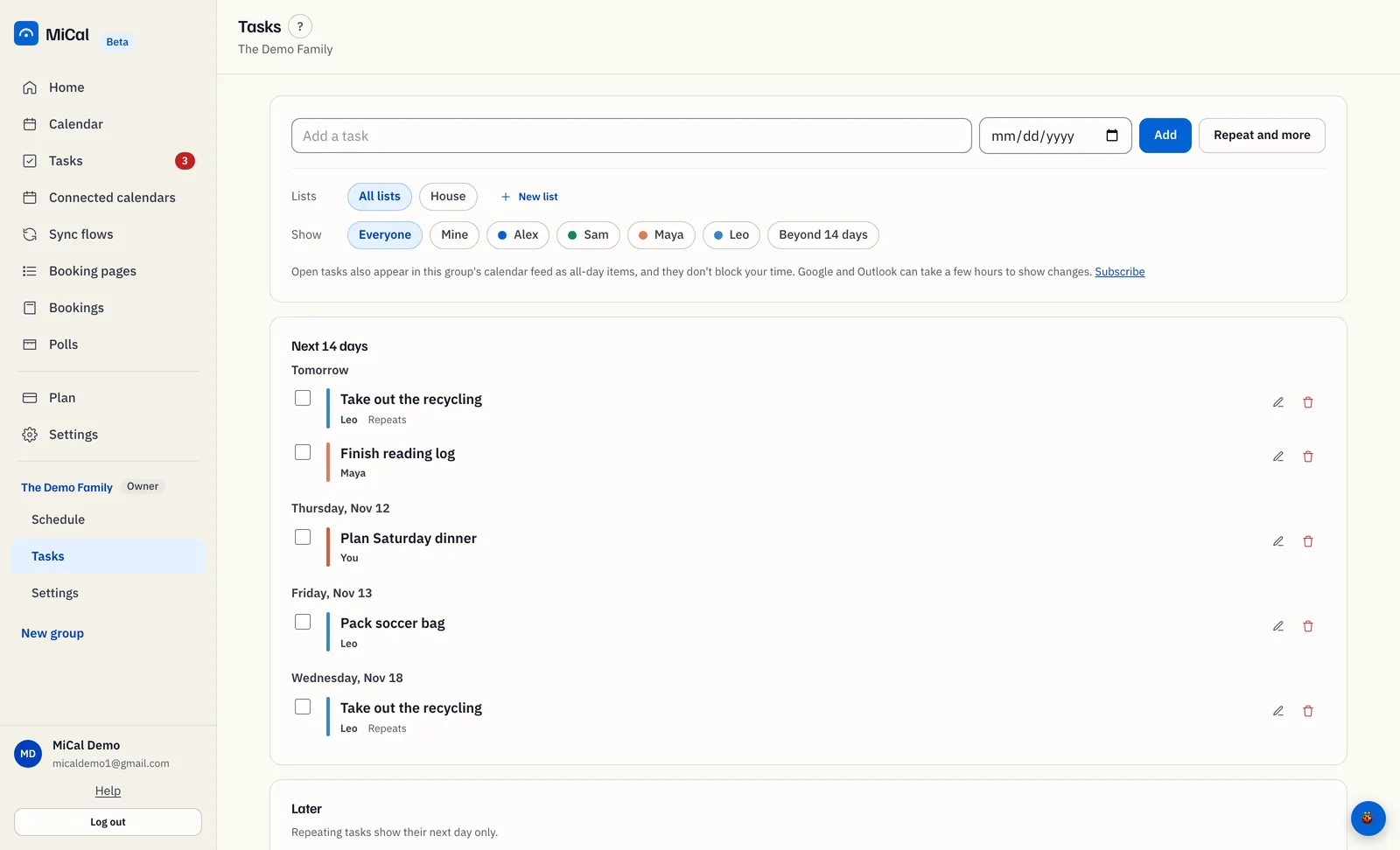
In the sidebar, find your group and select Tasks. On a phone, tap Tasks, then tap the group's name at the top.
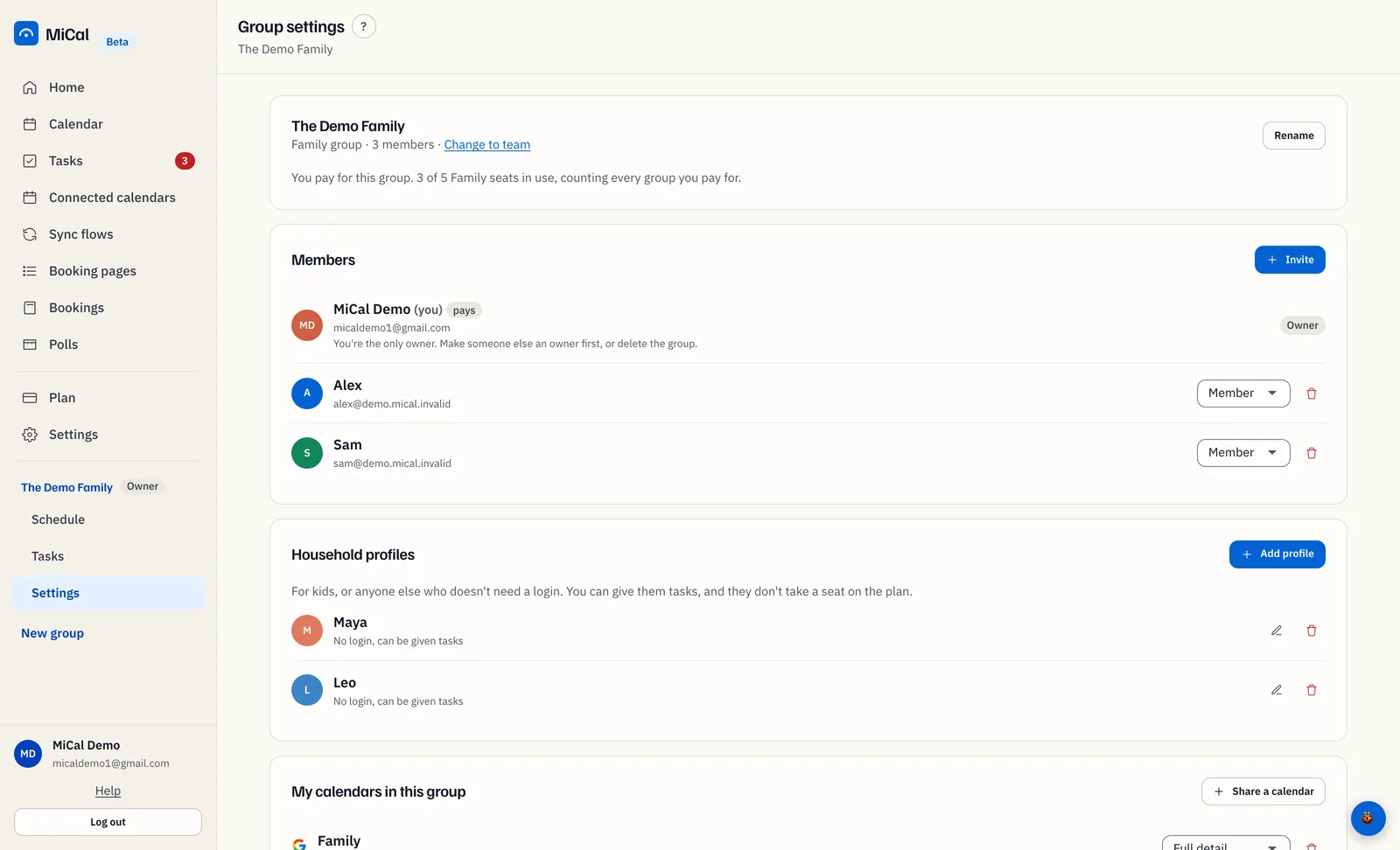
To give tasks to someone who has no MiCal login, such as a child, open the group's Settings and find Household profiles. Select Add profile, enter a Name, pick a Color, then select Add profile. Profiles take no seat on the plan.
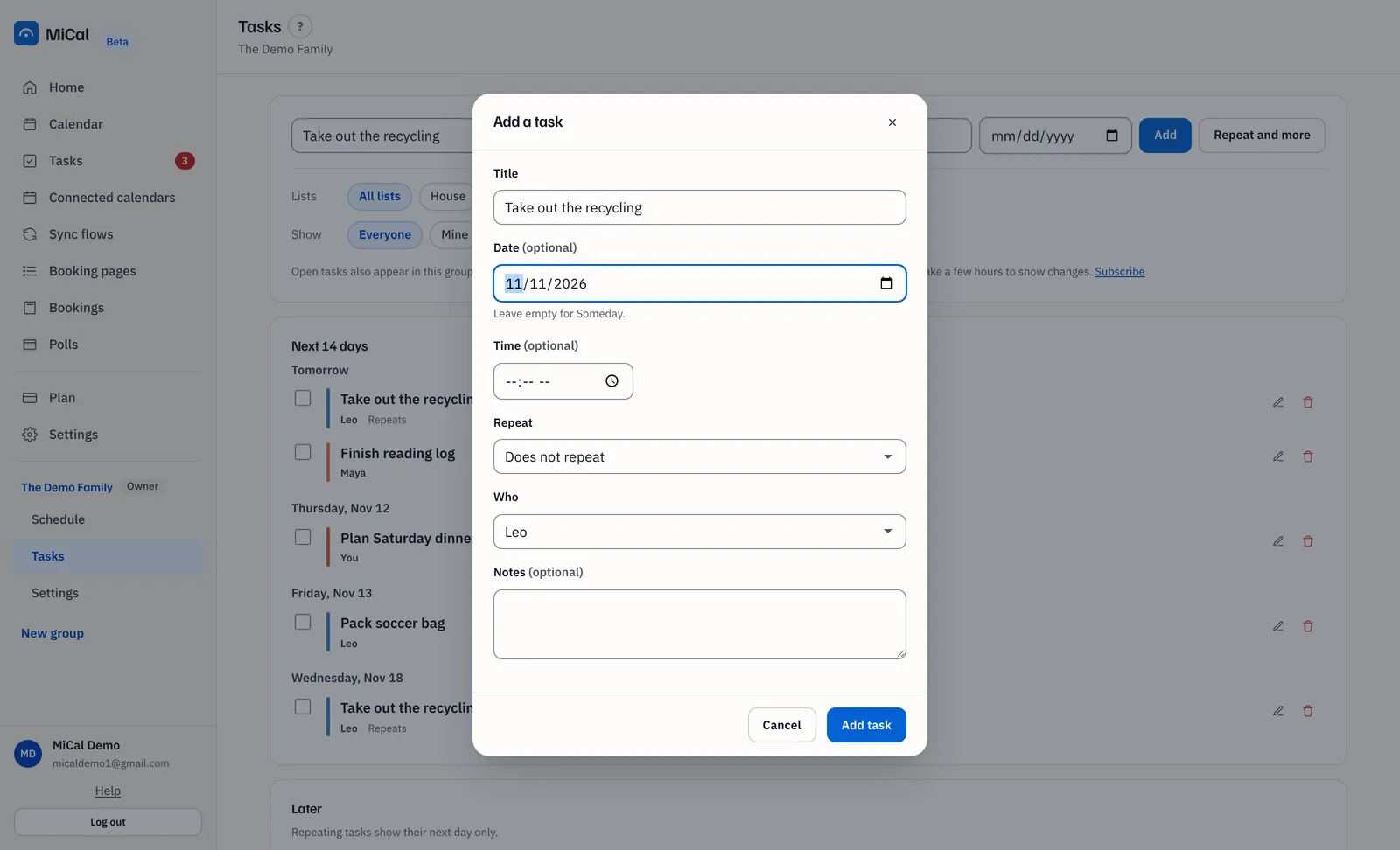
Back on Tasks, type the task in the Add a task field and select Repeat and more. Under Who, choose Anyone, a member, or a profile. Then select Add task.
To see one person's tasks, use the Show row. Choose Everyone, Mine, a person's name, or Beyond 14 days.
Notes
On a team group, the profiles card is called People without a login and the button is Add person.
A profile's color shows beside its tasks on the group's Schedule.
To add a task to a day, select + task on that day in the group's Schedule.
Open tasks appear in the group's calendar feed as all-day items. They never block time. Google and Outlook can take a few hours to show changes.
Still stuck? Email support@mical.net. Privacy · Terms