Make a single-use booking link
A single-use link books one meeting on one booking page, then stops working. Send it to one person, and revoke it if you change your mind.
Before you start
The booking page is on. Pages that are off have no Single-use link button.
It is one of your own pages, not a group's. Group pages do not offer single-use links.
You are on a computer. The phone layout has no single-use links.
Make a link
Select Booking pages in the sidebar. Find the page and select Single-use link.
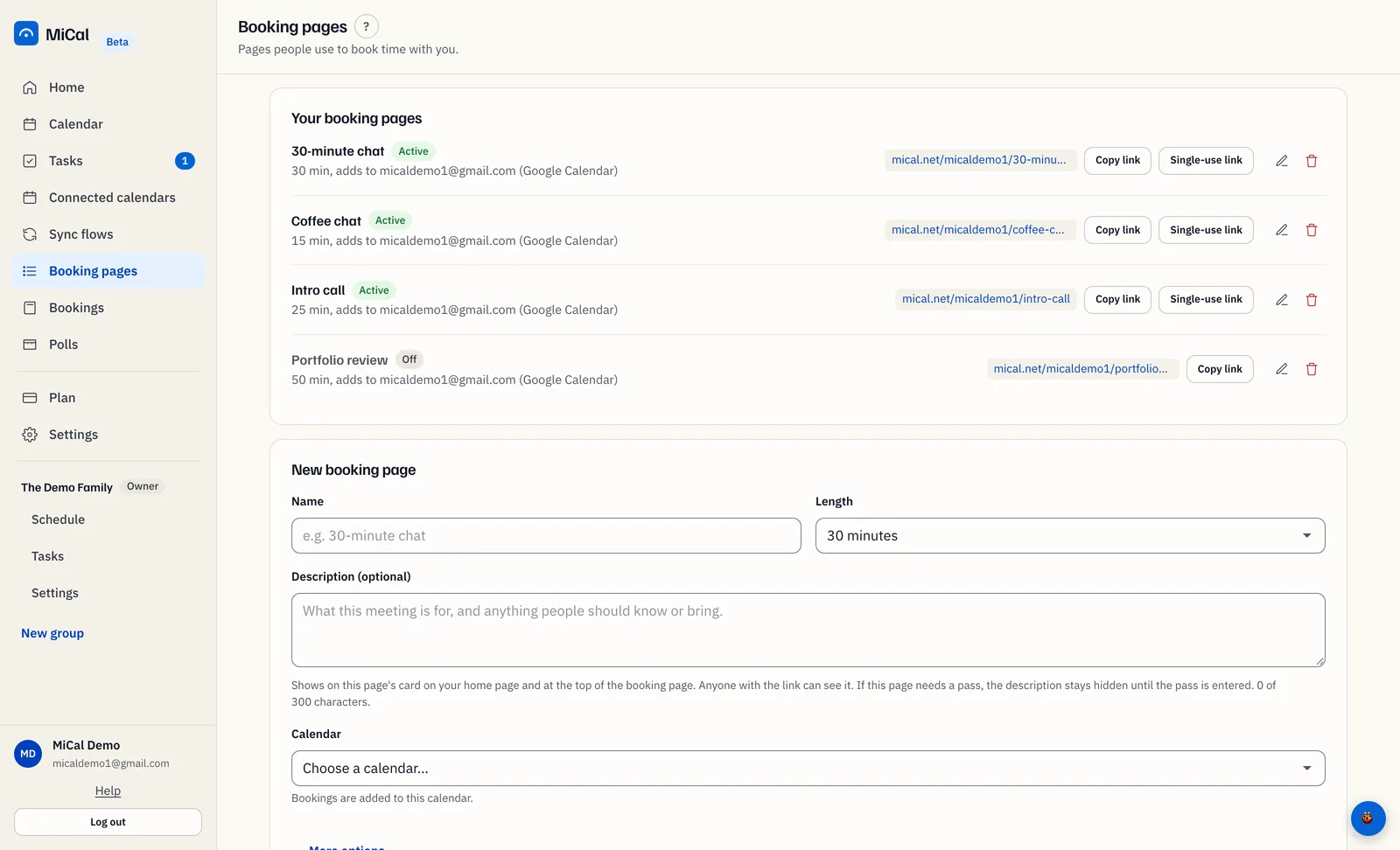
In Who is it for?, type a note for yourself. This is optional. Select Make link and copy. The link is copied to your clipboard. If your browser blocks that, the link is selected so you can press Ctrl+C (Cmd+C on a Mac).
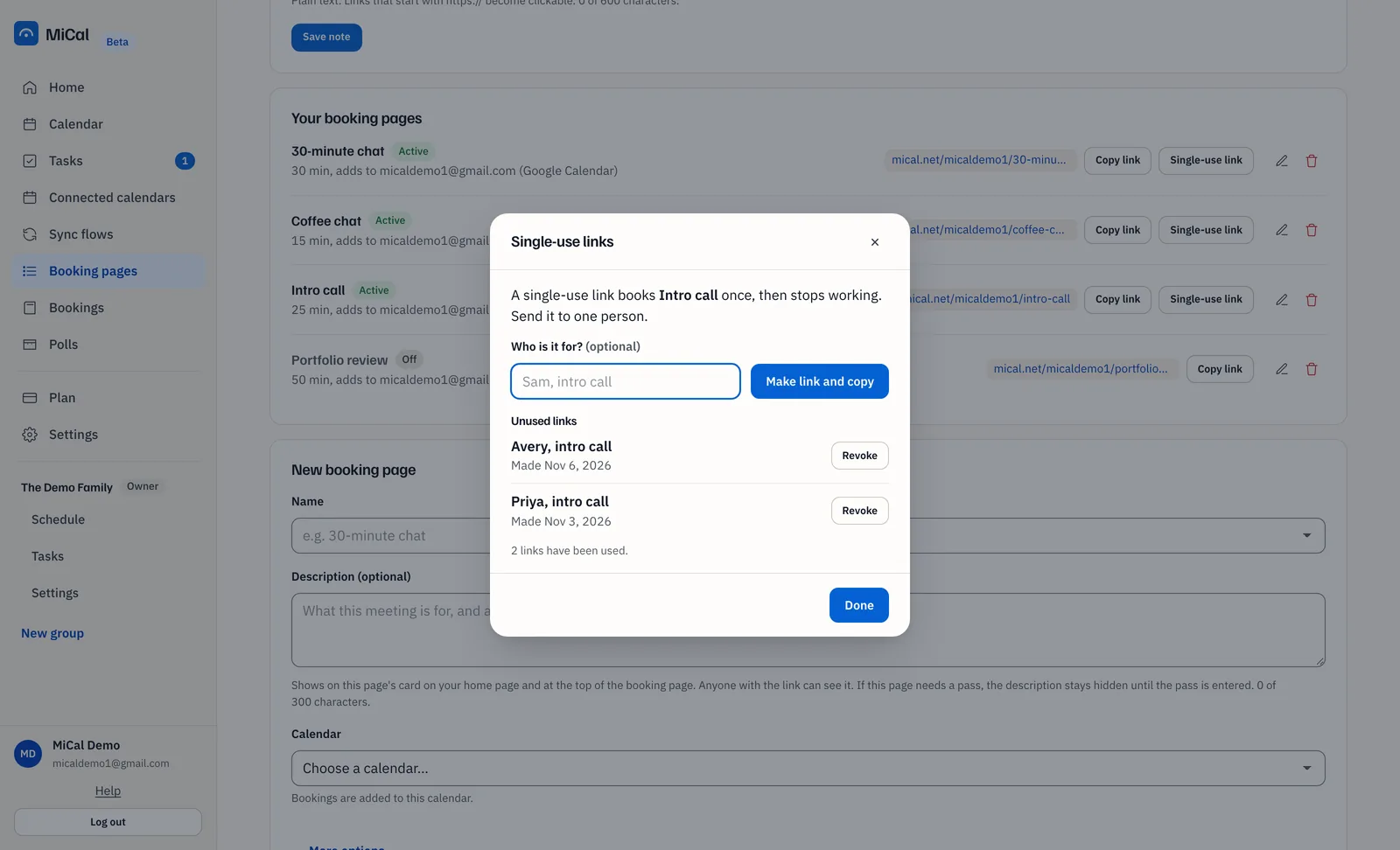
Paste the link into a message to one person.
You see the full link only once. If you lose it, make a new one.
Revoke a link
Open Single-use link on the same page. Links nobody has used yet are under Unused links, with your note and the date you made them.
Select Revoke next to the link, then select Revoke link. The link stops working right away.
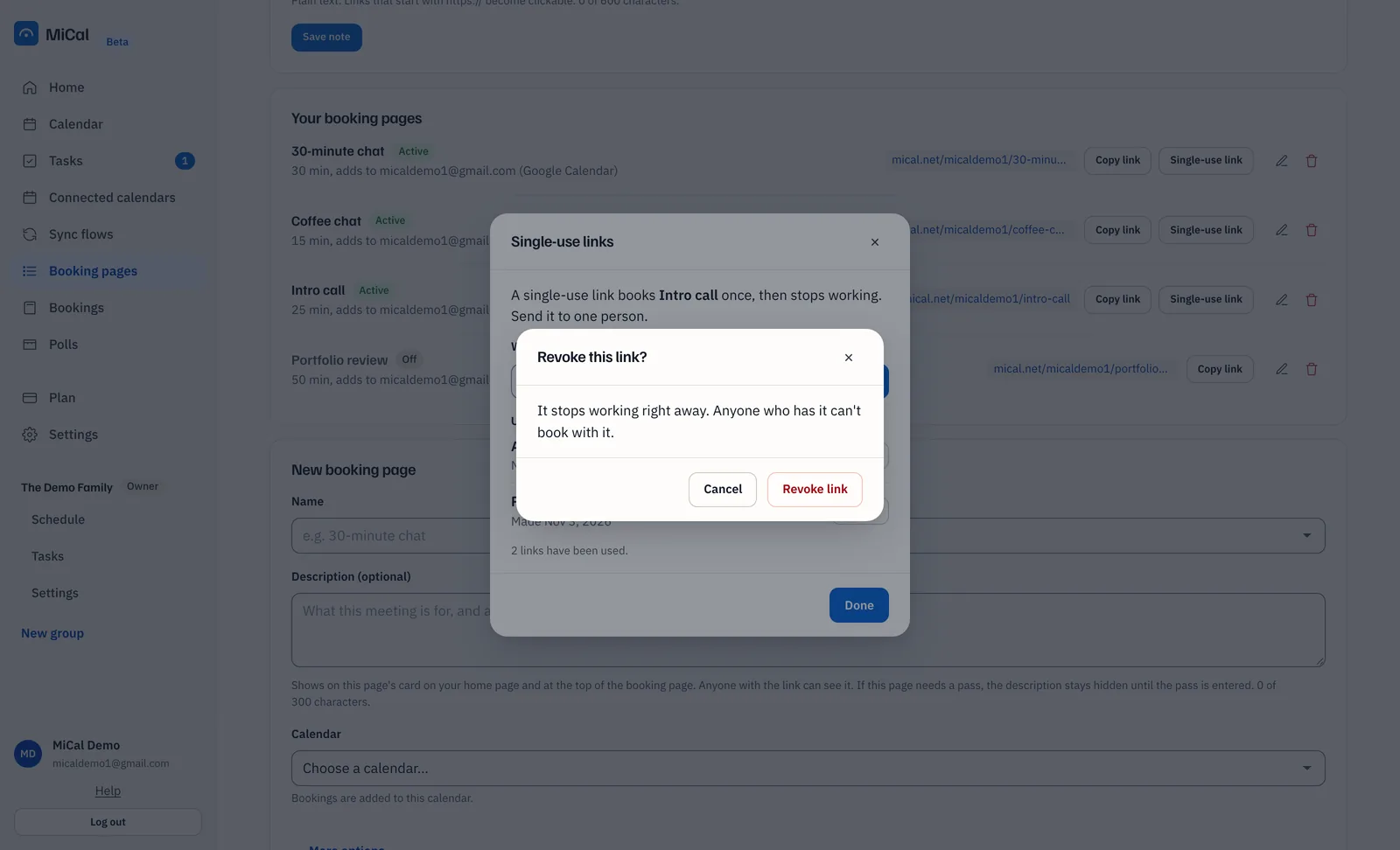
The dialog also tells you how many links have been used. Used links are not listed.
If the guest cancels
If the booking is canceled before it starts, the link works again. This is true whether the guest or you canceled it. The guest opens the same link and picks a new time:
Open the link and pick a day.
Pick a time.
Enter Name and Email and select Confirm booking.
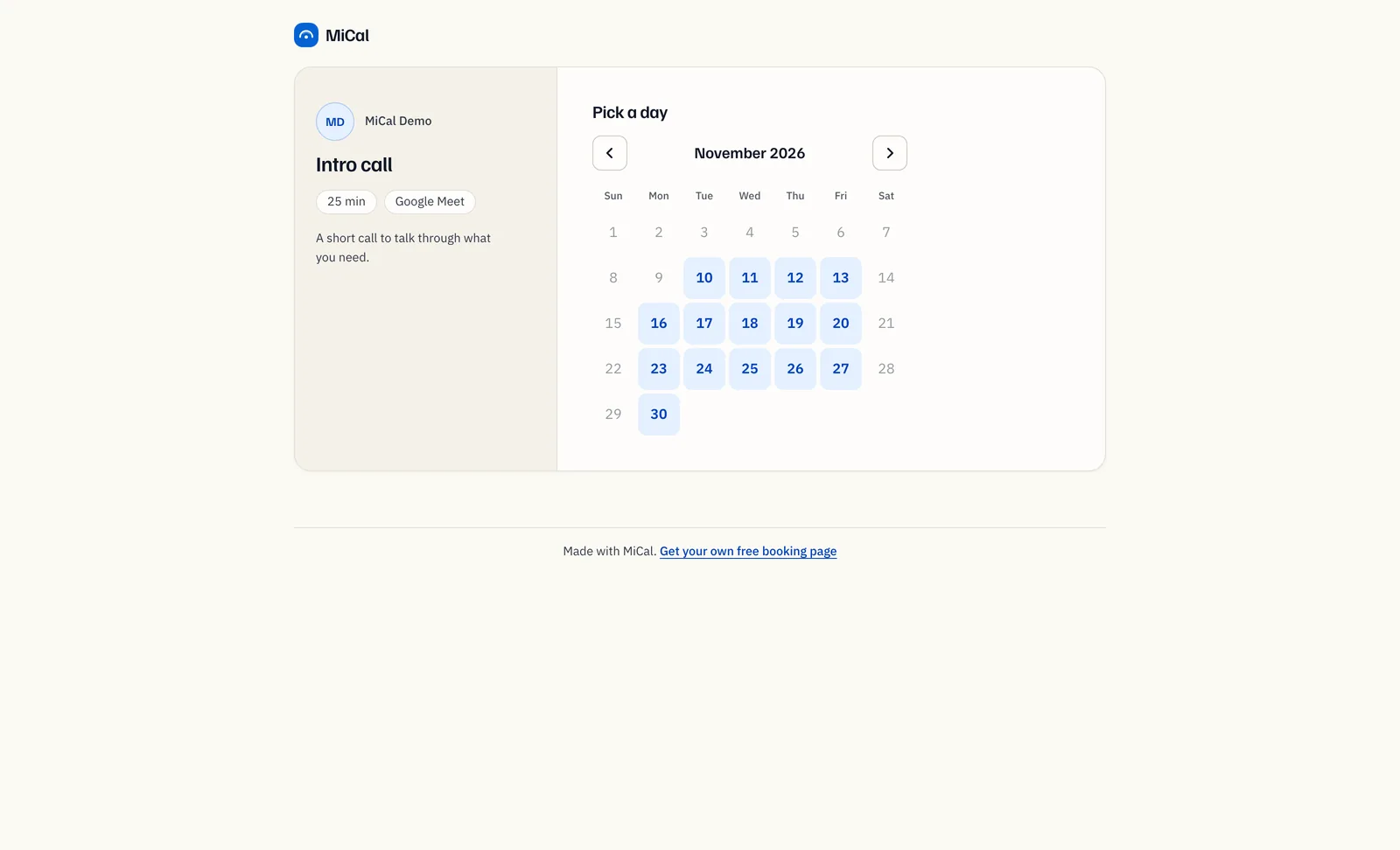
The link stops working again once the new booking is made. After the meeting starts, a canceled booking does not free the link.
Notes
A link works only on the page it was made for.
A guest who opens a used link sees "This link has already been used." A revoked link says "This link isn't active."
You can have up to 200 unused links at a time, and make up to 30 an hour.
Turning the page off stops its links from working until you turn it back on.
Still stuck? Email support@mical.net. Privacy · Terms