Add and organize tasks
Tasks hold your to-dos beside your calendar. Add one in a line, sort them into lists, and give a date or time only to the ones that need it.
Before you start
Tasks must be on for your account. The tab is hidden until it is.
Your own tasks are under Tasks in the sidebar. A group's tasks are under Tasks below the group's name.
The Free plan has 1 list and up to 50 open tasks.
Add a task
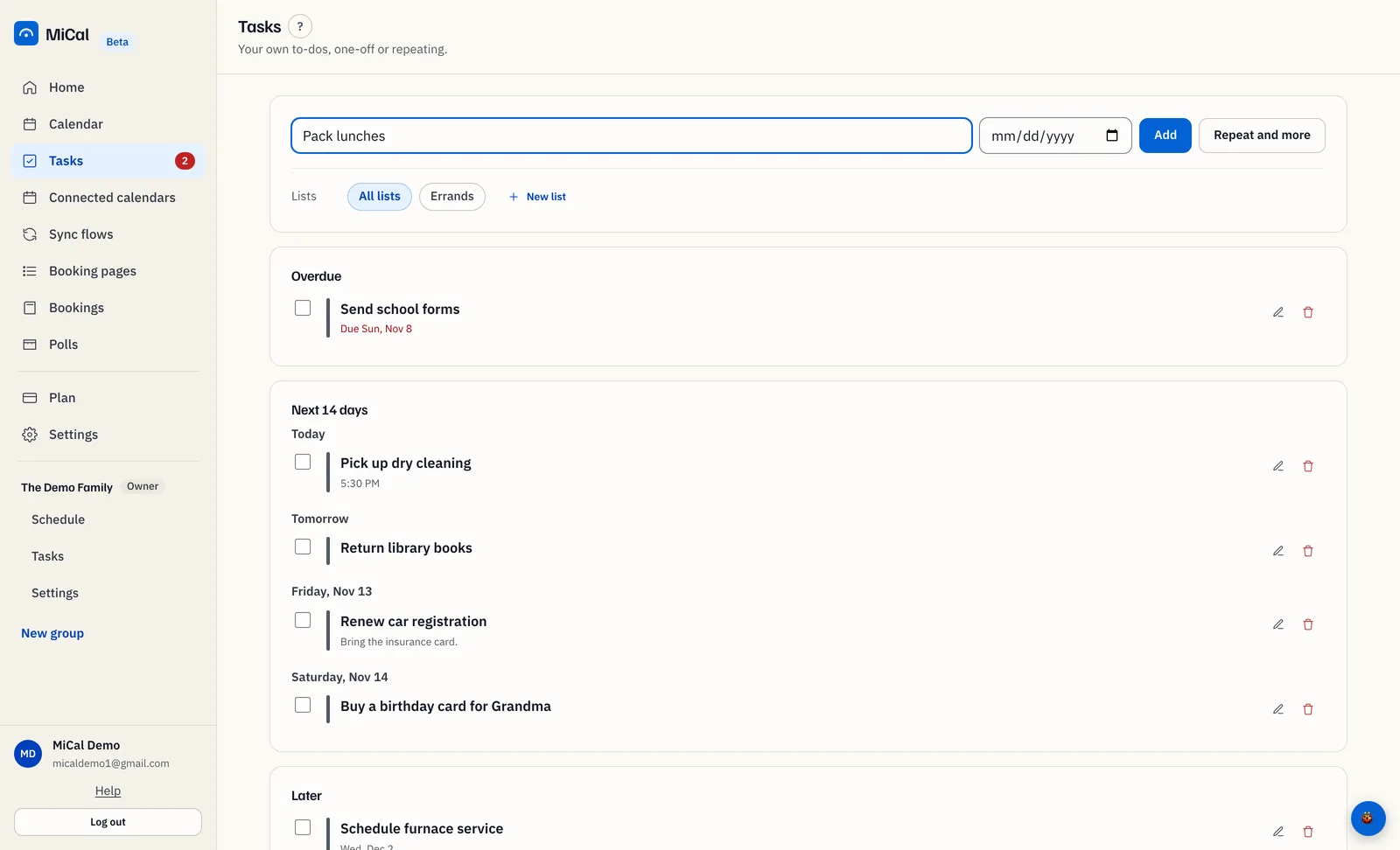
Select Tasks in the sidebar. Open tasks sit under Overdue, Next 14 days, Later and Someday.
Type the task in Add a task. Pick a date in the date field if you want one. Select Add.
A task with no date goes under Someday.
Add a time, or more detail
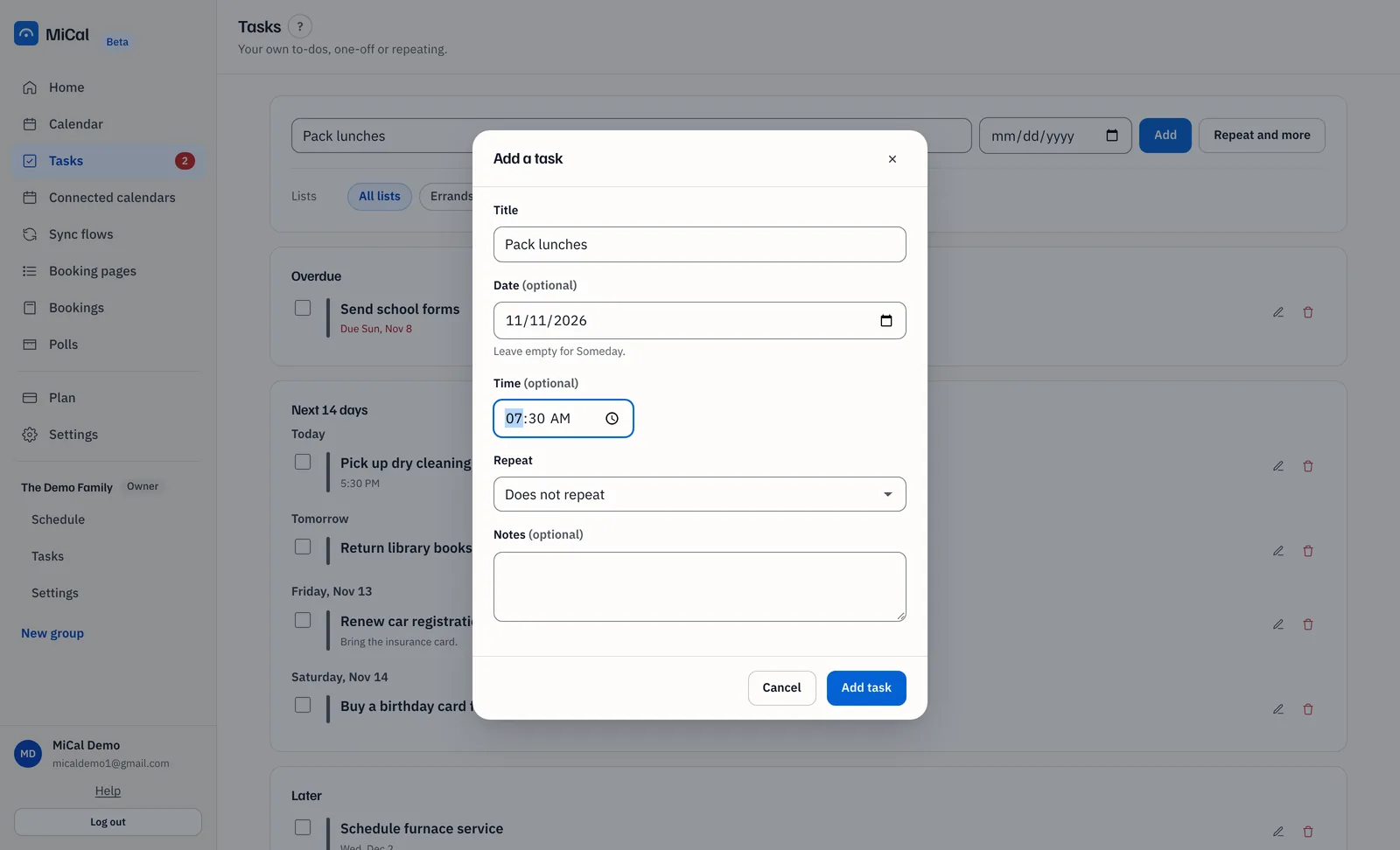
Select Repeat and more. The dialog is titled Add a task.
Enter a Title. Pick a Date. Set a Time. Select Add task.
Other fields are List, Repeat and Notes. In a group, Who assigns the task.
The time shows beside the task. Tasks sort by time within a day. Leave Time empty for a task with no time of day.
Make a list
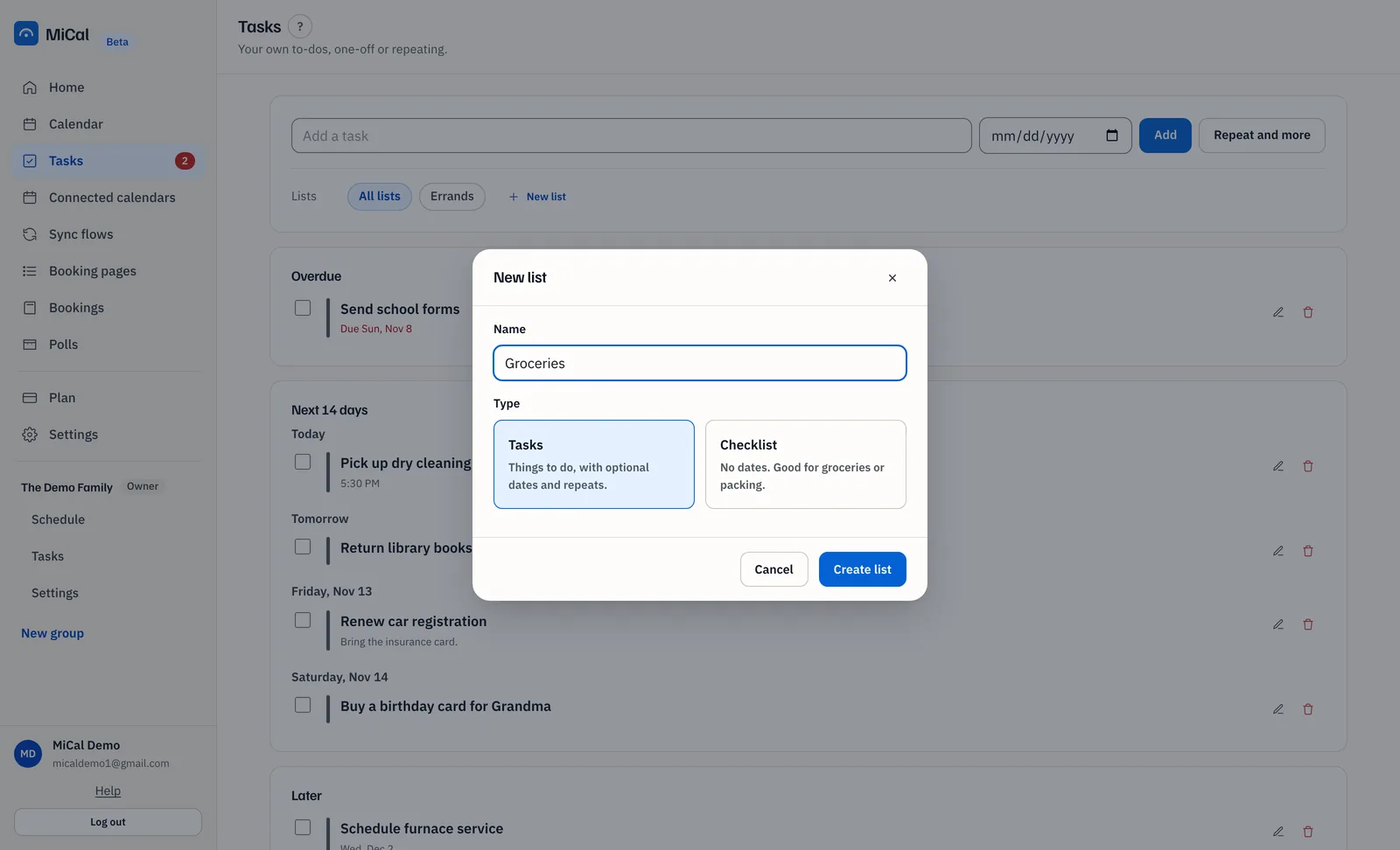
Select New list.
Enter a Name. Under Type, choose Tasks or Checklist. A checklist has no dates, so it suits groceries and packing.
Select Create list.
Select a list chip to show only that list. All lists shows everything. Once a list is open, Edit list and Delete list appear. Deleting a list deletes every task in it. In a group, only owners and admins edit or delete lists.
Tick a task off
Tick the box beside it. A ticked task stays on the board, struck through. Tick it again to bring it back. Ticking a repeating task clears only that day.
Group tasks and your own tasks
On a computer, your tasks and the group's tasks are separate pages in the sidebar. In a group, the Show chips narrow the board to Everyone, Mine, one person, or Beyond 14 days.
On your phone
Tap Tasks in the bottom bar. Open tasks sit under Overdue, then one heading for each of the next 14 days, then Later and Someday.
Type in Add a task. Under When, tap Today, Tomorrow, This weekend or Pick a date. With no day picked, the task goes under Someday.
In a group, tap a chip under For to give the task to one person. Anyone is the default.
Tap Add.
Tap the box beside a task to tick it off. A message says "Done" with Undo. Tap Undo to put it back.
Tap a task to edit it, set a Time, or delete it. If you have more than one list, use the List menu.
When you belong to a group, two chips sit above the list: the group's name and Just me. Tap Just me for your own tasks. Tap the group's name to return to the group's tasks. The Mine chip further down only narrows the group's list to tasks for you.
The phone has no way to make a list. Use a computer for that.
Still stuck? Email support@mical.net. Privacy · Terms