Tidy up leftover copies and duplicates
Two tools on Connected calendars clean up a calendar. Tidy up removes copies MiCal made that no sync flow keeps anymore. Find duplicates finds doubled events. Both back up what they remove for 7 days.
Before you start
A connected Google, Microsoft or iCloud calendar. Read-only links have neither button.
Nothing is removed until you select the remove button.
On a phone, tap More, then Manage calendars. The Tidy up screen is the same as on a computer.
Tidy up leftover copies
Select Connected calendars in the sidebar.
Select Tidy up on the calendar's row. MiCal looks from 30 days back to 60 days ahead. The same screen opens from Tidy up leftover copies under Set up on Home.
In Leftover copies, review the groups. One group holds extra copies from a sync flow that is still running. A sync flow you delete gets its own group for a year, named for its two calendars and the day you deleted it. Copies from older deleted sync flows, and from sync flows deleted before this group existed, share one group. Select Show 1 event to see them. Clear a checkbox to keep a copy or a whole group. Original gone means the event it was copied from no longer exists.
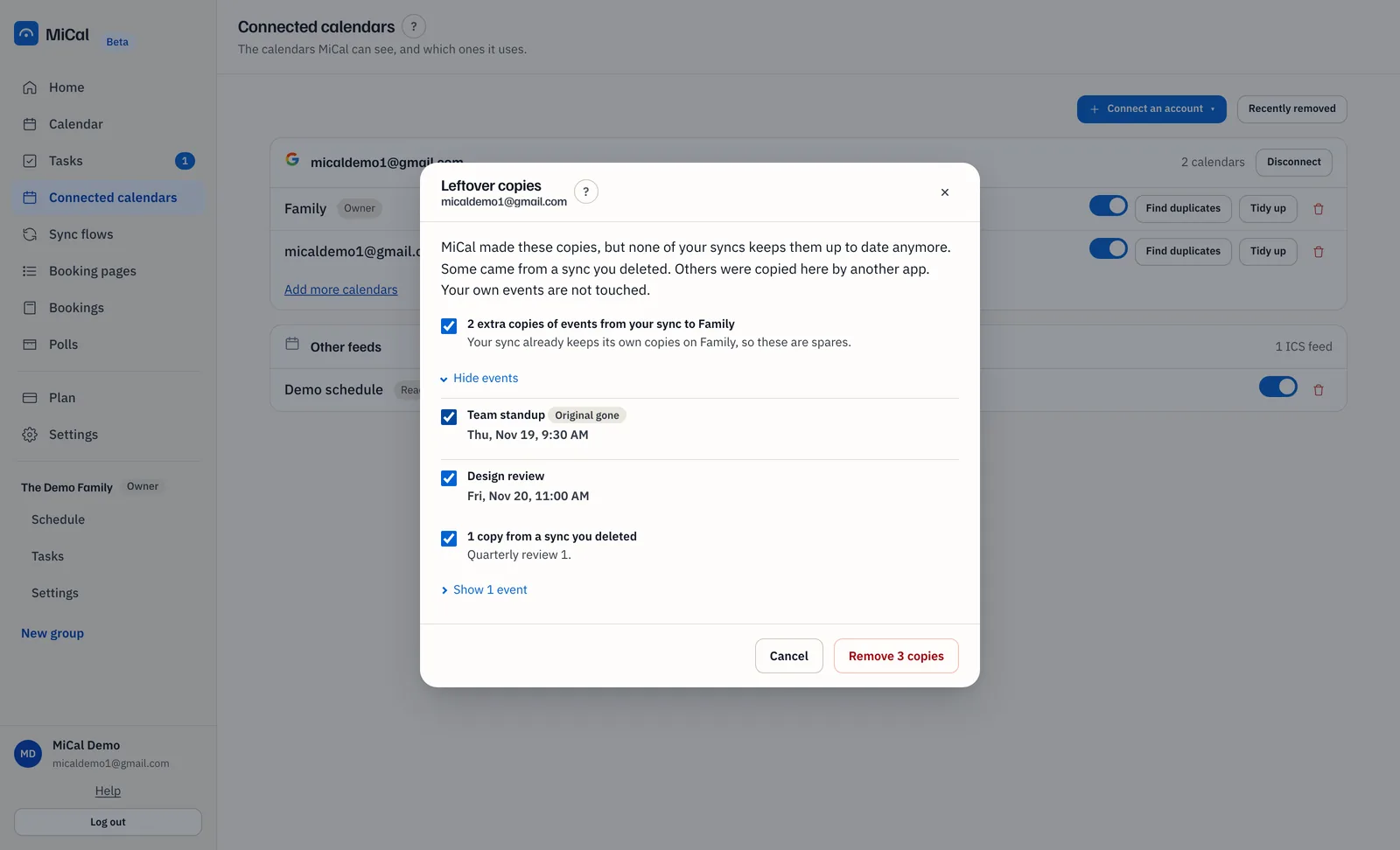
Select Remove 3 copies. The number follows what is ticked. Keep the window open until it finishes.
To undo the run, select Put all back on the results screen.
MiCal checks every copy again before it removes it. It skips a copy that now has guests, or that a live sync flow uses. Your own events are never listed. A copy you put back is still a leftover, so Tidy up lists it again.
Other tools' leftovers
Some apps leave events behind too. When Tidy up finds events that follow a pattern, it shows them under Other tools' leftovers, below the copies, and the window is titled Leftover events. It lists events with no guests that you organize, plus invites with "(Clone)" in the title (see below).
Review each group: Titles ending in "(Clone)" or "(Copy)", Made by Reclaim, Titles starting with a Reclaim symbol, or Invites with "(Clone)" in the title.
Tick Include these to take a whole group, or tick single events. Some start ticked: a clone with Original on a calendar, and events made by Reclaim. A clone with No original found and titles starting with a Reclaim symbol start unticked, because they may be your own events. To start from nothing, select Untick all at the top.
A row that says Repeats. Removes the whole series. removes every date of that repeating event.
Select Remove 2 events. The number counts both sections.
To undo the run, select Put all back.
MiCal checks each event again before it removes it, and leaves alone any that no longer fit the pattern.
Invites with "(Clone)" in the title
Sometimes a "(Clone)" event reaches you as an invite: someone else, or another tool, sent it, and you are a guest. These have their own group, Invites with "(Clone)" in the title, on Google calendars. Each row says Sent by and the sender's name, or their email when there is no name.
The group and every row start unticked. Removing one takes it off your calendar only: the sender's event stays, and MiCal sends no email. A repeating invite is listed date by date. Put all back can't make it an invite again: it adds the event back as your own, with no guests. After that, Tidy up lists it with the other "(Clone)" titles. Invites on other calendars aren't listed.
Find duplicates
Select Find duplicates on the calendar's row. MiCal looks from last week through the next 90 days.
Review the rows. Each row shows what would be removed and a Keeps line with the event that stays.
Leftover copies: marked "(Clone)" or "Copy", with the original at the same time. Ticked.
MiCal copies beside the real invite: MiCal added these, but the meeting is already on your calendar. Ticked.
Same meeting twice: same title and time. Not ticked. Check these first.
Select Remove 1 event. The number follows what is ticked.
Check the final list. It names each event and its date, or "whole series" for a repeating event. Select Remove 1 event again to confirm, or Go back.
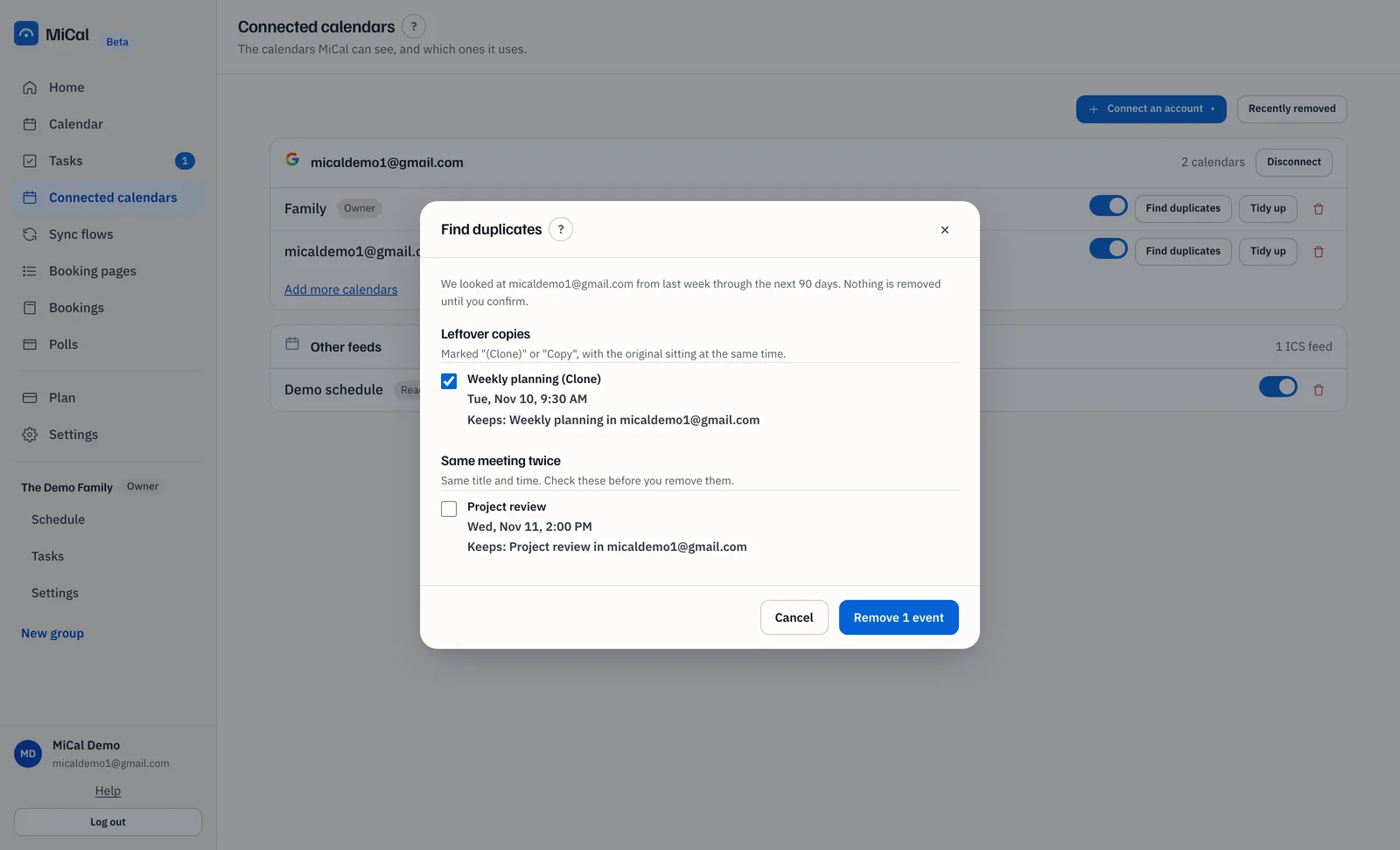
If an event changes between the scan and your confirmation, MiCal leaves it alone and lists it as left alone.
Put removed events back
Select Connected calendars in the sidebar, then Recently removed.
Find the event. Each row shows its date, the calendar, and the days left. Series means the whole series.
Select Restore. Restoring doesn't send invites.
Notes
Removed events stay restorable for 7 days. After that they can't be restored.
Restoring a series doesn't bring back single dates you changed or canceled.
A repeating series that runs past the 90 days checked is offered date by date.
If MiCal can't read the whole calendar, it removes nothing and says so. Try again in a few minutes.
Still stuck? Email support@mical.net. Privacy · Terms