Turn off or delete a booking page
Turn a booking page off to hide it for now, or delete it when you are done with it. Past bookings stay in your Bookings list either way.
Turn a page off or on
Select Booking pages in the sidebar. The list shows each page with Active or Off next to its name.
Select the pencil icon (Edit) on the page.
Scroll down to the More options fields, which are already open. Switch Open for booking off to hide the page, or on to make it live again.
Select Save changes.
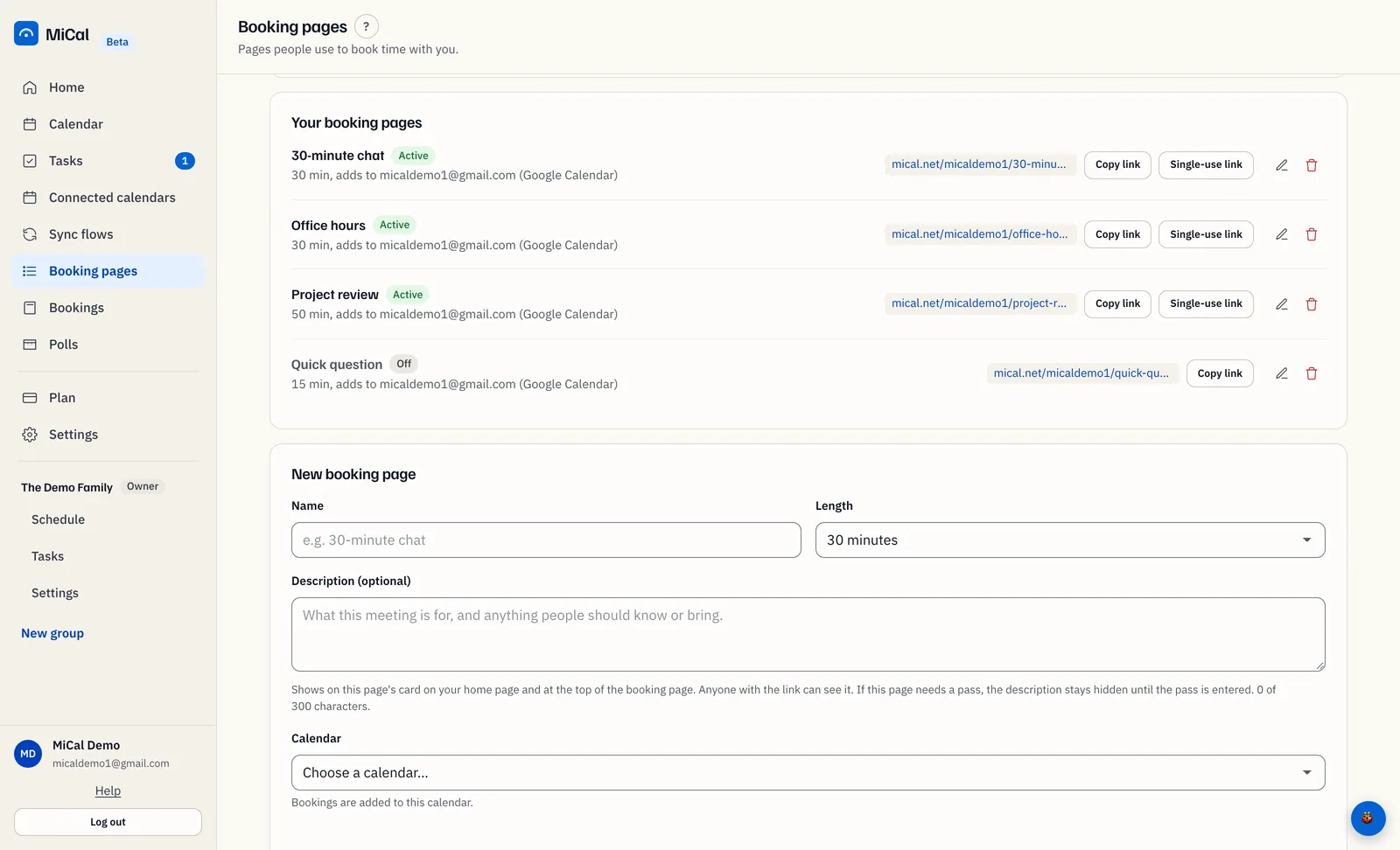
An off page keeps its address and settings. Anyone who opens its link sees "This booking link isn't active." The page also drops off your booking home page, and its single-use links stop working until you turn it back on.
On a phone, you can see that a page is off, but you can't turn it on or off. Do that from a computer.
Delete a page and reuse its address
Select Booking pages in the sidebar.
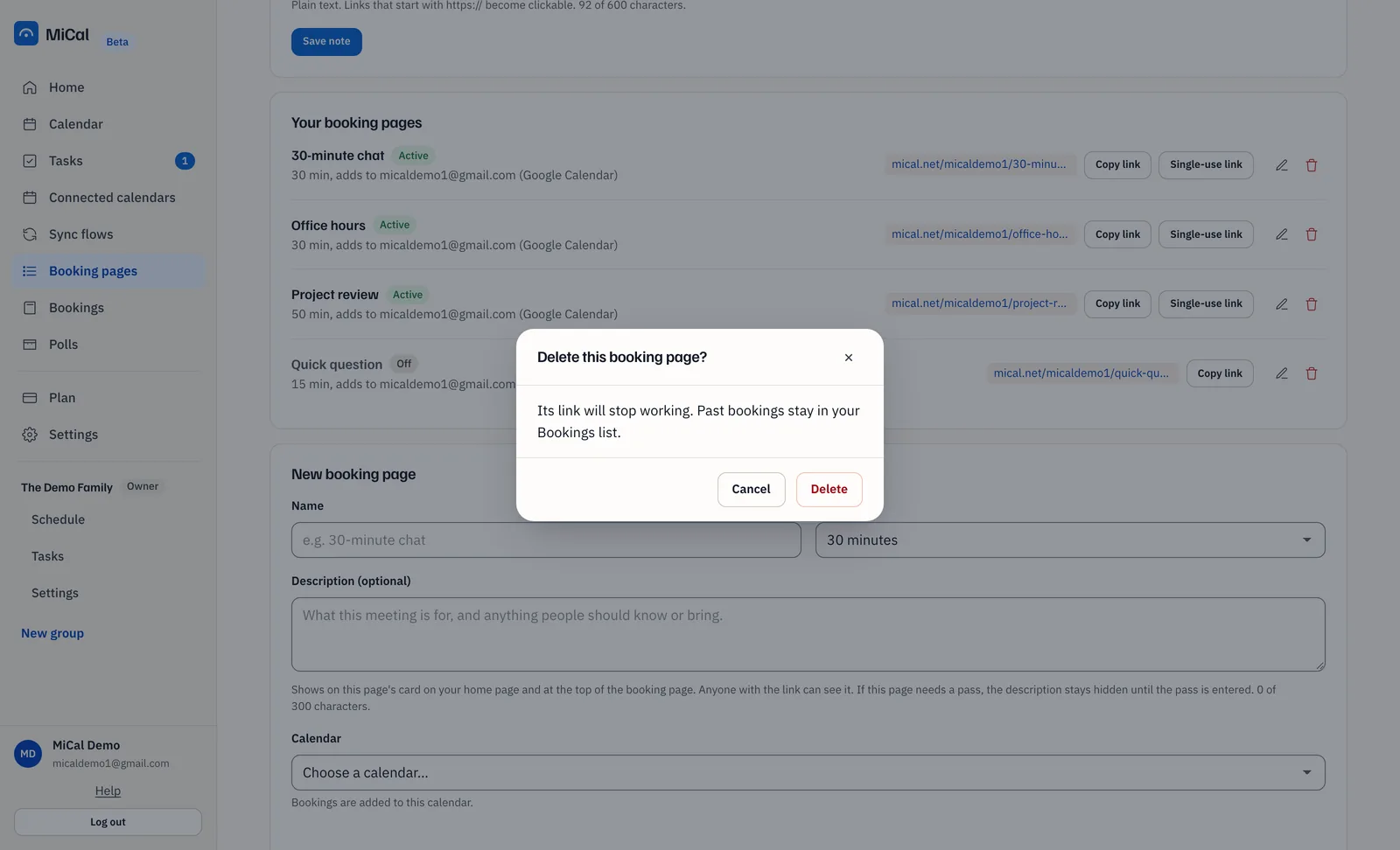
Select the trash icon (Delete) on the page. In Delete this booking page?, select Delete.
To use the same address again, go to New booking page. Enter a Name, choose a Calendar, and select More options. Set Page address to the old address, then select Create booking page.
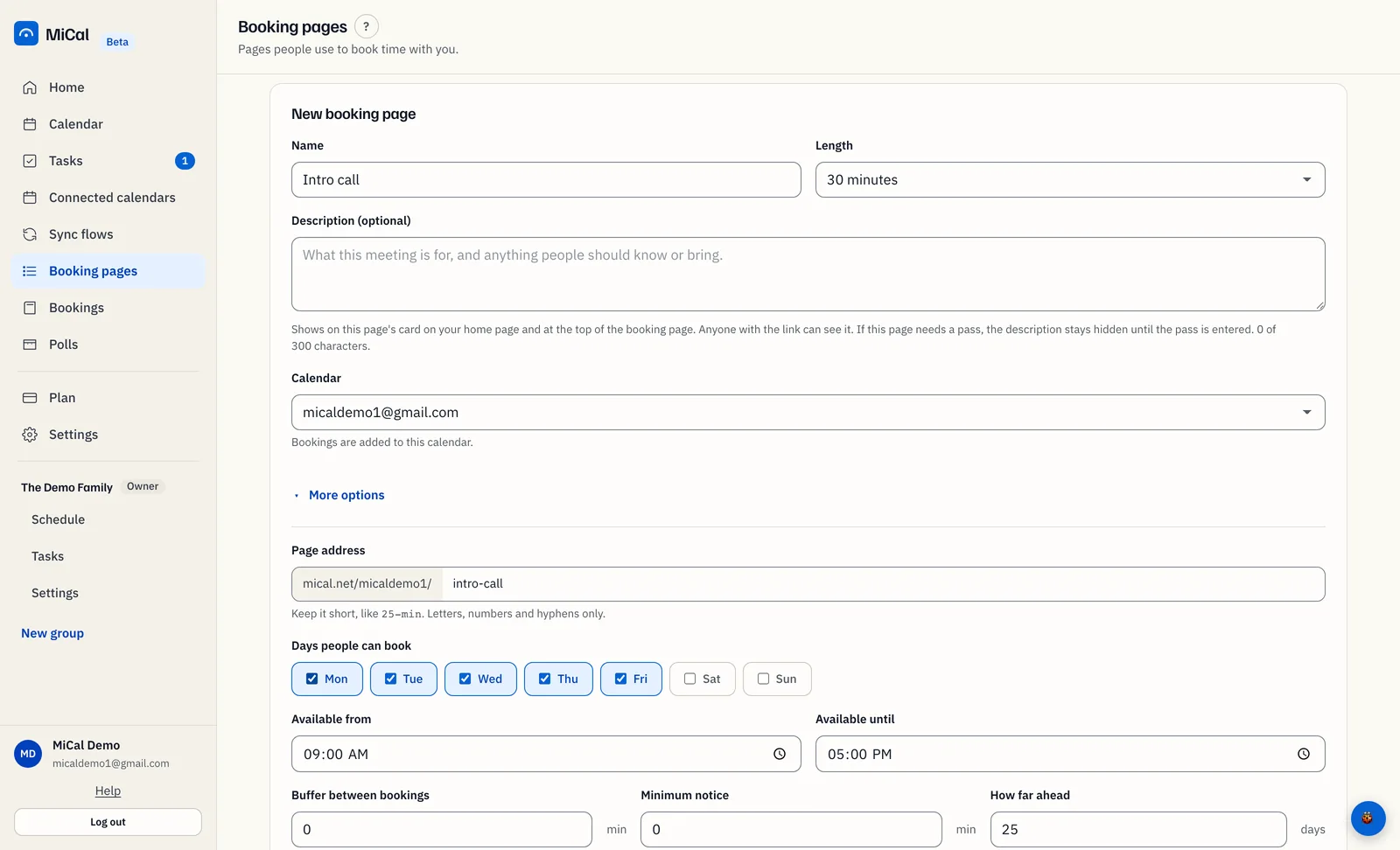
The old link works again as soon as the new page exists. It points to the new page, not the old one.
Notes
Deleting a page frees a place in your plan's booking page limit. The Free plan allows one page.
Past bookings from a deleted page stay in Bookings. Bookings that are still ahead stay on your calendar and in the list until you cancel them.
Still stuck? Email support@mical.net. Privacy · Terms