Choose what a sync flow copies
Each sync flow has rules for which events it copies and what the copies show. Set them when you create the flow, or change them later.
Open the rules
Select Sync flows in the sidebar.
For a new flow, use New sync flow. For an existing flow, select the pencil icon, Edit, on its row. The form becomes Edit sync flow.
Copy as free/busy only
Under What should be copied?, set What copies can see to Free/busy only.
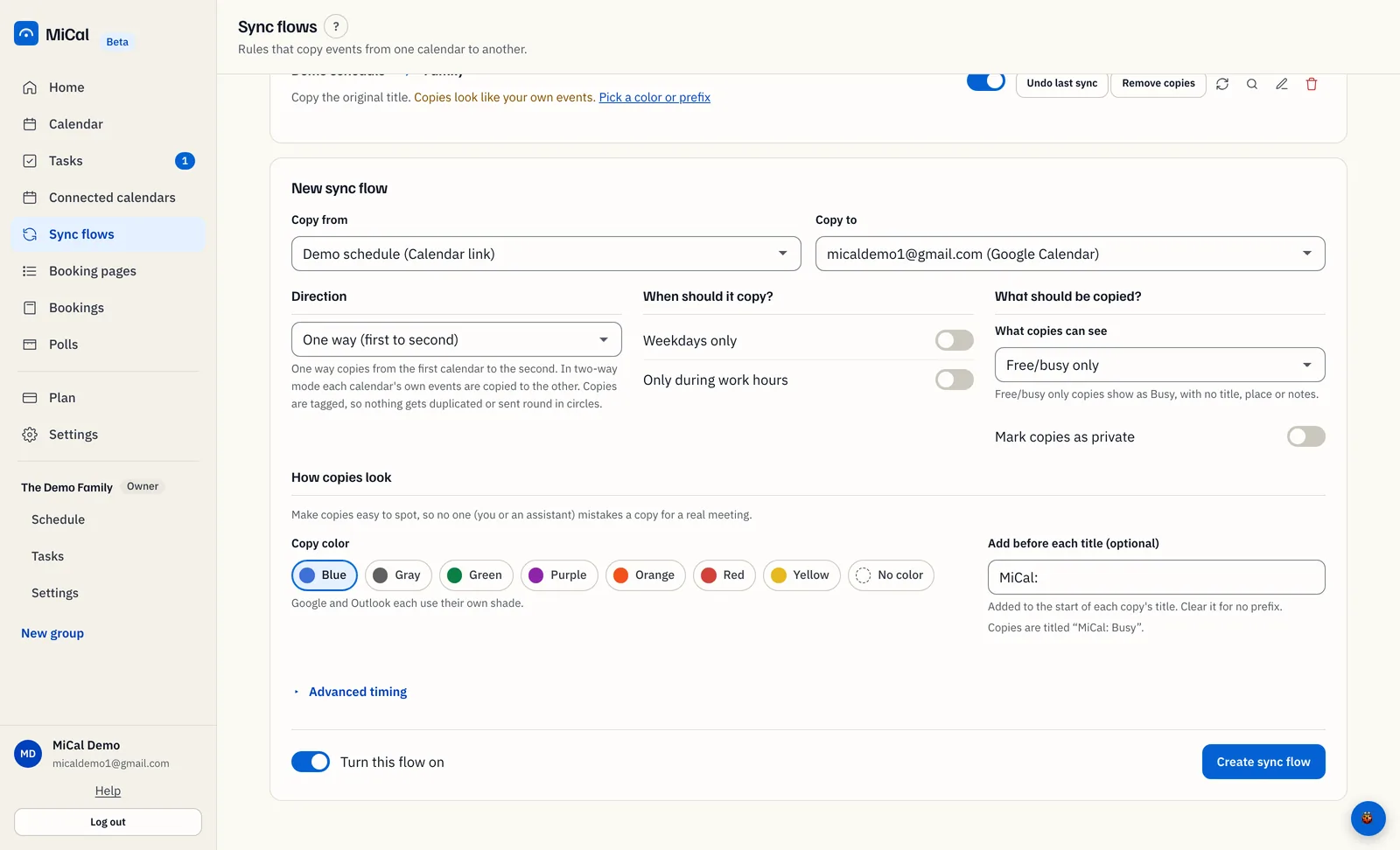
Copies show as Busy. They carry no title, place, notes or join links. The description is hidden because it only applies to Full detail.
With Full detail, copies keep the real title and place. Turn on The description to carry notes and join links too.
Mark copies as private
Turn on Mark copies as private so copies show as private on the target calendar.
Skip some events
Under When should it copy?:
Weekdays only skips Saturday and Sunday.
Only during work hours skips events that start outside your work hours. It also skips all-day events. Set the hours under Advanced timing.
These rules skip events. They never move or resize them. They are judged in your account time zone.
Advanced timing
Select Advanced timing to open it.
Work hours start and Work hours end: the window for Only during work hours. The default is 9:00 to 17:00. It applies only while that toggle is on.
Buffer before booking and Buffer after booking: minutes added before and after each timed copy. A copy of a 10:00 to 11:00 event with 15 minutes on each side reads 9:45 to 11:15. All-day events aren't changed.
Change a flow that has already synced
Select Edit on the flow, change the rules, and select Save changes.
Select the Preview changes (writes nothing) icon to see what will change. Copies that will change are marked update.
Select the Sync now icon to apply the change. Otherwise the next automatic sync, about every 10 minutes, does it.
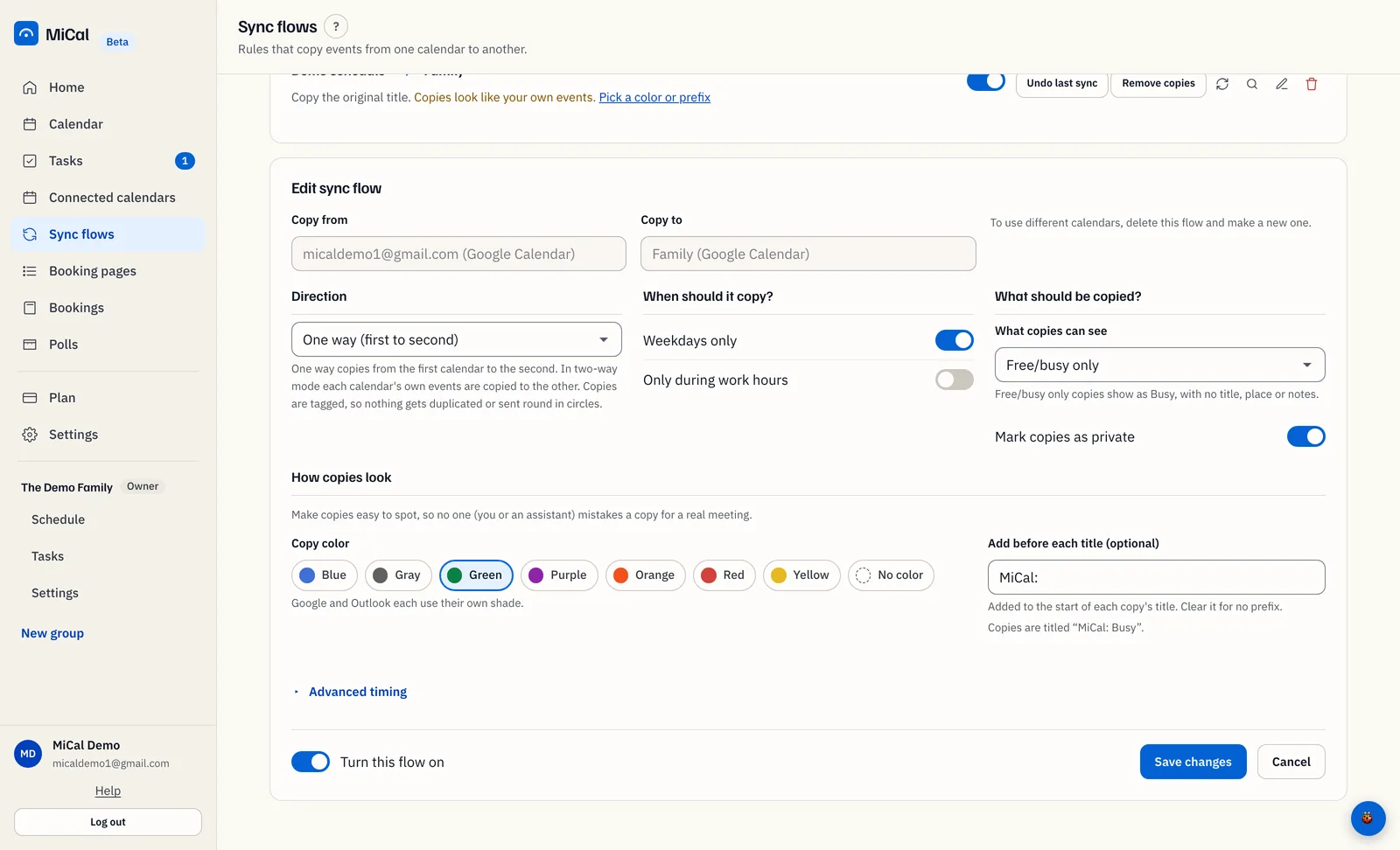
Every copy the flow made is rewritten to match. Switching to Free/busy only replaces titles with Busy and clears the place. Turning off Mark copies as private makes copies visible again. Turning off The description strips notes and join links.
Notes
A flow only changes its own copies. Your own events are never touched.
The source and target calendars can't be changed on an existing flow.
Undo last sync reverses the most recent run that changed something, and turns the flow off.
Still stuck? Email support@mical.net. Privacy · Terms