Set when people can book
Choose the days and hours people can book, how much room to leave around meetings, and how far ahead they can book. Each booking page has its own settings.
Before you start
A booking page. To make one, see Create a booking page.
Steps
Select Booking pages in the sidebar. To change a page, select the pencil icon (Edit) on it. To set up a new page, use the New booking page form.
The More options fields are open when you edit a page. On a new page, select More options to show them.
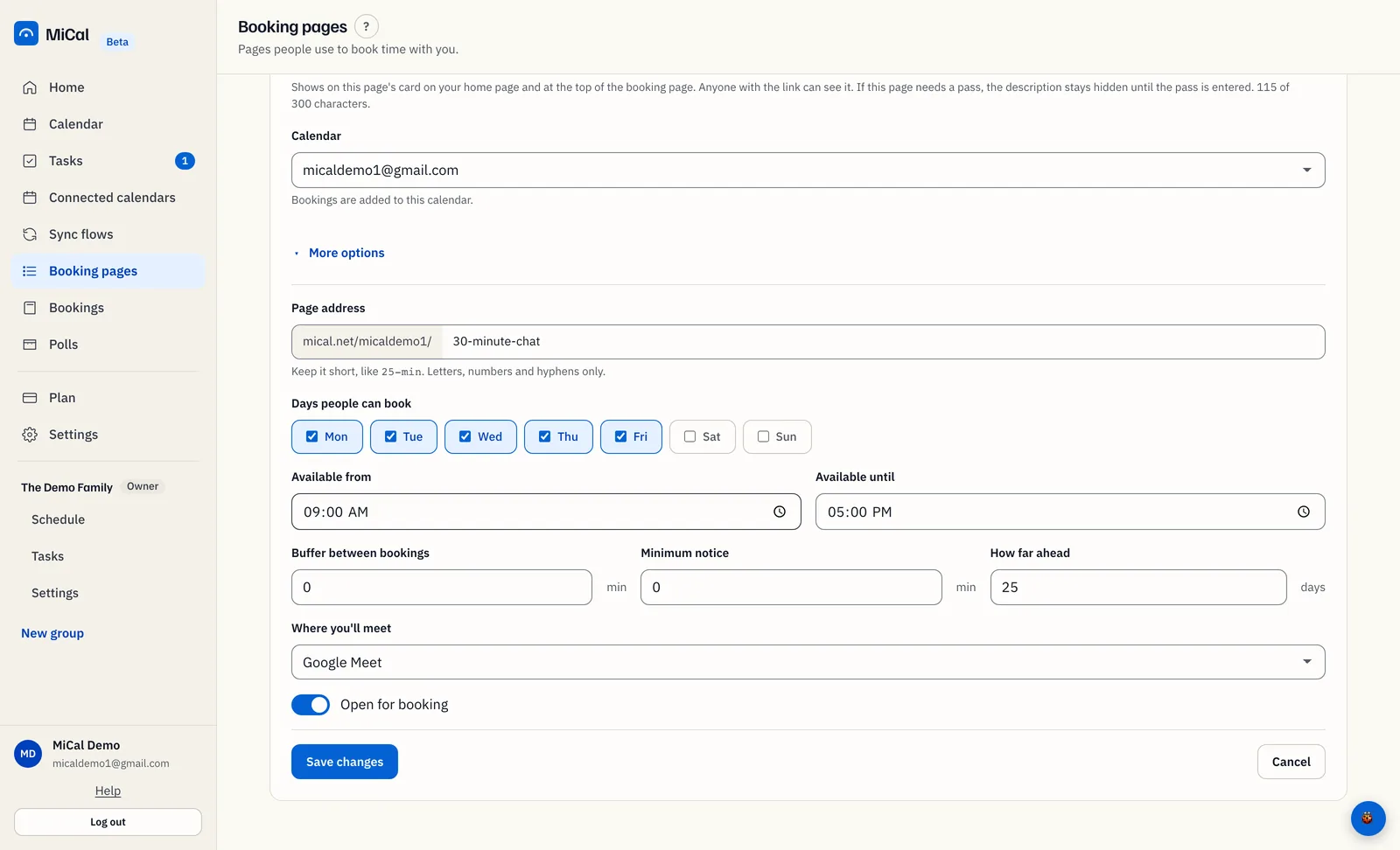
Under Days people can book, tick the days you accept bookings. Monday to Friday is ticked to start.
Set Available from and Available until. The start must be earlier than the end. These hours follow the timezone in Settings.
Set Buffer between bookings (minutes). MiCal keeps this much time free before and after every busy time on the page's calendar.
Set Minimum notice (minutes). People cannot book a time that is closer than this.
Set How far ahead (days). The default is 25.
Select Save changes, or Create booking page for a new page.
If a booking page shows no times
A visitor picks a day and sees "Nothing is free on this day. Try another." On a phone, the page can say "Nothing is open in the next 25 days." The page works. One of its settings, or your calendar, leaves no room. Check these in order.
Active. On Booking pages, the page should show Active. A page that is off does not open. Edit it and turn on Open for booking under More options.
Days people can book. A day with no tick never offers a time.
Available from and Available until. Times are only offered inside this range. A narrow range, or one that has already passed today, offers little.
Your calendar. Events on the page's Calendar and your other bookings block those times.
Buffer between bookings. A large buffer on a day with events can use up every gap. Lower it.
Minimum notice. A high number removes today and tomorrow. Lower it for same-day times.
How far ahead. A small number removes later dates. Raise it.
Timezone. Visitors see times in their own timezone. The Times shown in menu on the booking page lets them change it. Your hours follow your account timezone in Settings.
Select Save changes, then open the booking link and pick the day again.
Still stuck? Email support@mical.net. Privacy · Terms