Create a booking page
A booking page is a meeting people can book on their own. It has its own link. Name it, set how long it runs and which calendar it lands on, then share the link.
Before you start
A connected calendar to receive the bookings.
The Free plan has room for 1 booking page. To add more, change your plan on Plan.
Steps
Select Booking pages in the sidebar. Your pages are listed under Your booking pages, with the New booking page form below.
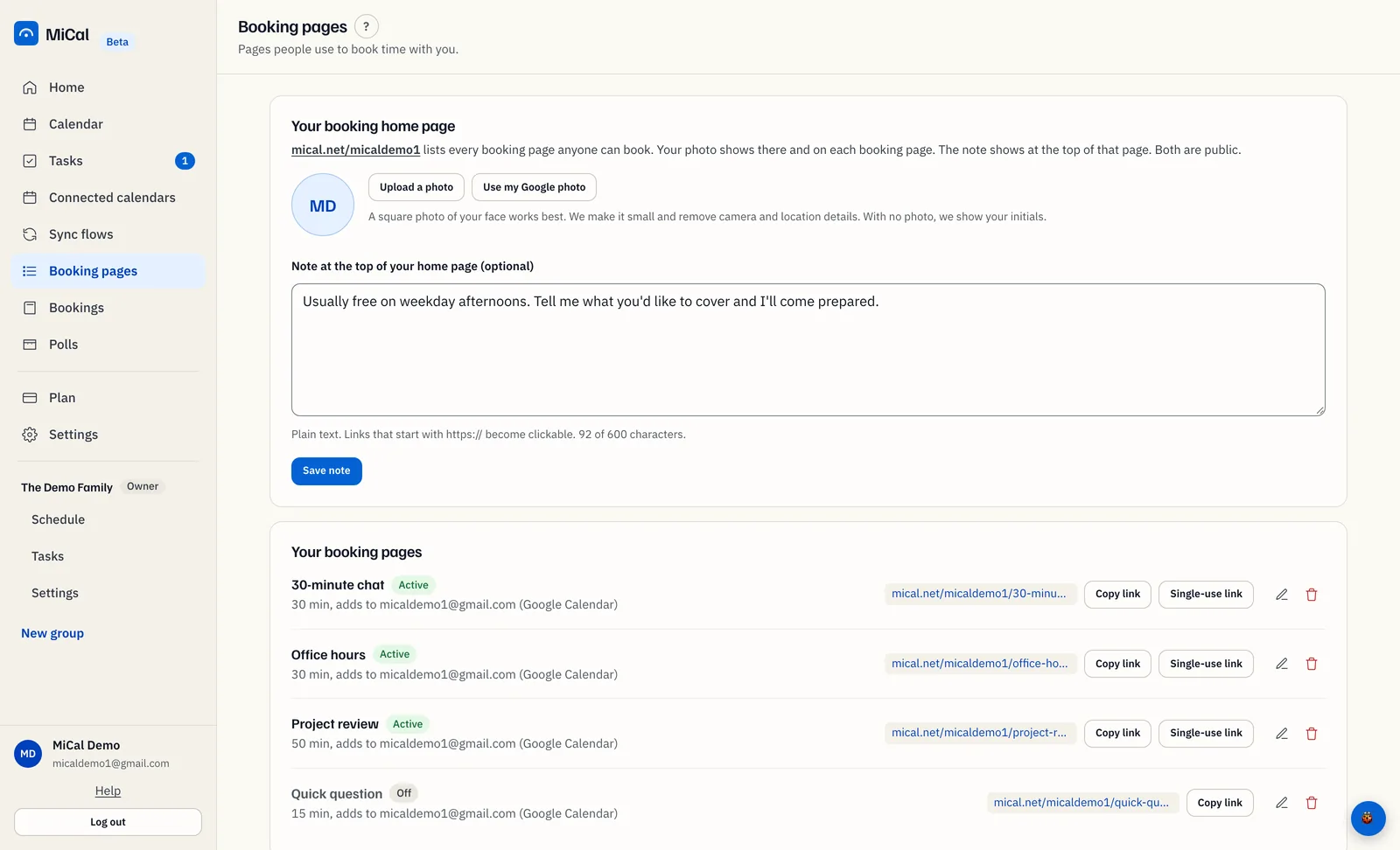
In New booking page, type a Name. Choose Length: 15, 25, 30, 45, 50, 60 or 90 minutes, or Custom. Choose the Calendar where bookings are added.
Select Create booking page.
The dialog Your booking page is live shows the link. Select Copy to copy it, Open page to see it, or Done to close.
What a new page starts with
Bookable Monday to Friday, 9:00 AM to 5:00 PM.
No buffer, no minimum notice, and bookings up to 25 days ahead.
Google Meet as the place to meet.
Choosing 25 minutes adds a 5 minute buffer. Choosing 50 minutes adds a 10 minute buffer.
To change any of this, select More options in the form. When you edit a page later, those fields are already open. See Set when people can book and Add a description and location.
Use the 25 and 50 minute defaults
When you have no booking pages, Booking pages offers two ready-made pages in one click.
Select Use the 25 and 50 minute defaults. It appears once you have a connected calendar that is not a read-only link.
MiCal creates 25-minute meeting (5 minute buffer, link ends in
/25) and 50-minute meeting (10 minute buffer, link ends in/50). Both use Monday to Friday, 9:00 AM to 5:00 PM, Google Meet, and the first connected calendar MiCal can write to.The dialog Your booking page is live shows the first link. The second link is in the list, beside Copy link.
Rename a page or change its length any time with the pencil icon (Edit).
On your phone
Tap Booking at the bottom of the screen. Your pages are under Your pages.
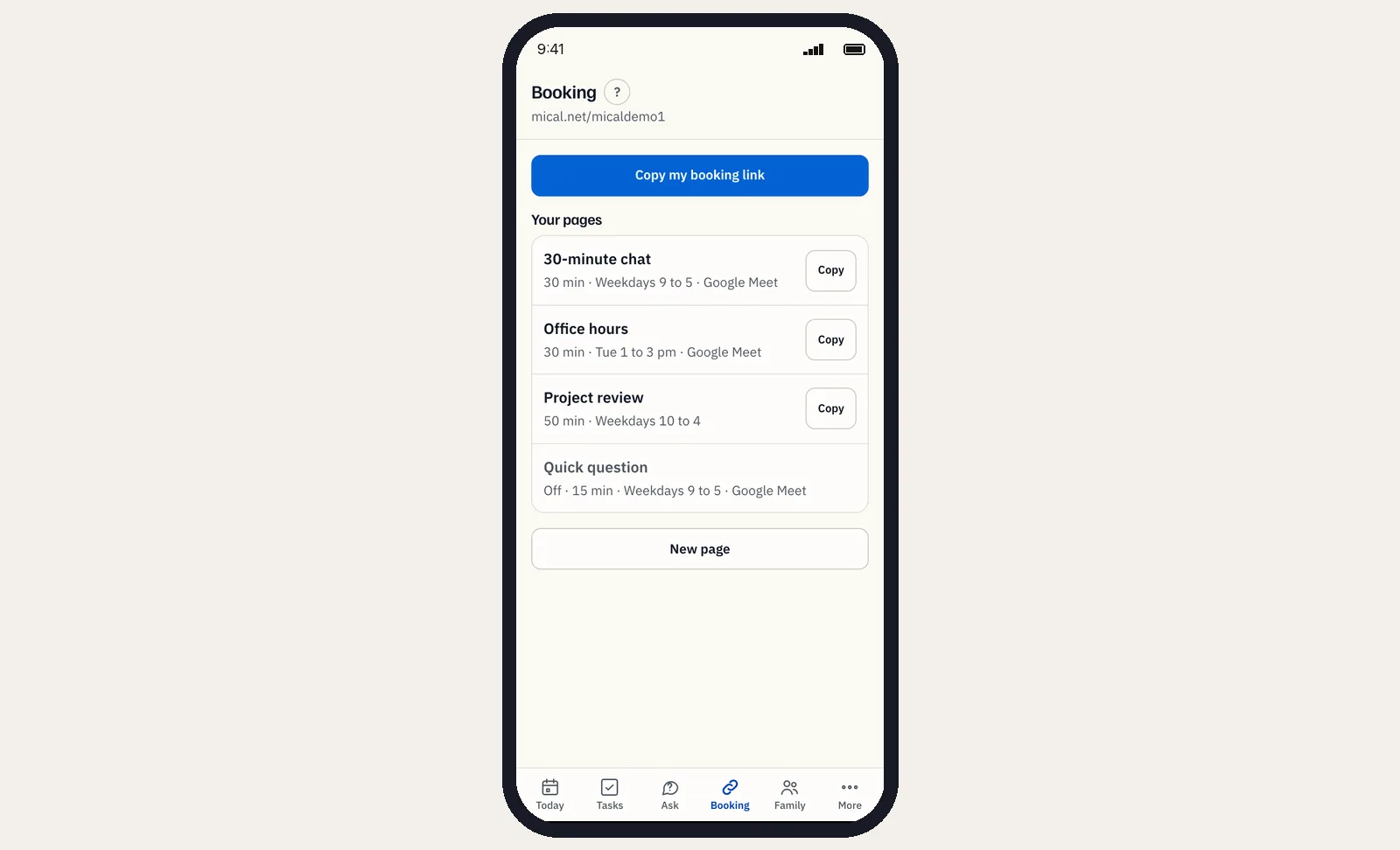
Tap New page. Under How long, choose Quick question (15 min), Meeting (25 min) or Long (50 min). Tap Create. The page is live right away, open Monday to Friday, 9 to 5.
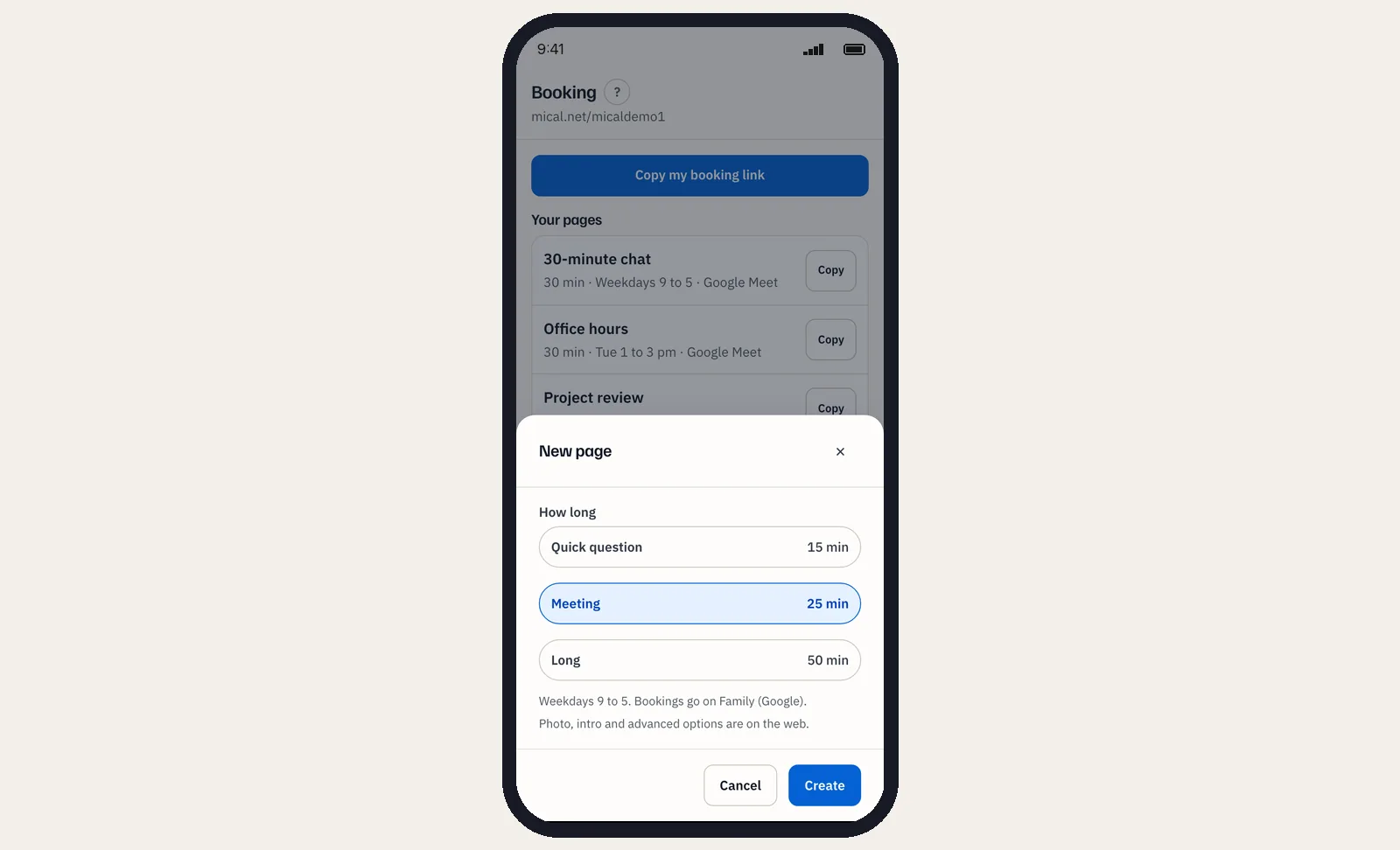
To change a page, tap it. Change Name, Length, Available from or Available until, then tap Save.
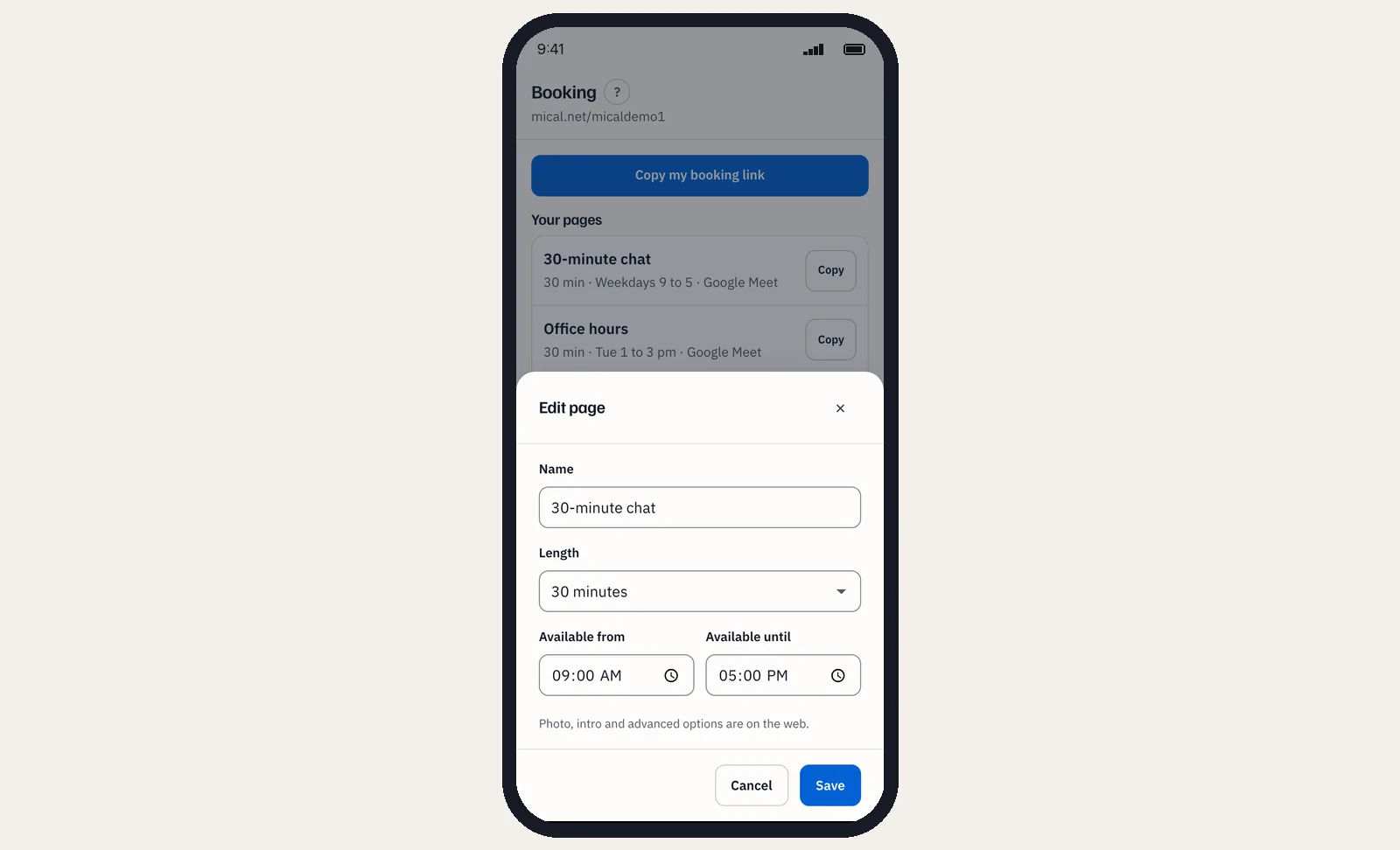
On Google calendars the page uses Google Meet. On other calendars the location is "to be arranged".
Photo, intro and advanced options are on the web.
A page that is off cannot be turned on from the phone. Use a computer.
Still stuck? Email support@mical.net. Privacy · Terms