Connect a Google or Microsoft account
Connect a Google or Microsoft account so MiCal can read its calendars and add events to them. Use the same steps for your first account, a second Google account, or an Outlook account.
Before you start
Sign in to the MiCal account that should get the calendars.
Have the email and password of the account you want to add.
The Free plan has room for 1 calendar. To add more, change your plan on Plan.
Steps
Select Connected calendars in the sidebar. On a phone, tap More, then Manage calendars.
Select Connect an account, then choose Google (Google Calendar or Workspace) or Microsoft (Outlook or Microsoft 365).
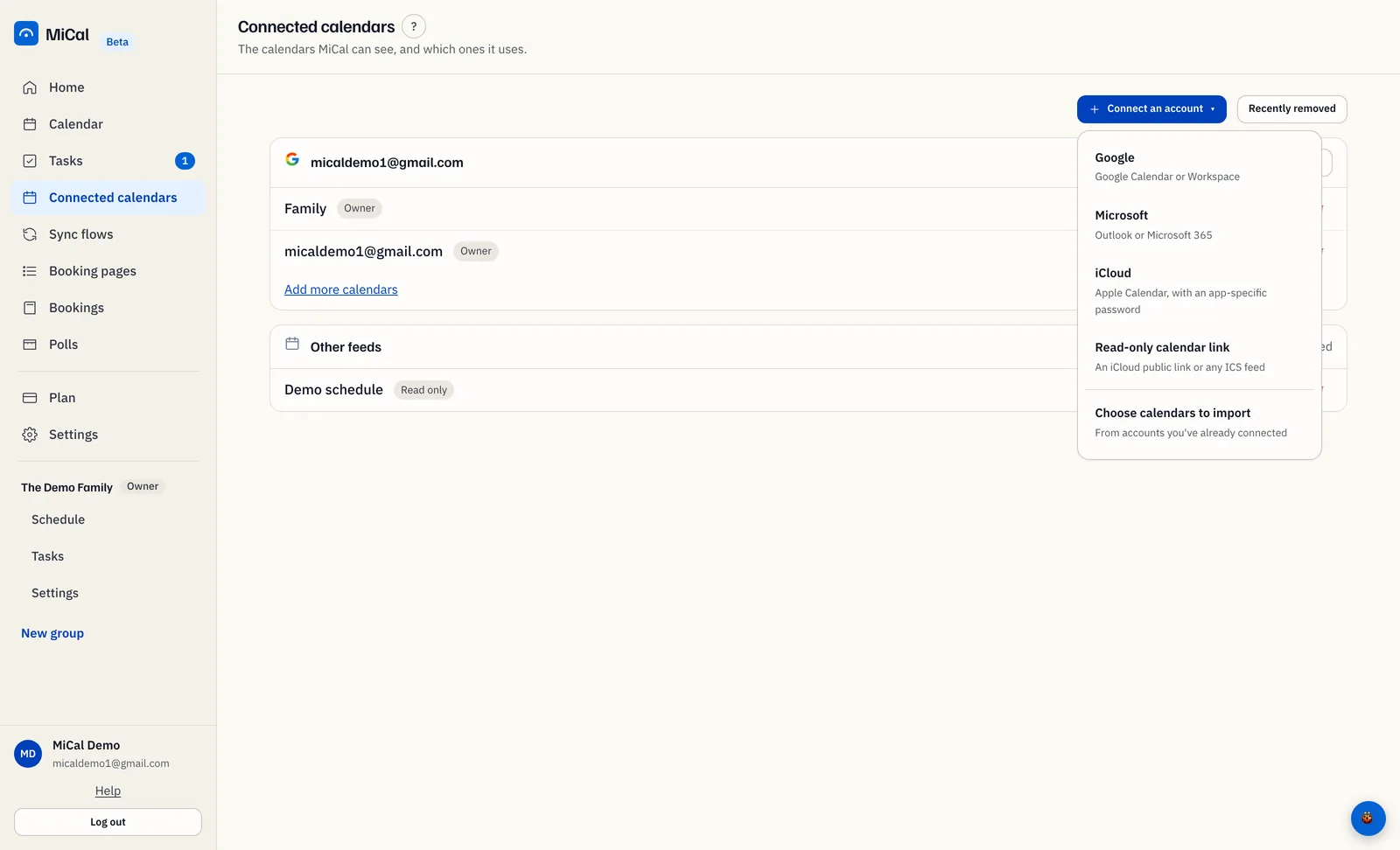
Choose the account in your provider's account list. To add a different account, choose "Use another account" and sign in with it. Approve access when asked. Google also asks for your contacts. MiCal uses them only to suggest people when you invite someone, and does not store them.
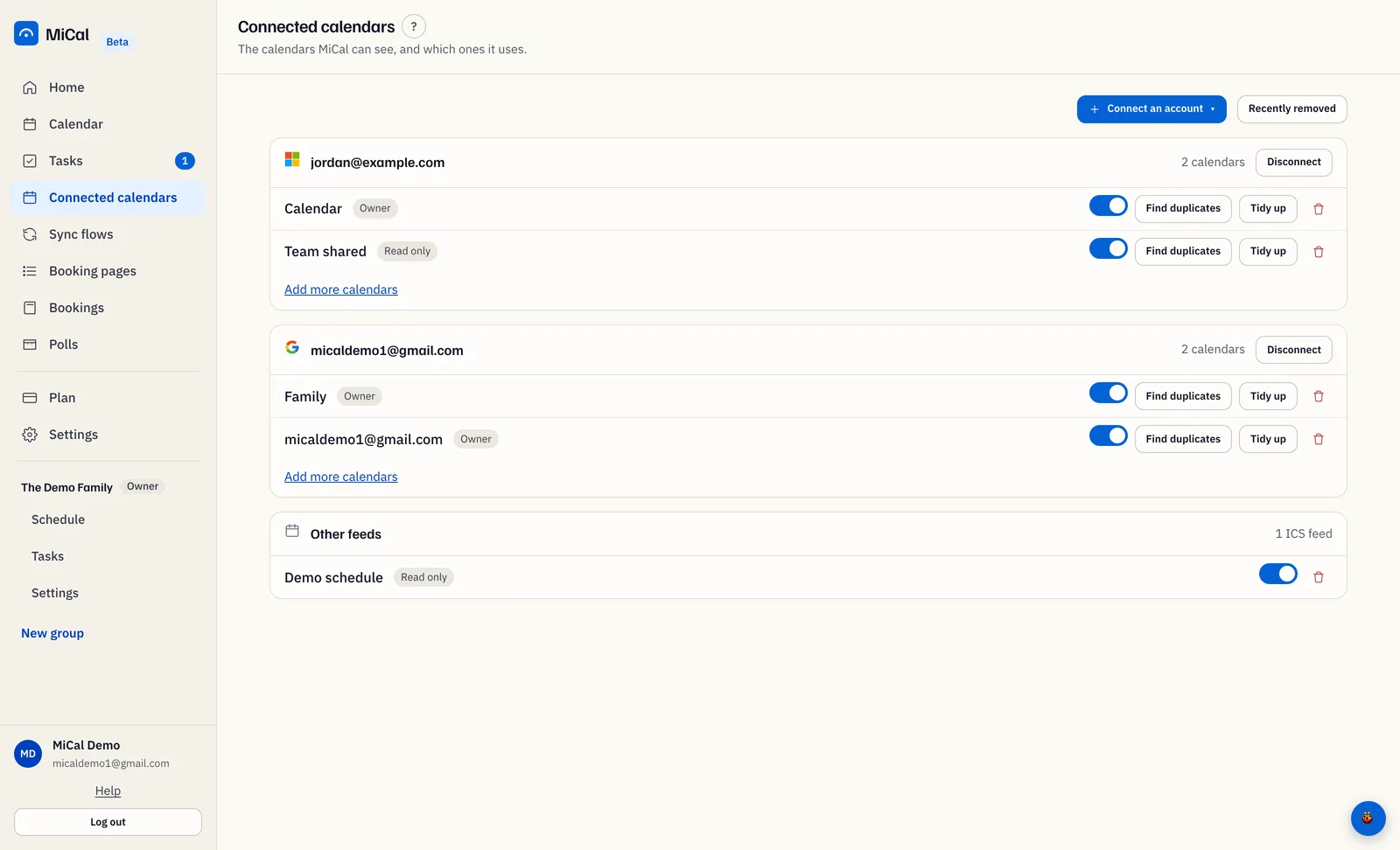
MiCal returns you to Connected calendars and says "Google Calendar connected." or "Outlook connected." The account has its own card, and each calendar on it has an on/off switch. MiCal adds the account's main calendar for you if your plan has room.
To add more calendars from that account, select Add more calendars in its card. You can also select Connect an account, then Choose calendars to import, tick the ones you want, and select Import selected.
If your email is already in use
If you sign in with a second account on the sign-in page, MiCal can say "That email already has a MiCal account". Sign in the way you did before, then add the second account from Connected calendars with the steps above.
If you connect from inside MiCal and the account you chose already has its own MiCal account, MiCal may ask Close your other MiCal account? It asks only when that other account is on the Free plan, was made by signing in with this same account, has no other connected accounts, isn't in a group, and has no upcoming bookings. The dialog shows when that account was made and how many calendars, booking pages, polls and syncs it has.
To keep only one account, tick I understand that account's data will be deleted., then select Close it and connect. The account is connected here and its main calendar is added if your plan has room. The other MiCal account is closed at once: its calendars, booking pages and syncs are removed, its booking links stop working, it's signed out everywhere, and nobody can sign in to it any more. Its polls and the rest of its data are deleted within 30 days. Copies its syncs made stay on your calendars; Tidy up can remove the ones from the last 30 days and the next 60. An email to that account's address says it was closed.
To change nothing, select Keep both.
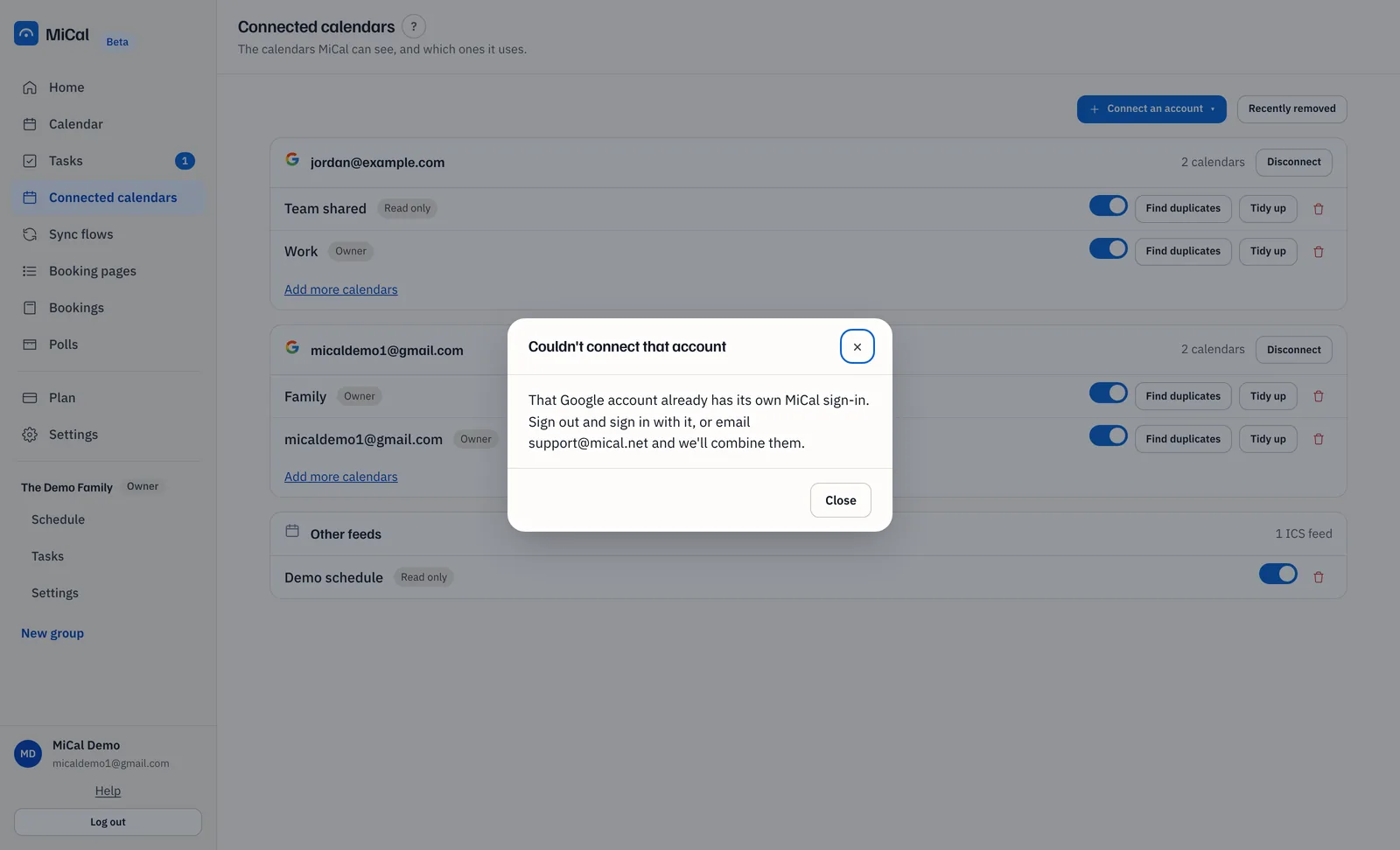
The question expires after 10 minutes. If it has expired, or the other account doesn't fit the rules above, the dialog says Couldn't connect that account instead. Nothing is merged. Select Close. Then either sign out and sign in with that account, or email support@mical.net and ask to combine the two.
Notes
To connect iCloud, see Connect iCloud Calendar. To add a read-only calendar by link, choose Read-only calendar link in the same menu.
Disconnect on an account card removes the account's calendars and any sync flows that use them. You can connect it again later.
If an account shows Reconnect, MiCal lost access to it. See Reconnect a calendar account.
Still stuck? Email support@mical.net. Privacy · Terms