Change how synced copies look
Each sync flow can color its copies and add a prefix to their titles, so a copy never passes for one of your own events.
Before you start
At least one saved sync flow on Sync flows.
Steps
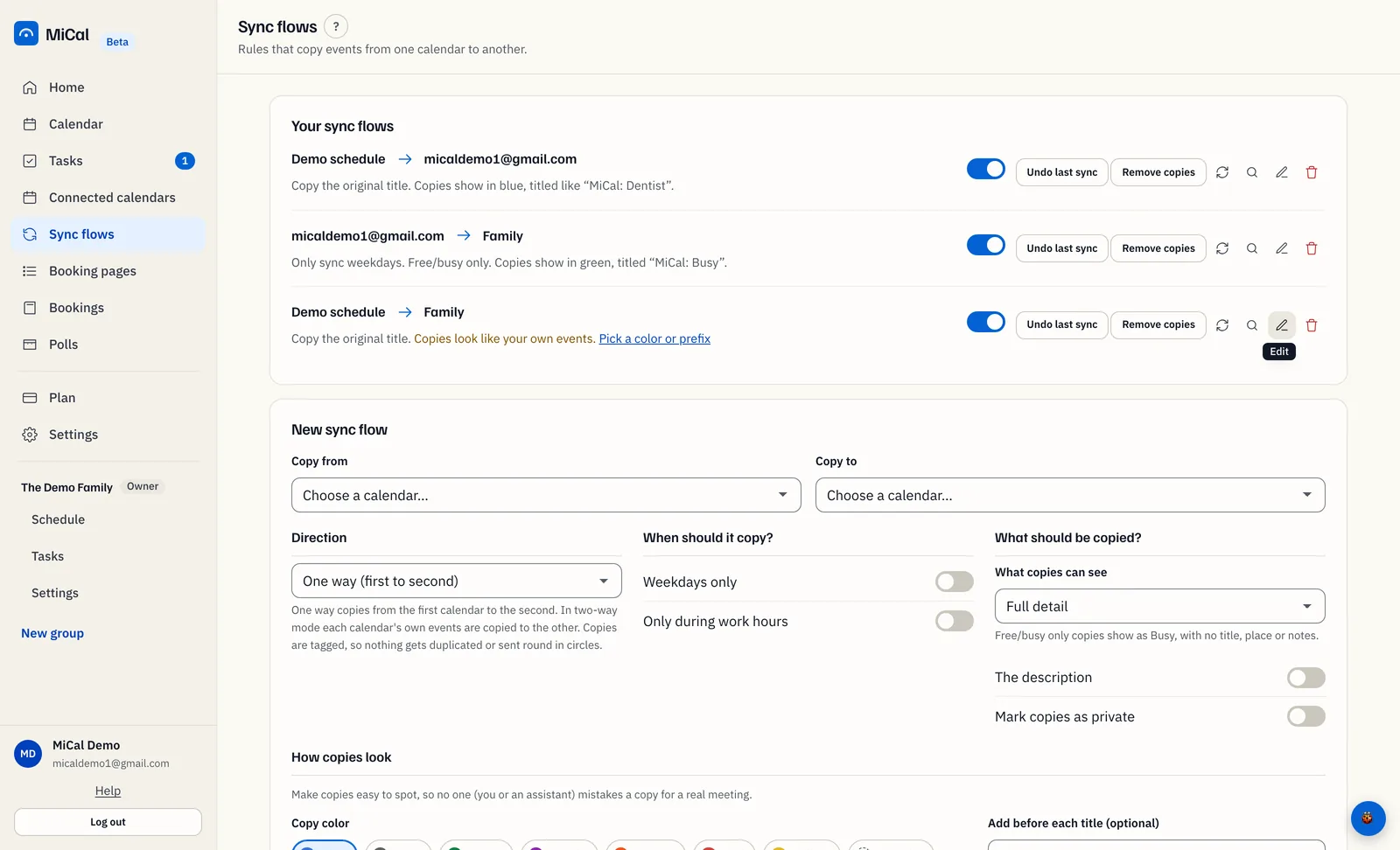
Select Sync flows in the sidebar. On the flow you want, select the pencil icon (Edit). The form below the list opens as Edit sync flow.
Under How copies look, choose a swatch in Copy color: Blue, Gray, Green, Purple, Orange, Red, Yellow, or No color. Google and Outlook each use their own shade.
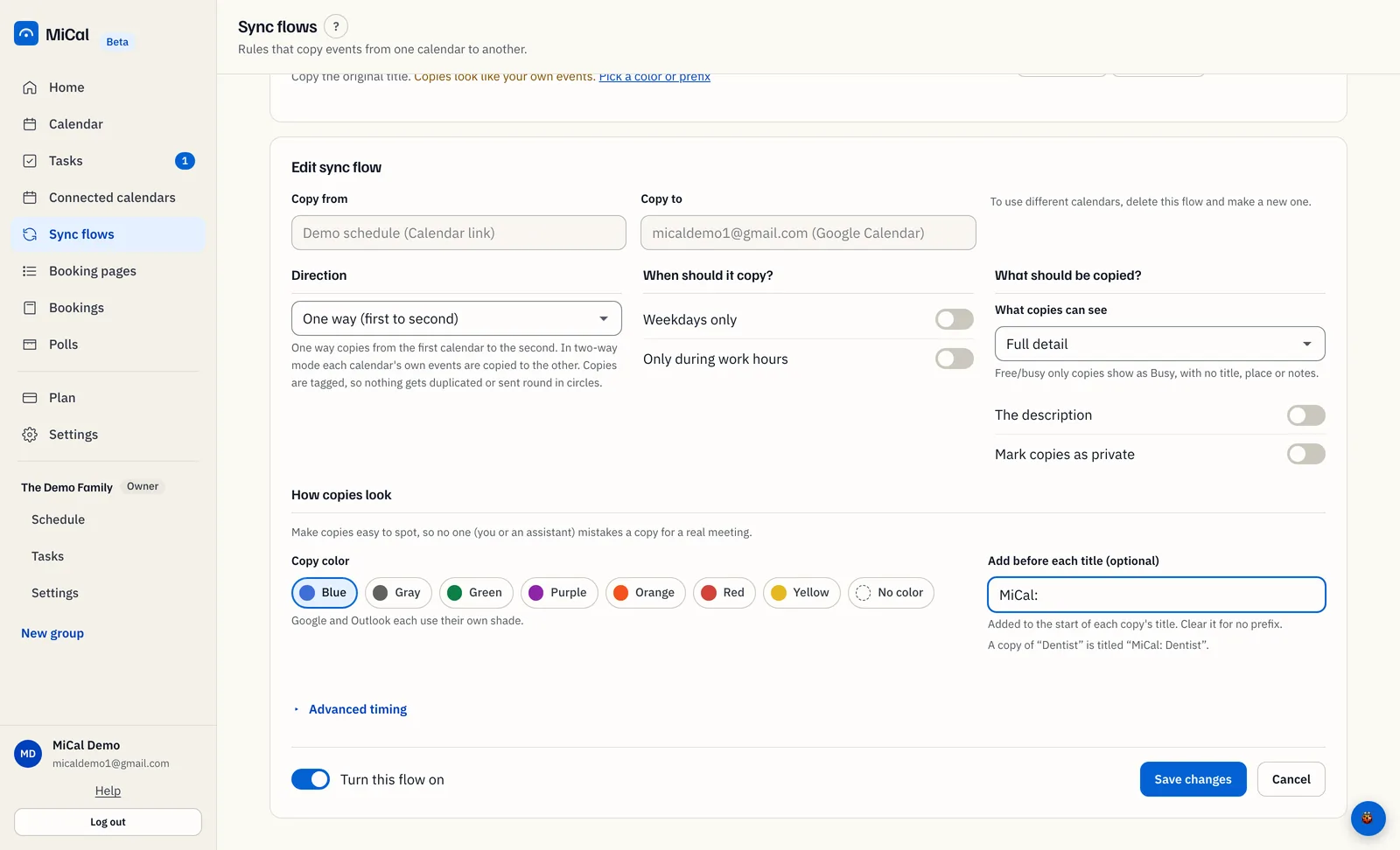
In Add before each title (optional), type the text to put in front of every copy's title. It can be up to 40 characters. The line under the field shows the result, for example: A copy of "Dentist" is titled "MiCal: Dentist".
Select Save changes.
Notes
New flows start with Blue and the prefix
MiCal:. A flow made before colors existed keeps No color and an empty prefix until you pick one.Changing the color or the prefix updates the flow's existing copies on the next sync. If you do not touch the color, the flow keeps the color it has.
Apple Calendar ignores copy colors. For an iCloud calendar, the prefix is what makes copies stand out.
If copies look like your own events
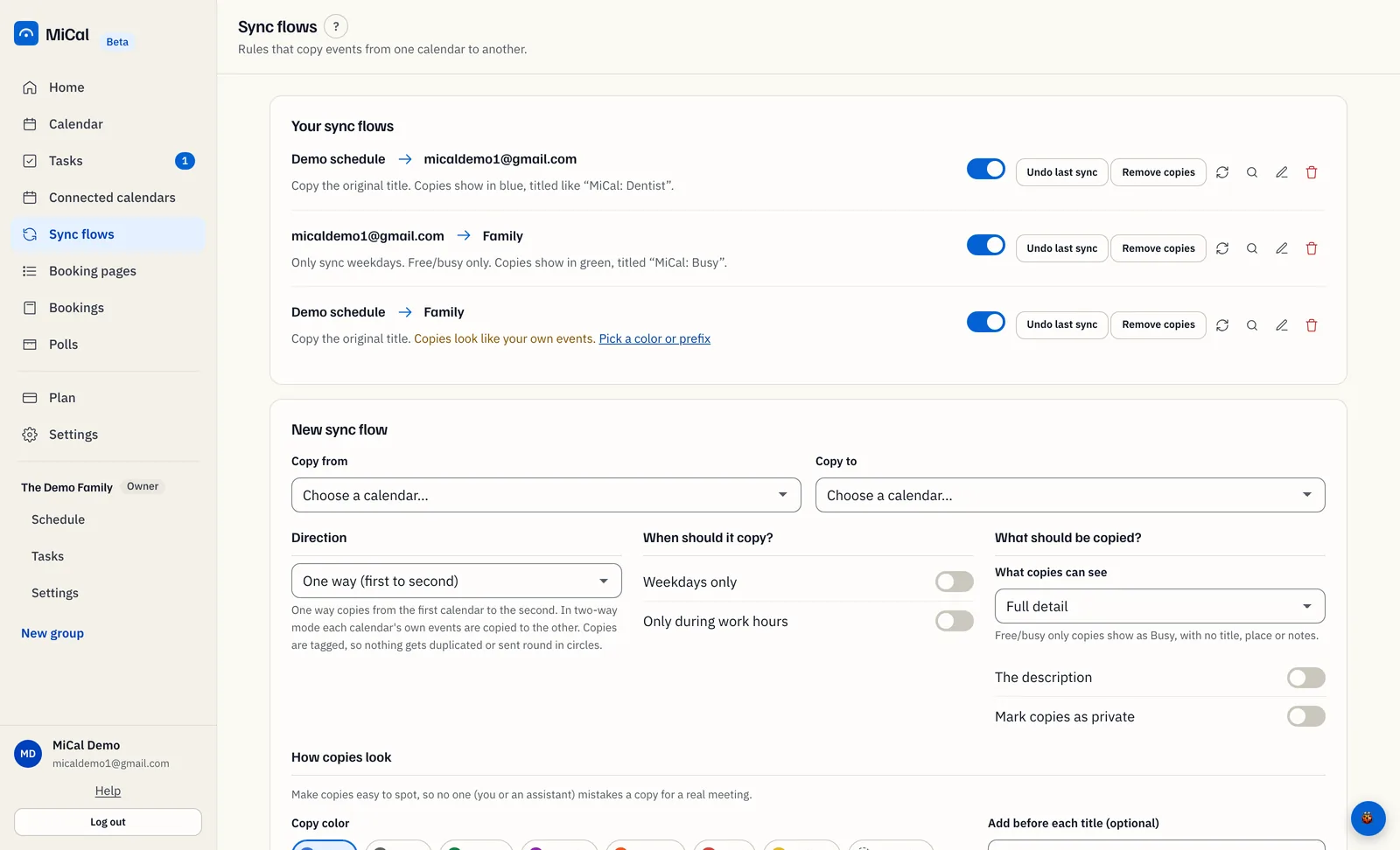
A copy with no color and no prefix looks exactly like an event you made. MiCal marks that flow on Sync flows with Copies look like your own events.
On that flow, select Pick a color or prefix. The flow opens in Edit sync flow.
Choose a color, type a prefix, or both. Then select Save changes.
No color is fine if you set a prefix. Both empty brings the warning back.
Get colors on Outlook copies
Outlook needs one more permission before it shows a color. Until you allow it, Outlook copies carry an uncolored "MiCal" label. A flow that has a color and copies into Outlook shows a notice on Sync flows until you do.
On Sync flows, find the notice under the flow. Select Reconnect, followed by your Outlook address.
Microsoft asks to let MiCal read and write your mailbox settings. Allow it. MiCal uses this only to add its own label colors, and it leaves categories you colored yourself alone. You return to Sync flows.
The notice goes away, and Outlook shows the copies in the color you chose.
Reconnect from this notice. The Reconnect button on Connected calendars does not ask for this permission. If you pick a color in the flow form for an Outlook calendar that cannot show it yet, the same link appears there.
For other reconnect problems, see Reconnect an account.
Still stuck? Email support@mical.net. Privacy · Terms