Create a group
A group is a shared space for a household or a team. Members share calendars, see a shared Schedule, and can check whether a time works for everyone.
Before you start
You need a Family or Team plan. On Free or Individual, MiCal asks you to upgrade when you try to create a group.
Steps
Open the create dialog.
With no groups yet, select Create a group on Home. It is in the What to do next card, and in the empty Coming up list.
With a group already, select New group at the bottom of the group list in the sidebar.
On a phone, tap More, then New group.
In Name, type a name for the group, at least 2 characters.
Under Who is it for?, choose Family (your household: partner, kids, anyone at home) or Team (people you work with, or a client team). If you pay for a Family or Team plan, the matching choice is already picked. Otherwise Create stays off until you choose.
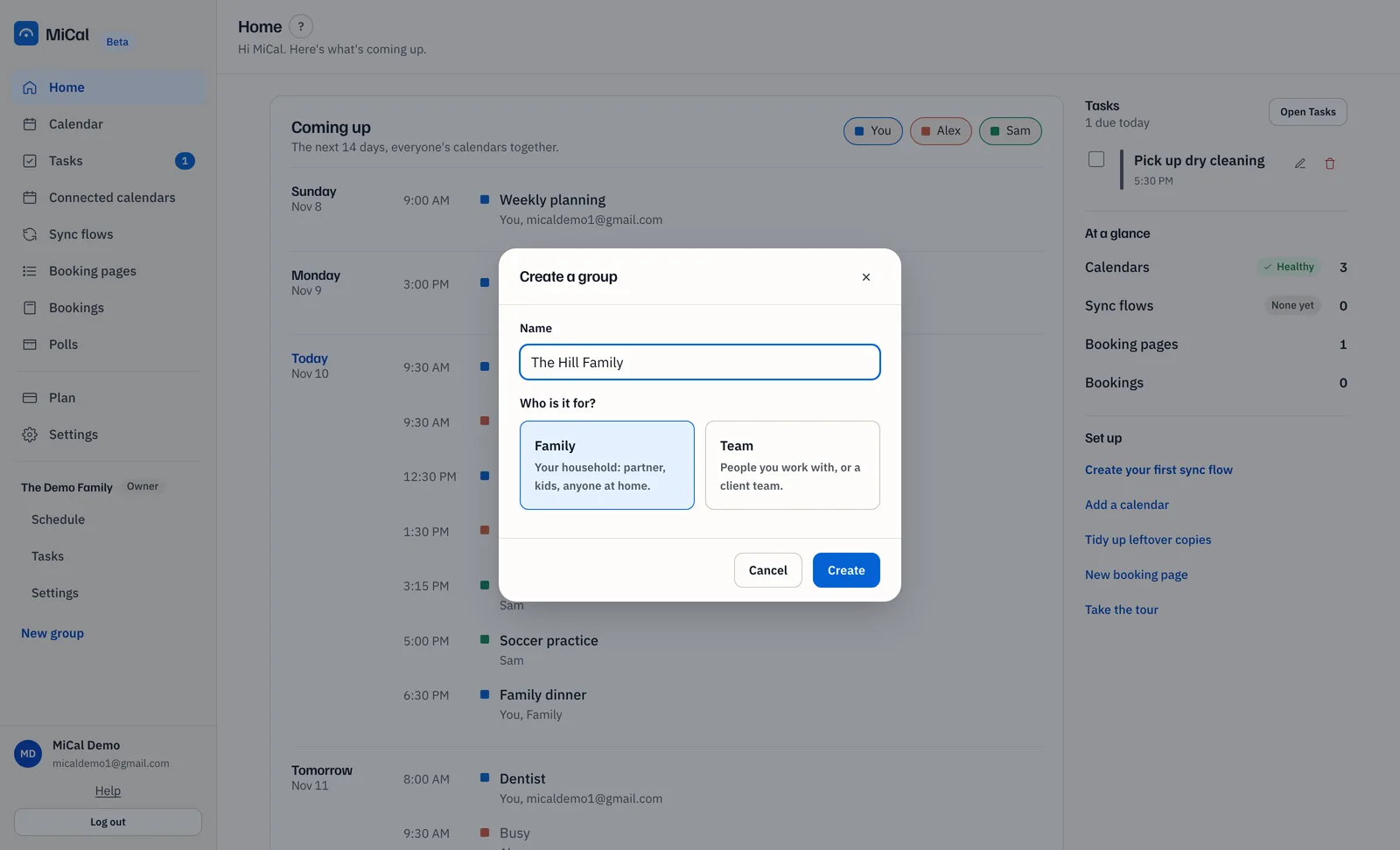
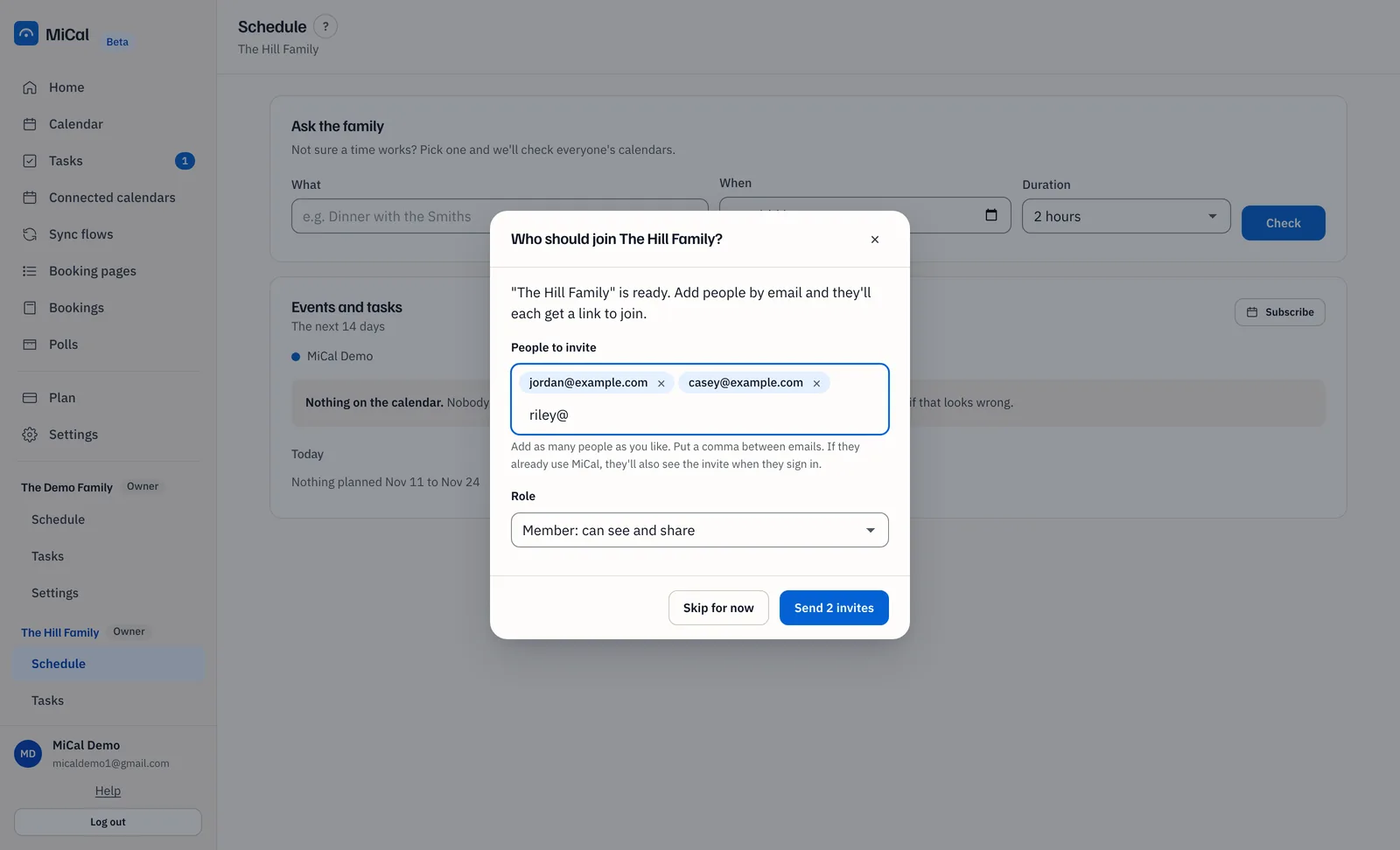
Select Create. MiCal opens the group's Schedule and asks Who should join the group.
Add email addresses under People to invite and select Send invite, or select Skip for now to invite later.
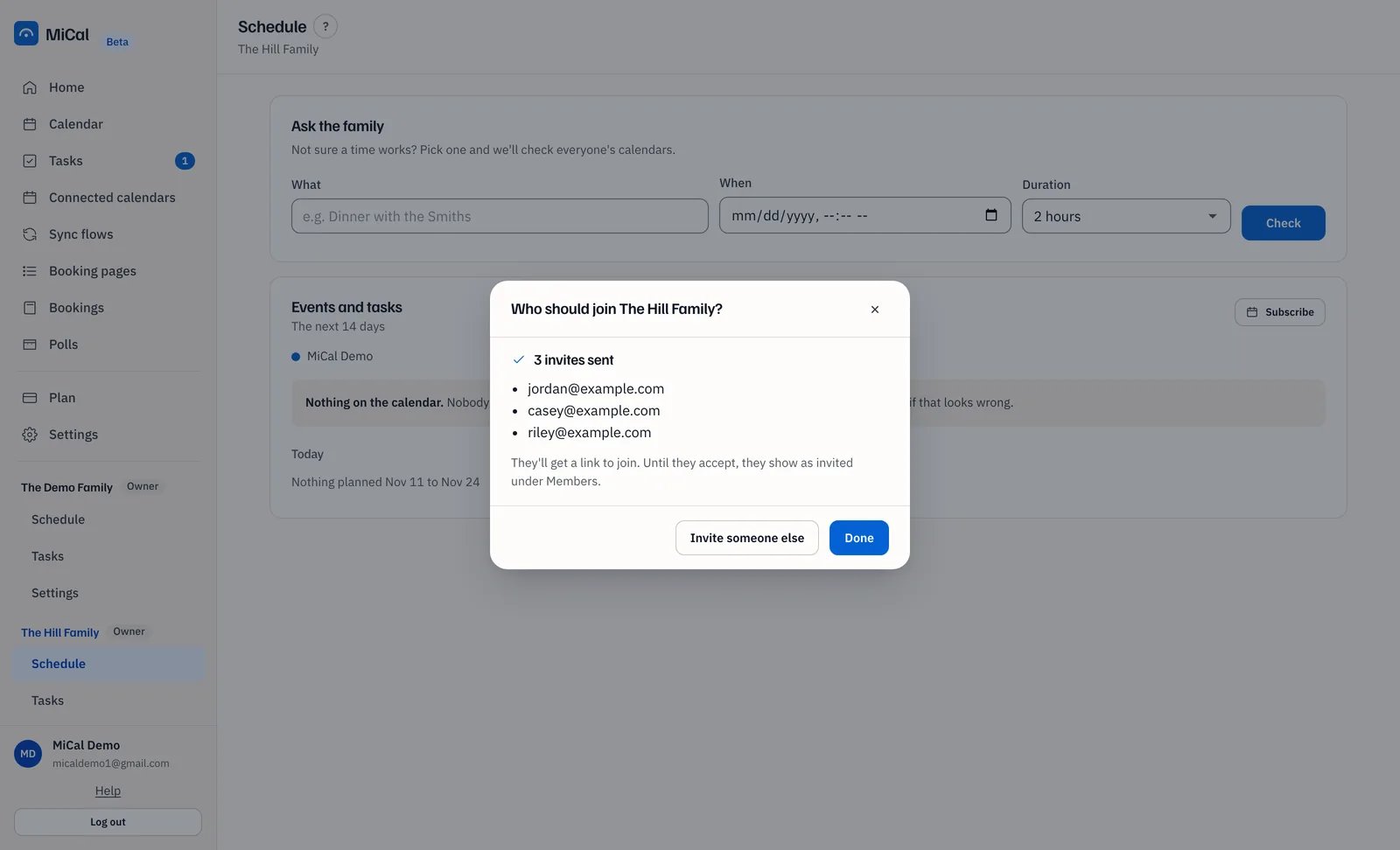
The dialog lists the invites it sent. Select Done, or Invite someone else to add more.
The group now has its own section in the sidebar, with Schedule and Settings. Open Settings to add members, share a calendar, or see how many seats are in use.
Notes
The type changes only the wording, for example "Ask the family" or "Ask the team". Seats come from the plan that pays, not from the type. You can change the type later in group settings.
People you invite show as invited under Members until they accept.
For more on inviting, see Invite people to a group.
Still stuck? Email support@mical.net. Privacy · Terms