Disconnect an account or revoke MiCal's access
Disconnect a Google, Microsoft or iCloud account to end MiCal's access to it. Your MiCal sign-in stays.
Before you start
If a booking page adds events to one of the account's calendars, MiCal stops the disconnect and names the page. Open Booking pages, edit that page, pick another calendar in Calendar, and select Save changes. Then disconnect.
Steps
Select Connected calendars in the sidebar. Each account has its own card.
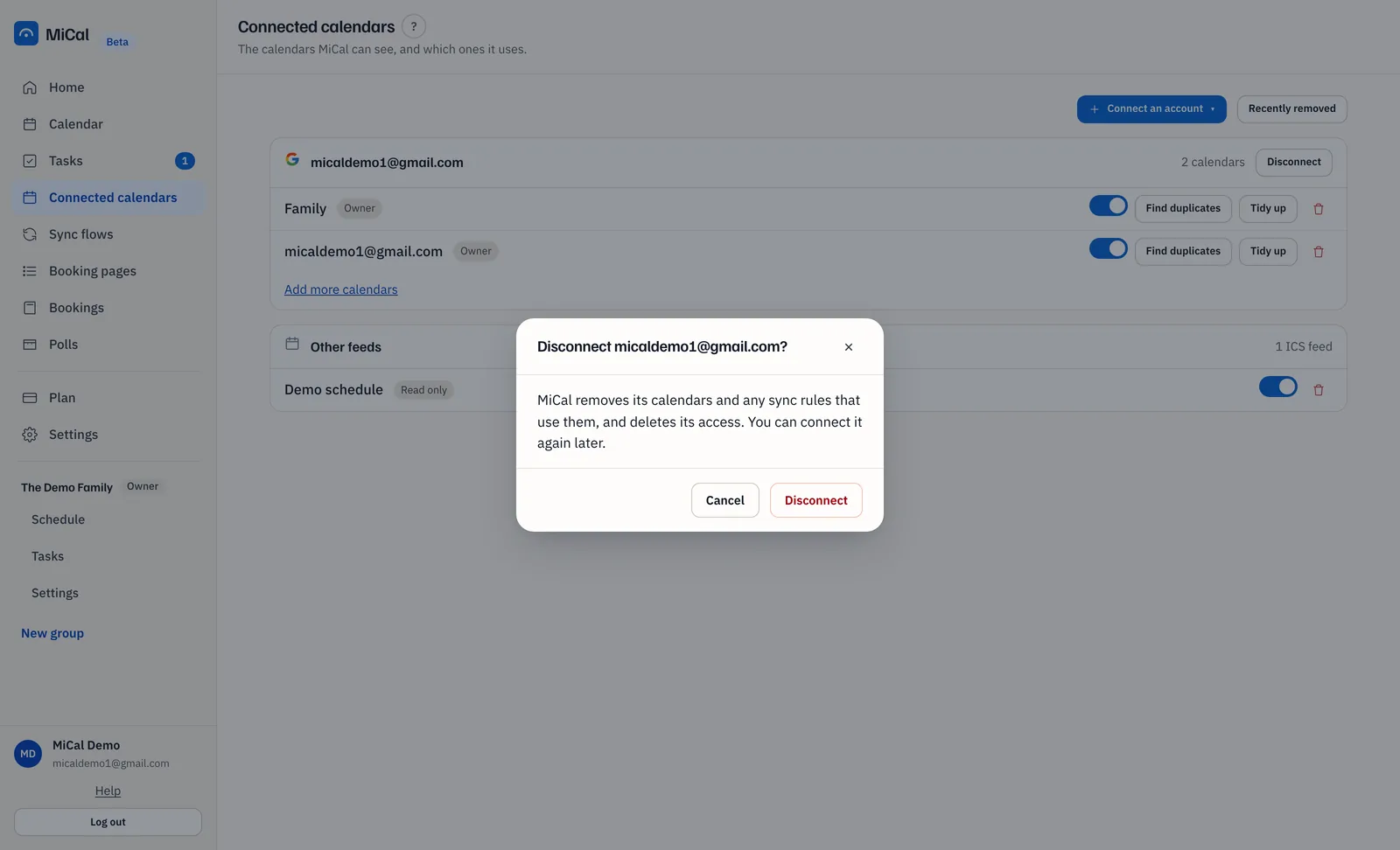
Select Disconnect on the account's card.
Select Disconnect in the dialog.
What disconnecting does
Removes the account's calendars from MiCal, and any sync flow that uses them.
Deletes MiCal's stored access to the account.
Revokes MiCal's access at Google. For Microsoft, remove MiCal yourself (see below). For iCloud, MiCal erases the stored app-specific password; remove it at account.apple.com too.
Leaves events already copied into your calendars where they are.
Connect it again later
Select Connect an account, choose the provider, and allow access. Signing in with the same account at the MiCal sign-in page also reconnects it.
Remove MiCal at the provider
To be sure access is gone, remove MiCal in the account's own settings.
Google: myaccount.google.com/connections
Microsoft, personal account: account.live.com/consent/Manage
Microsoft, work or school account: myapps.microsoft.com
Remove one calendar, or delete your account
To drop one calendar and keep the account, see Turn off or remove a calendar.
To delete your MiCal account and all its data, use Settings, then Delete your account, then Request deletion. MiCal deletes everything, including stored access, within 30 days.
Still stuck? Email support@mical.net. Privacy · Terms