Edit, pause or delete a sync flow
Pause a sync flow, change its rules, or delete it. All of it happens on Sync flows.
Pause or resume a flow
Select Sync flows in the sidebar.
Use the toggle at the left of the flow's controls. Off pauses the flow and keeps its rules. On resumes it. The toggle saves at once. There is no save button.
A flow that is off does not run, not even with Sync now. Turn a flow off instead of deleting it when you only want a break.
Edit a flow
On the flow's row, select the pencil icon (Edit). The form below the list opens as Edit sync flow, filled with the flow's settings.
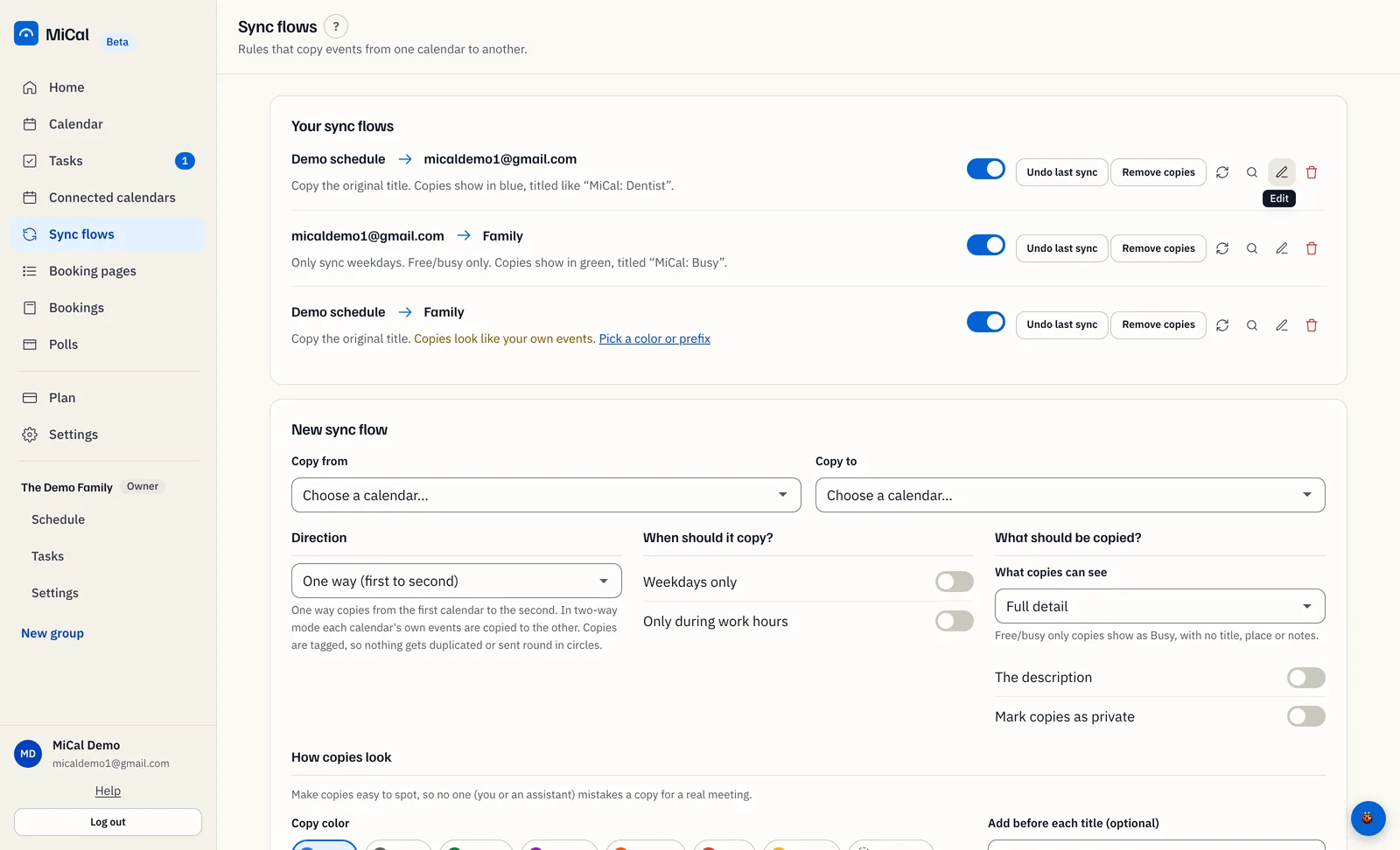
Change what you need: Direction, Weekdays only, Only during work hours, what copies can see, copy color, or title prefix.
Select Save changes. To leave without saving, select Cancel.
Change a flow's direction
In the edit form, open Direction and choose Two ways (both stay current) or One way (first to second). Then select Save changes.
The arrow on the row shows the result: an arrow for one way, a double arrow for two ways. The rules line says "Sync both directions" for two ways. Copies are tagged, so nothing is duplicated or sent round in circles.
Change the calendars a flow copies between
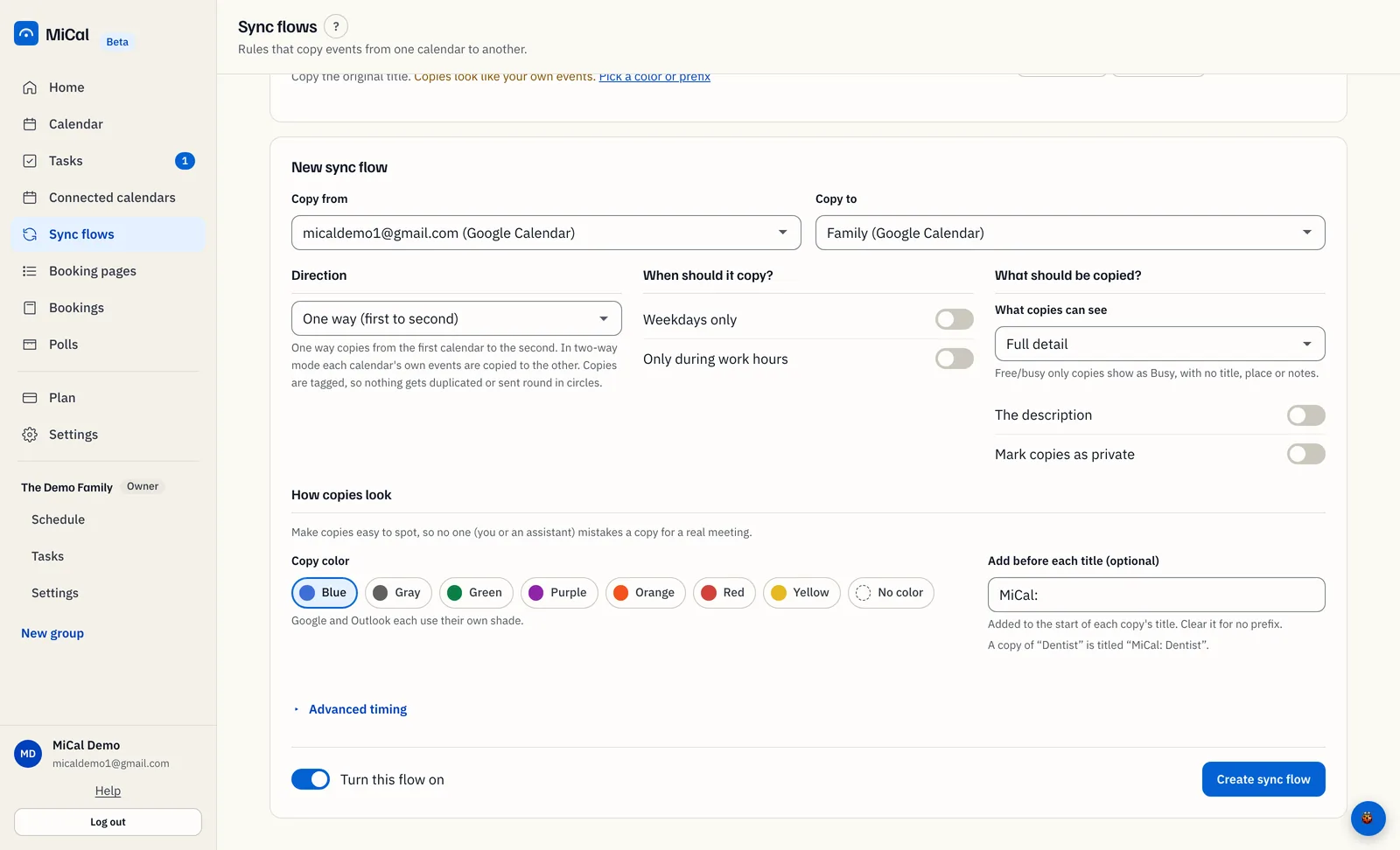
A flow's calendars are fixed. In the edit form, Copy from and Copy to are grayed out. To use other calendars, delete the flow and make a new one.
Delete the old flow, as described below.
Under New sync flow, choose the calendar to copy from in Copy from and the destination in Copy to. Set the rules, then select Create sync flow.
Delete a flow
On the flow's row, select the trash icon (Delete this sync flow).
MiCal counts the copies the flow added and asks what to do:
Delete flow only keeps the copies on your calendar.
Delete flow and copies removes them too.
Cancel stops.
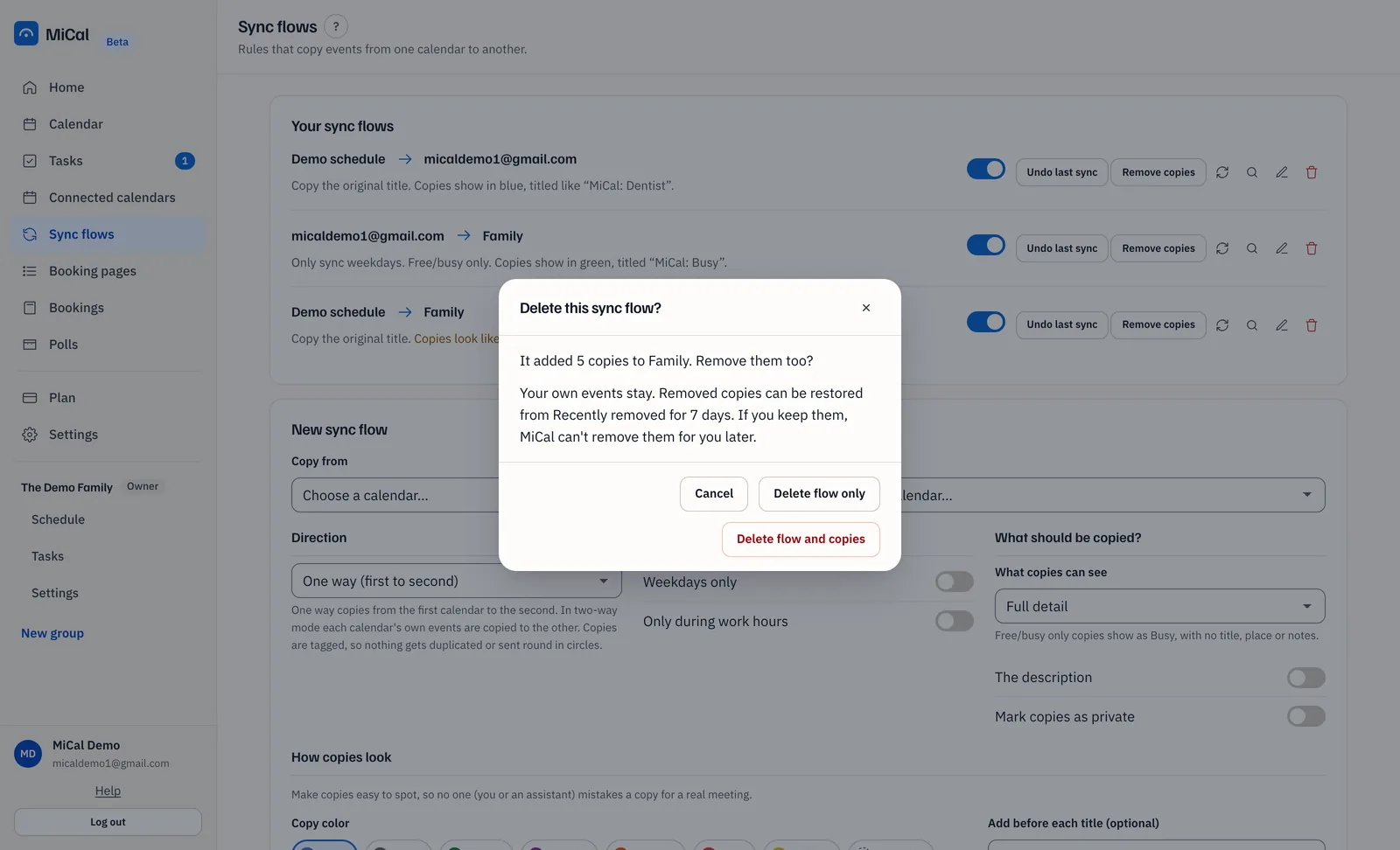
If the flow has no copies, the dialog offers Delete instead. If MiCal cannot reach a calendar, you can only choose Delete flow only. Reconnect the calendar first if you want its copies removed.
Notes
Your own events always stay.
Removed copies can be restored for 7 days. Open Recently removed on Connected calendars.
Copies you keep stay on the calendar. To clear them later, use Tidy up leftover copies.
To remove copies and keep the flow, see Remove the copies a sync flow added.
Still stuck? Email support@mical.net. Privacy · Terms