Join a group from an invite
Open the invite email, sign in with the address it was sent to, and MiCal adds you to the group.
Before you start
The invite email. The invite works for 30 days. If it has expired, ask an owner or admin of the group to resend it.
A Google or Microsoft account for the address the invite was sent to.
Join the group
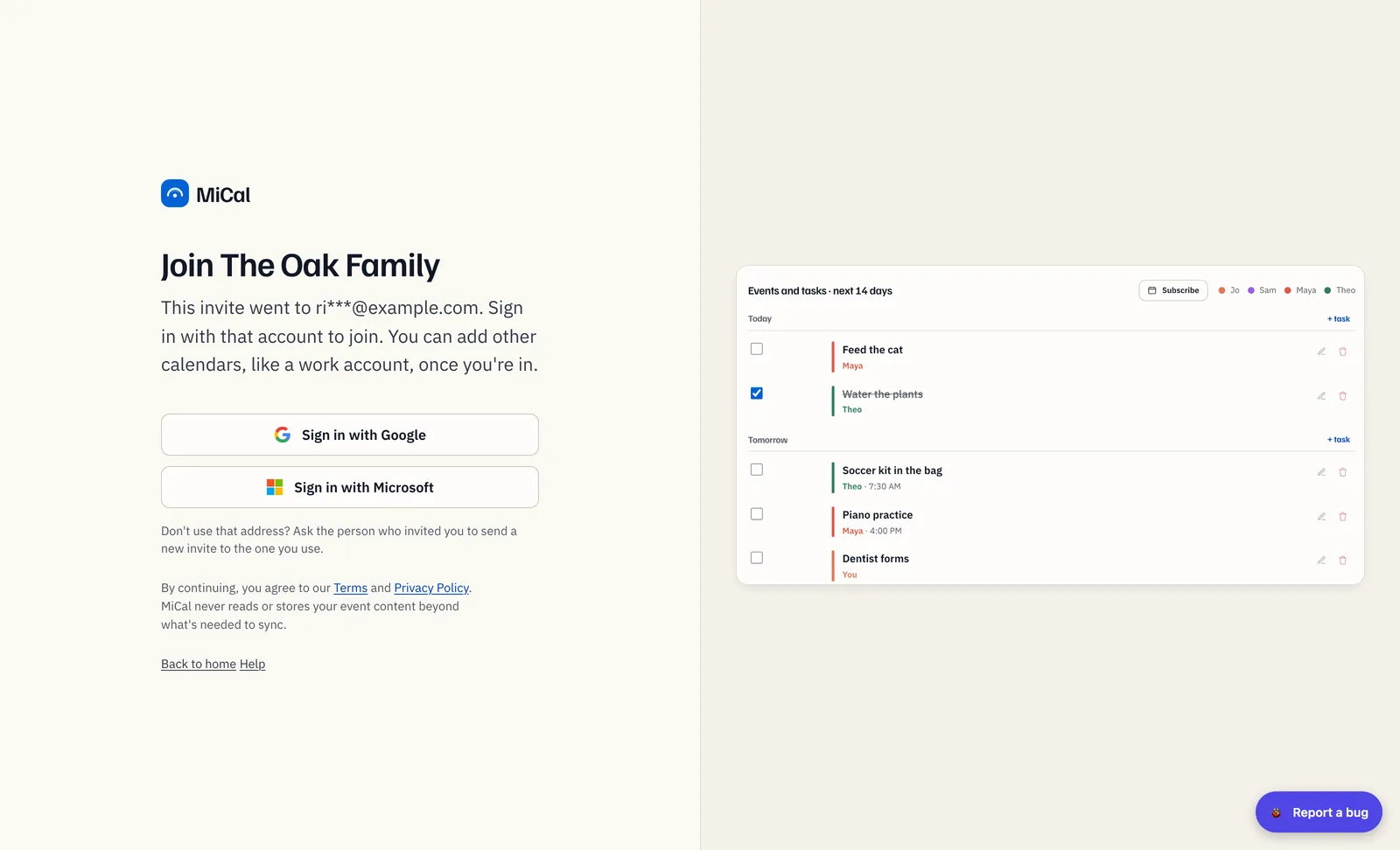
In the email, select Accept invitation. The sign-in page says Join followed by the group name, and shows the invited address with part of it hidden.
Select Sign in with Google or Sign in with Microsoft. Use the account for that address.
When sign-in finishes, MiCal adds you to the group. On a computer, you land on the group's Schedule. The group stays in the sidebar under its name.
If you are already in the group, MiCal tells you so and takes you there.
The invite went to a different address
If you are signed in to MiCal as another account, MiCal shows This invite is for another account. It names the group and the invited address with part of it hidden. Choose one of these.
Connect that account. Approve access in Google. You stay signed in as you are, MiCal adds you to the group, and both accounts show in your calendars.
Sign out and sign in with that address. Pick Sign in with Google or Sign in with Microsoft for that address. MiCal brings you back to the invite.
Not now. Closes the box. The invite stays valid.
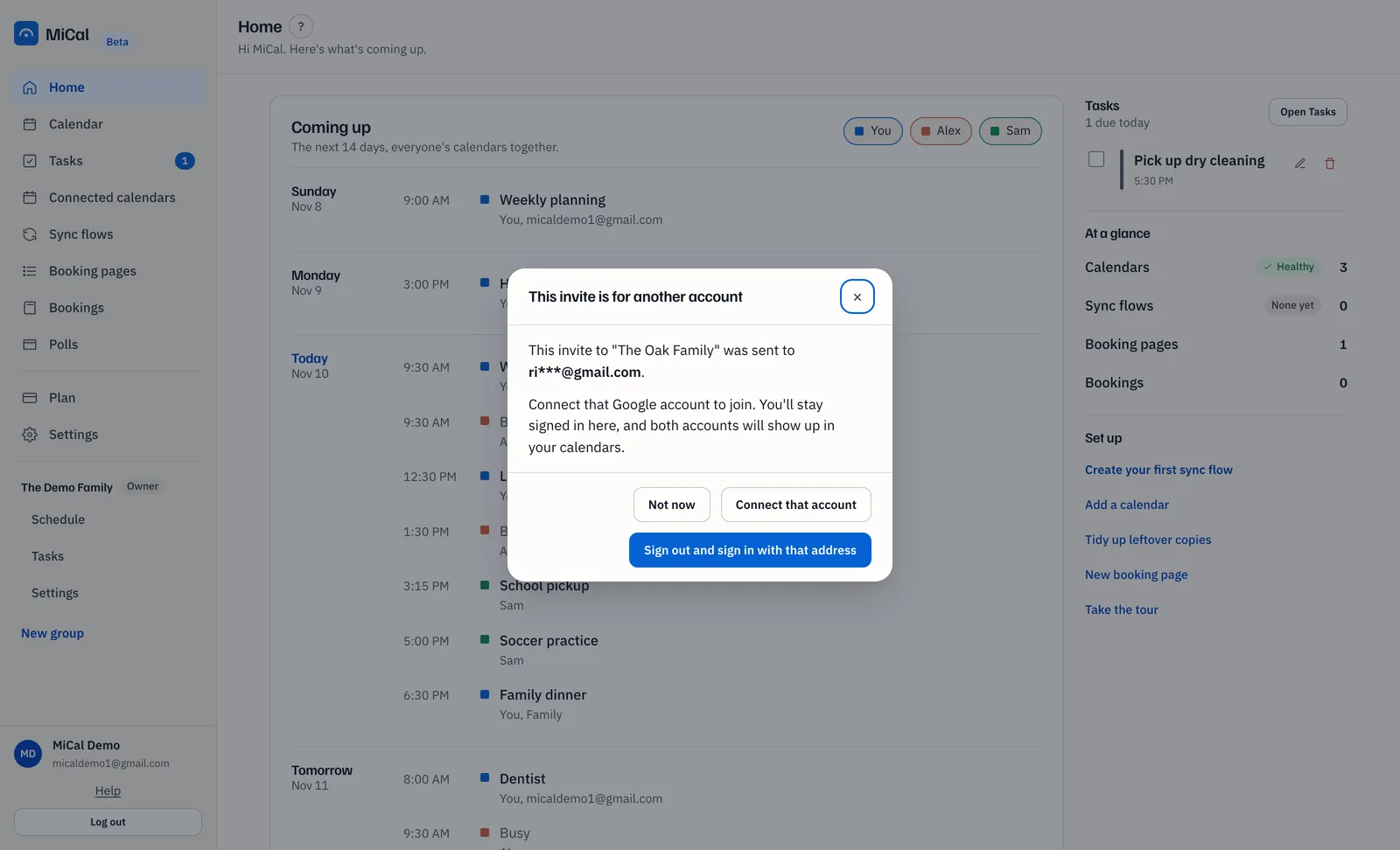
Connect that account only appears when the invited address is a Google address with no MiCal account of its own. If it already has one, sign in with it instead.
You opened the invite inside Facebook, Instagram or Messenger
Google does not allow sign-in inside those apps, and your invite does not carry over if you switch partway through. The sign-in page shows Open this page in Safari or Chrome first.
Tap the ••• or ⋮ menu and choose Open in browser. It may say Open in Safari or Open in Chrome.
If there is no such choice, tap Copy link on the notice. Paste the link into Safari or Chrome.
Sign in there with the invited address.
The notice only appears inside those apps. In Safari or Chrome the page goes straight to sign-in.
Connect your calendars
In the left menu, select Connected calendars. The account you signed in with and its main calendar are already listed.
Select Connect an account, then Choose calendars to import. To add a second account, such as a work Outlook, choose Google or Microsoft in the same menu.
Calendars not yet imported are ticked. Clear any you do not want, then select Import selected.
The group only sees calendars you share with it. Set that in the group's Settings. See Share calendars with a group.
Notes
An invite sent to a Microsoft work address also needs a verified Google account for that address before MiCal accepts it.
Use the address the invite went to. A different account makes a separate MiCal account.
A read-only calendar link (ICS feed) cannot be shared with a group.
Still stuck? Email support@mical.net. Privacy · Terms