Manage group members and roles
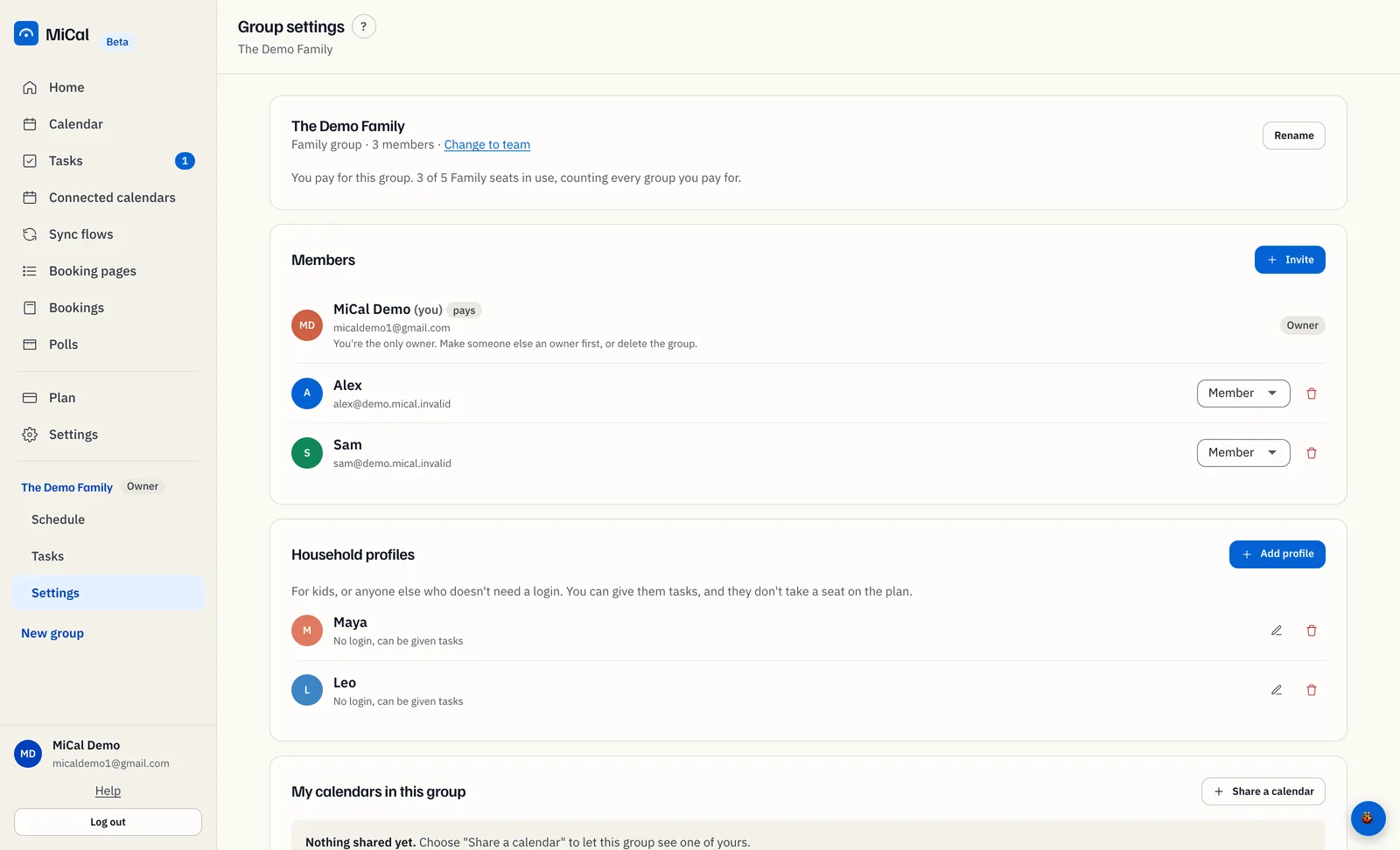
The Members card in a group's settings is where you change roles, remove people, and leave a group.
Roles
Member can see and share calendars in the group.
Admin can also invite people and remove members.
Owner can do everything an admin can, and also change roles and remove other owners.
Only owners can change roles. Admins and owners can invite and remove.
Open the Members card
In the sidebar, select Settings under the group's name. The Members card lists everyone, with controls on each row.
Change a role
Open the role menu on the person's row and choose Member, Admin, or Owner. The change applies right away, and you see "Role updated." You can't change your own row or the row of the person who pays for the group.
Remove a member
Select the trash icon (Remove member) on the person's row.
In Remove this member?, select Remove. They lose access right away.
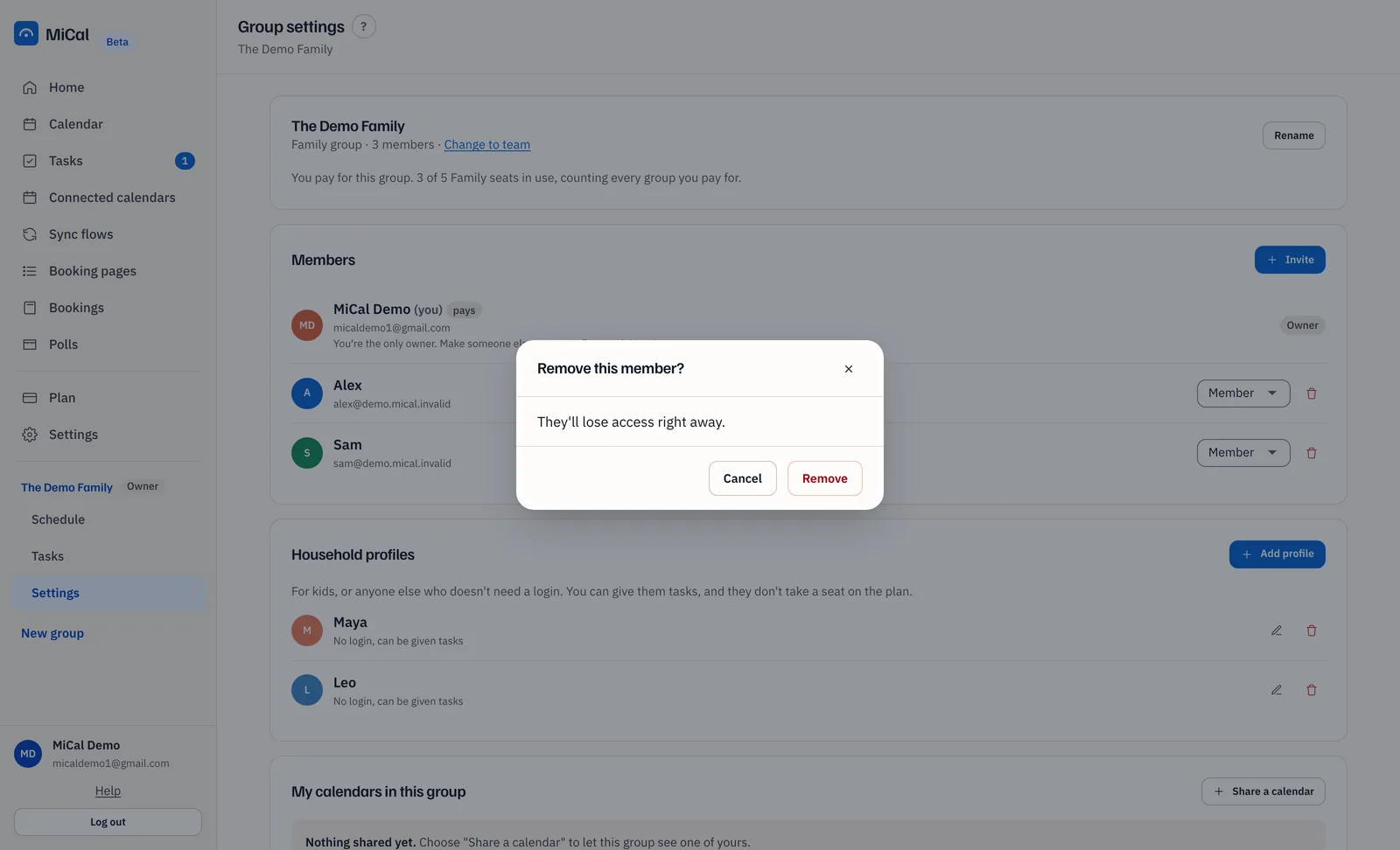
Removing someone also clears the calendars they shared with the group and their settings for it. If you invite them again, they start with nothing shared. Their tasks in the group are unassigned. Their seat is freed.
Leave a group
Select Leave on your own row, then Leave group. You lose access to the group's shared calendars. If you are the only owner, there is no Leave button. Make someone else an owner first, or delete the group.
Invites
Invite people with Invite on the same card. Each person can send at most 50 invites a day. For resending or canceling, see Resend or cancel an invite.
Notes
A group always has an owner. The last owner can't be removed or demoted.
The person who pays for the group, marked pays, can be removed or demoted only by themselves. If the payer steps down, nobody pays until an owner chooses Use my plan.
Only an owner can remove another owner.
On a phone, tap Family, then Sharing and group settings to reach the same page.
Still stuck? Email support@mical.net. Privacy · Terms