Resend or cancel an invite
An invite stays under Members until the person accepts. You can send it again, or withdraw it.
Before you start
You are an owner or admin of the group. Only they can see pending invites.
Find the invite
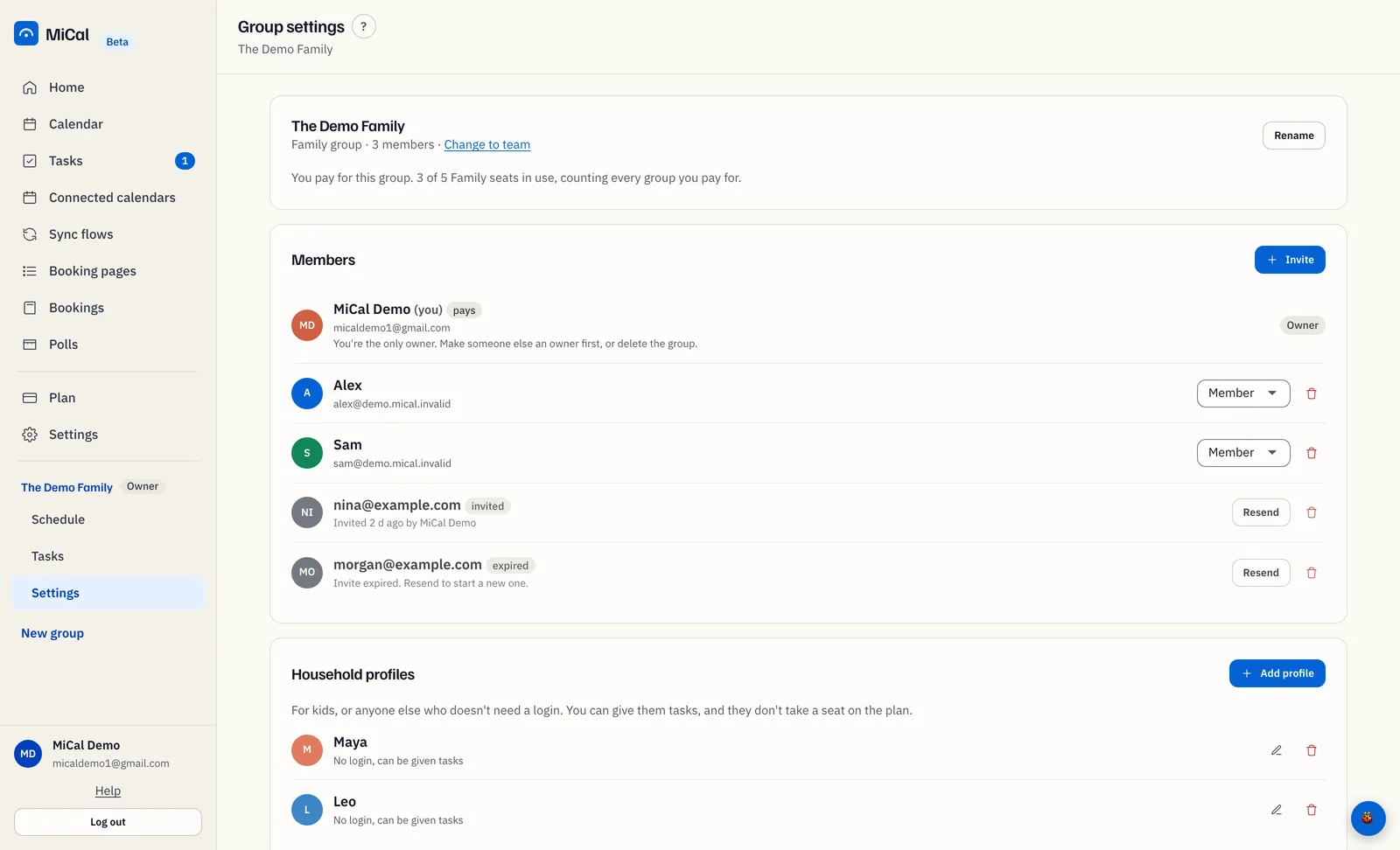
In the sidebar, select Settings under the group's name. Pending invites are on the Members card, marked invited. An invite that lapsed is marked expired.
Resend an invite
Select Resend on the invite's row. MiCal emails the address a new link. The link in the earlier email stops working, and the 30 days start over. An expired invite is resent the same way.
On a phone, tap Family. Pending invites are under Invited, with Resend and Cancel invite.
Resending needs a free seat in the group, like a new invite does.
Cancel an invite
Select the trash icon (Cancel invite) on the invite's row.
In Cancel this invite?, select Cancel invite. Select Keep it to leave the invite in place.
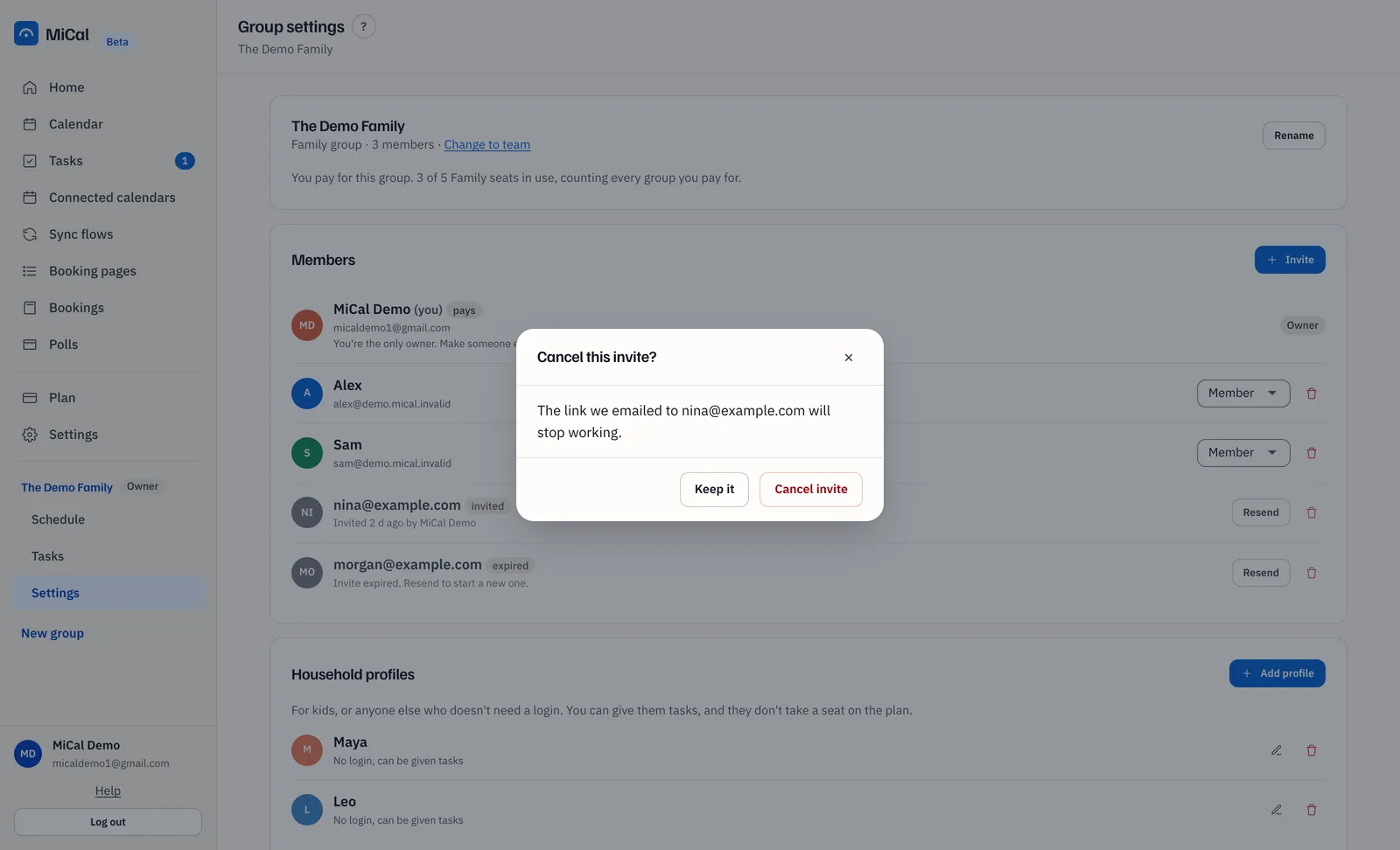
The row disappears and the emailed link stops working. Expired invites can be canceled the same way. Canceling never removes someone who has already joined.
If the invite never arrived
Ask the person to check every folder, including spam, for an email from MiCal.
Check the address for typos. The invite works only for the exact address you entered.
Select Resend.
If MiCal can't send the email, the Invite dialog shows the link with a Copy button. Send that link to the person yourself, by any channel.
The invited person opens the link and signs in with Google or Microsoft, using the address you invited. If they sign in with a different address, MiCal says the invite was sent to another address.
Polls are different. People vote on a poll without an account. See Create a meeting poll.
Still stuck? Email support@mical.net. Privacy · Terms